Correspondence Module
The Correspondence module in BINU ERP is designed to help organizations register, manage, and archive official communication with external entities such as tax authorities, banks, and partner companies. It provides a structured and secure environment for tracking both incoming and outgoing letters, ensuring that all critical correspondence is properly recorded and accessible when needed.
Accessing the Module
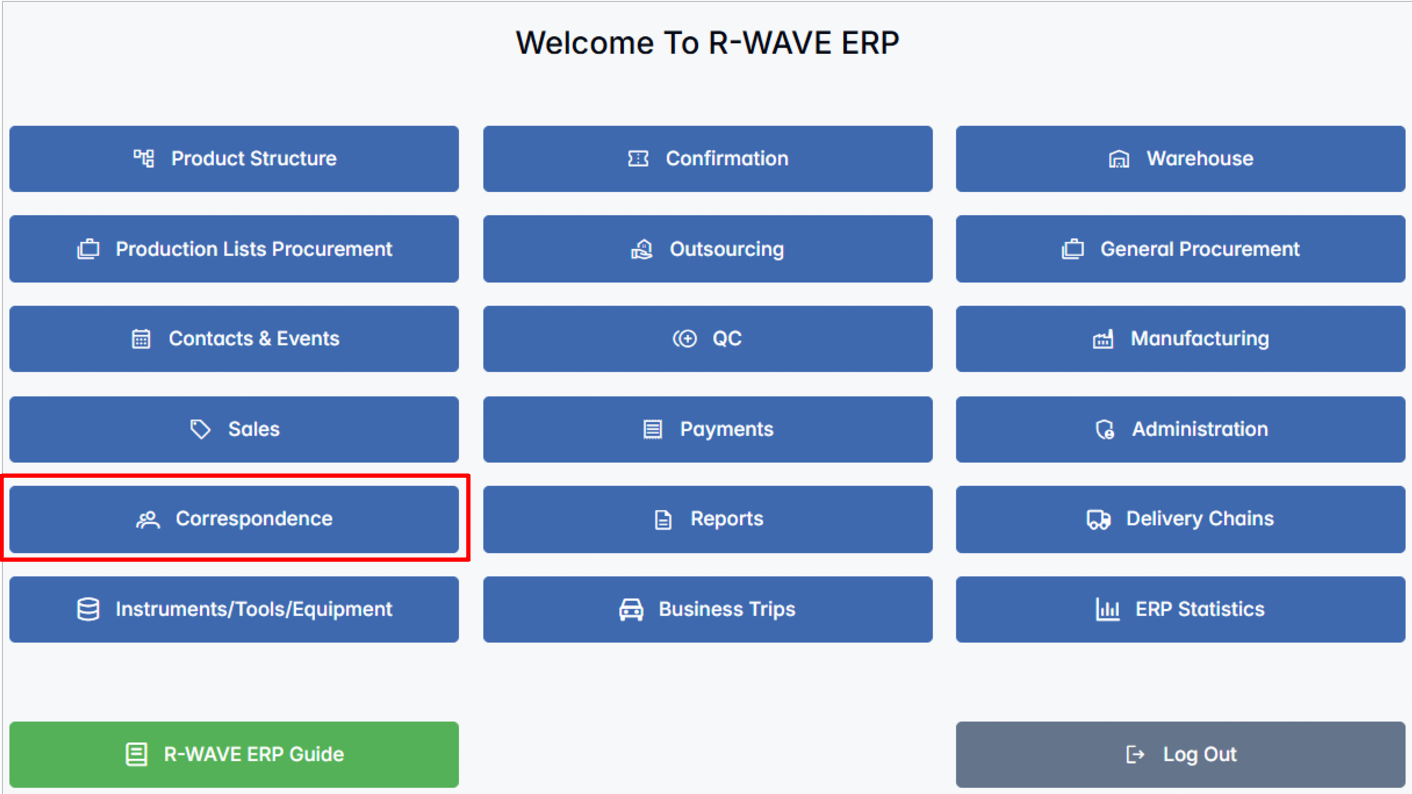
You can access the Correspondence module directly from the main menu of the ERP system. Once opened, you will be directed to the dashboard where all registered correspondence is displayed, categorized into two main types:
- Incoming Correspondence – letters or documents received by your organization.
- Outgoing Correspondence – letters or documents sent from your organization.
From this dashboard, users can filter, review, create, and edit correspondence records, attach supporting files, and track the flow of documents across departments.
BINU ERP Guide
To support user navigation and clarity, BINU ERP includes a built-in contextual help system in the form of a pop-up guide window. This feature is available across different modules, including Correspondence, and is designed to help users understand where they are in the system and how to use the current section effectively.

Purpose
The ERP Guide window helps users by:
- Showing where you are within the system (module context and current section).
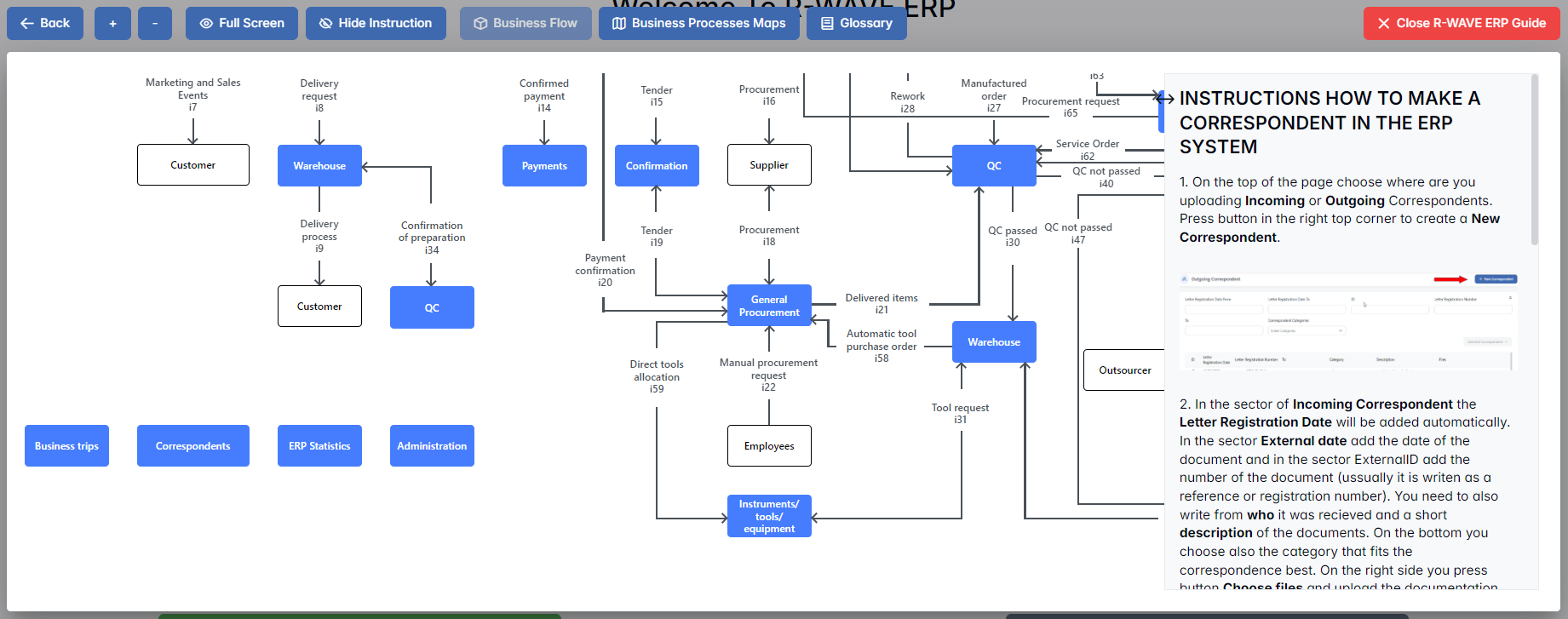
- Providing a visual schema of your company’s business flow, helping you understand how the current module fits into the larger operational structure.
- Offering a quick-reference instruction panel with the main actions and functions available in the current tab (e.g., creating companies, filtering, scheduling events).
Layout and Content
When opened, the ERP Guide window is divided into two main areas:
- Left Side — Business Flow Map
This section displays a structured diagram of your company's processes and how the current module connects to others (e.g., CRM, Procurement, Sales, HR). It visually highlights your current position in the overall ERP environment. - Right Side — Functional Overview
Provides a concise, bullet-style instruction list describing the key operations available in the current module/tab.
Top Bar Options
At the top of the ERP Guide window, you’ll find two optional tools for deeper understanding:
- Business Processes Maps – Opens a full interactive view of your organization’s process structure.

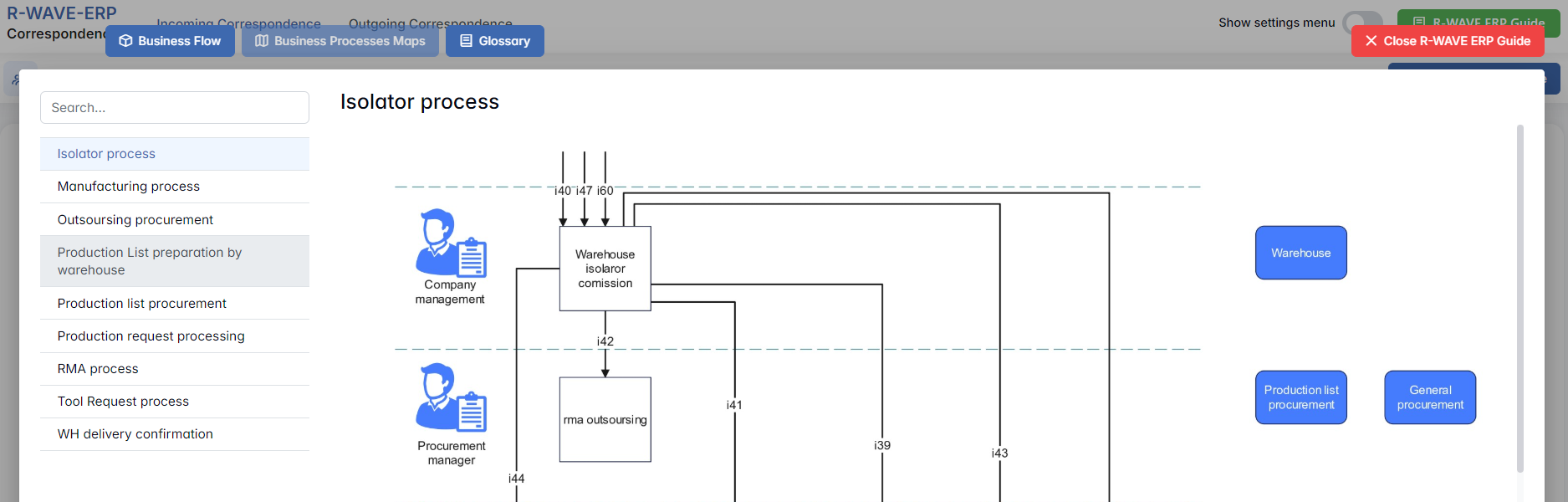
- Glossary – Provides definitions and descriptions of key terms and field labels used in the ERP interface.


The ERP Guide window can usually be opened via a dedicated icon or help button (often located in the upper right corner of the screen). It is non-intrusive and can be closed or reopened as needed, allowing users to stay focused without losing their place.
Working with the Correspondence Module
Working with the Correspondence Module
The Correspondence module in BINU ERP is built to streamline the handling of official communications within an organization. It helps register, store, and manage both incoming and outgoing letters from and to tax authorities, banks, partner organizations, and other external entities. By using this module, companies can maintain a well-documented history of correspondence and ensure that no important communication is lost or overlooked.
Default View and Navigation
When you enter the Correspondence module, the Incoming Correspondence page is opened by default.
At the top of the screen, right next to the module logo, you will see two navigation sections:

- Incoming Correspondence
- Outgoing Correspondence
You can easily switch between these two views by clicking on the corresponding button. The page content will update accordingly.
Incoming Correspondence
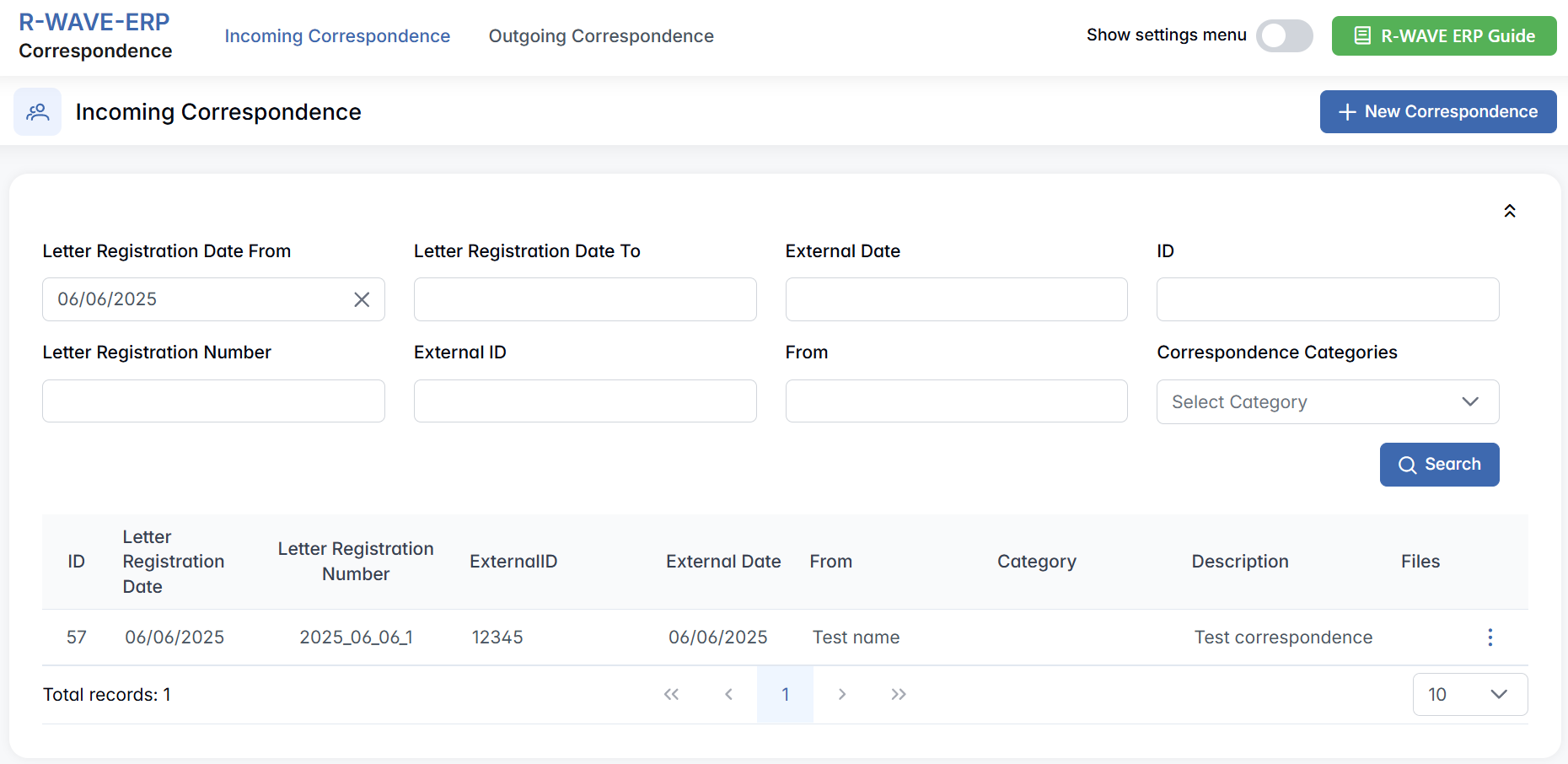
The Incoming Correspondence section displays all letters or documents received by your organization. This view allows you to track when a letter was received, from whom, and what type of correspondence it was.
Filter Panel
To locate a specific entry or group of entries, use the filter panel at the top of the page. The available filters include:

- Letter Registration Date From / To – Filter by the internal registration date range.
- External Date – Date on the original document or letter.
- ID – Internal system ID of the correspondence.
- Letter Registration Number – Assigned registration number within your company.
- External ID – The original ID number from the sender.
- From – The organization or individual who sent the correspondence.
- Correspondence Categories – Filter by predefined correspondence types.
- Search – Click to apply the selected filters and update the list below.
Correspondence Table
Below the filters, the page shows a list of all incoming letters matching your criteria.
Creating Incoming Correspondence
To register a new incoming letter or document in the system, follow the steps below. This process ensures that all incoming communications are properly archived, traceable, and accessible to authorized users.
- Open the Incoming Correspondence Page
Navigate to the Correspondence module from the main menu. By default, the Incoming Correspondence view is opened. If you are not on this page, click the Incoming Correspondence button at the top of the screen. - Click +New Correspondence
 A pop-up window titled Create Correspondence will appear.
 - Fill in the Correspondence Details
In the pop-up form, enter the following information: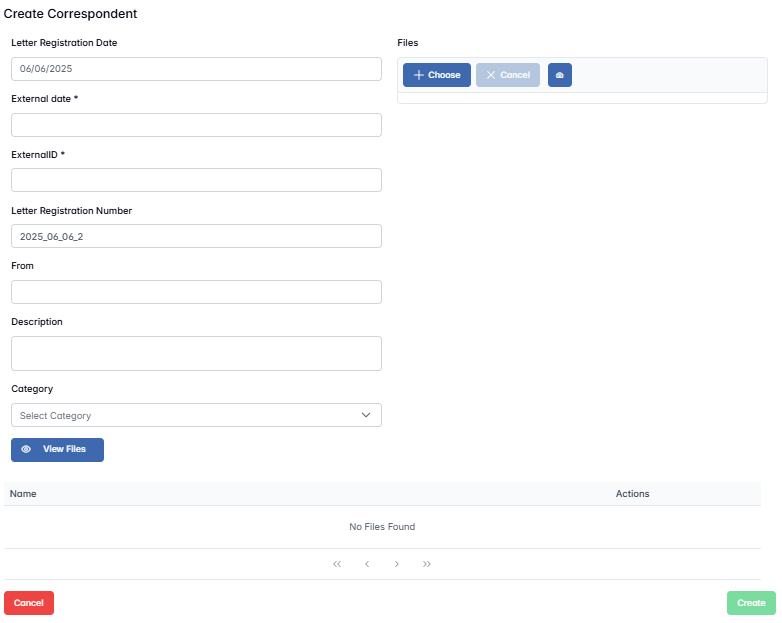
- Letter Registration Date
This field is automatically filled with the current date. It represents the date when the correspondence is being registered in the system.
This date is for internal tracking and cannot be manually changed. - External Date (required)
Enter the date that appears on the original letter or document. This is the official date the document was issued by the external organization or authority. - External ID (required)
Enter the ID or reference number assigned by the sender (e.g., tax authority or bank). This value ensures that the document can be matched or verified against the sender’s records. - Letter Registration Number
This field is generated automatically in the format YYYY_MM_DD_N (e.g., 2025_06_06_3). It combines the current date and an internal order number representing the sequence of correspondence registered on that date. - From
Indicate the name of the organization or person from whom the correspondence was received. - Description
Provide a brief summary or description of the letter’s content (e.g., "Confirmation of tax payment", "Bank statement for May", etc.). - Category
Choose a predefined correspondence category from the drop-down list. These categories are configured in the hidden settings and help classify incoming letters.
- Letter Registration Date
- Attach Files (Optional)
You can upload a digital copy of the letter or any related documents:- Click the Choose button to open your file explorer.
- Select the file from your computer and upload it.
- Uploaded files will appear in the table below with the columns:
- Name – The original name of the uploaded file.
- Actions – Options to download or remove the file (once uploaded).
- If no files are added, the message "No Files Found" will be shown.
- Save the Record
Once all fields are completed and files (if needed) are uploaded, click the Create button to save the correspondence. The record will now appear in the list of Incoming Correspondence and be available for filtering, tracking, and future reference.
Editing or Removing Incoming Correspondence
After a correspondence entry has been created, you may need to update its information or remove it from the system. This can be done directly from the Incoming Correspondence list.
How to Edit or Remove a Record
- Locate the Record
Use the filter panel at the top of the Incoming Correspondence page to narrow down the list of records if needed (e.g., by date, sender, ID, or category). - Open the Options Menu
In the far right column of the row you want to modify, click the three dots (⋯) icon. This opens a small menu with available actions for the selected correspondence.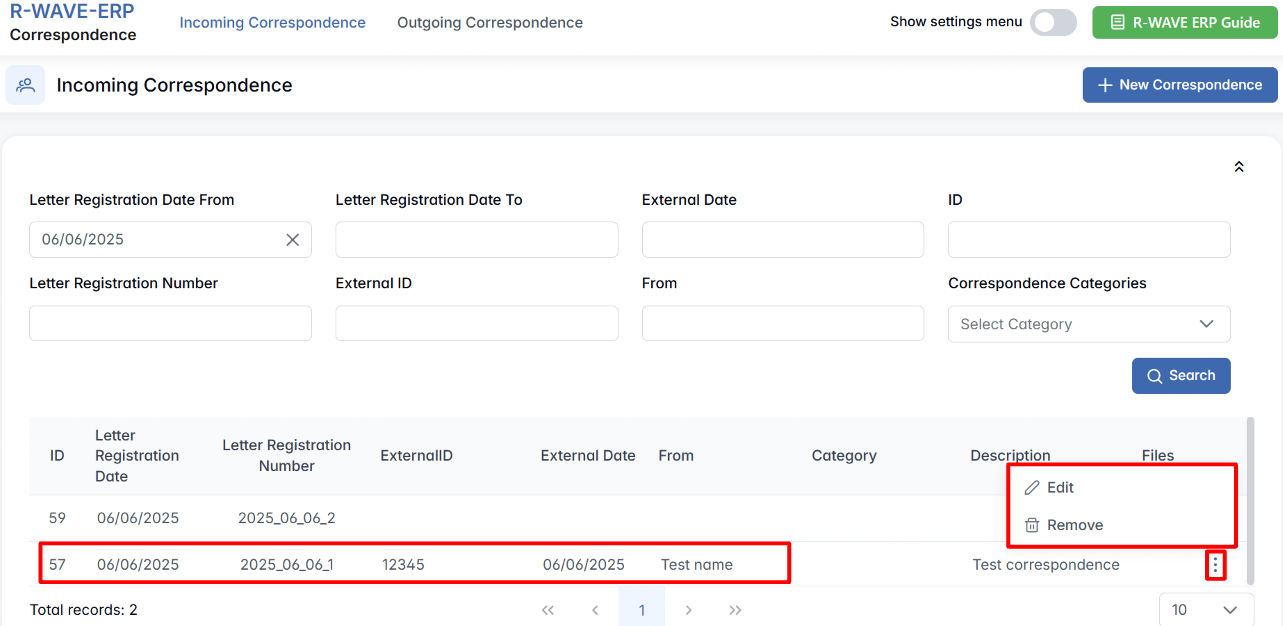
- Choose an Action
- Edit – Opens the Edit Correspondence pop-up window, where you can update any of the previously entered details, such as external date, description, sender, or files.
After making changes, click Edit to apply them. - Remove – Permanently deletes the correspondence record from the system.
Be cautious when using this option, as it cannot be undone.
- Edit – Opens the Edit Correspondence pop-up window, where you can update any of the previously entered details, such as external date, description, sender, or files.
This quick-access menu makes it easy to manage correspondence records directly from the list, ensuring fast updates and streamlined record maintenance.
Outgoing Correspondence
The Outgoing Correspondence section of the module is used to register and track official letters or documents sent from your company to external parties. These may include tax declarations, responses to bank inquiries, partnership notifications, or other types of communication with government institutions, clients, or vendors. By registering outgoing correspondence, your organization ensures that every sent document is archived, accessible, and traceable in the system.
Filter Panel
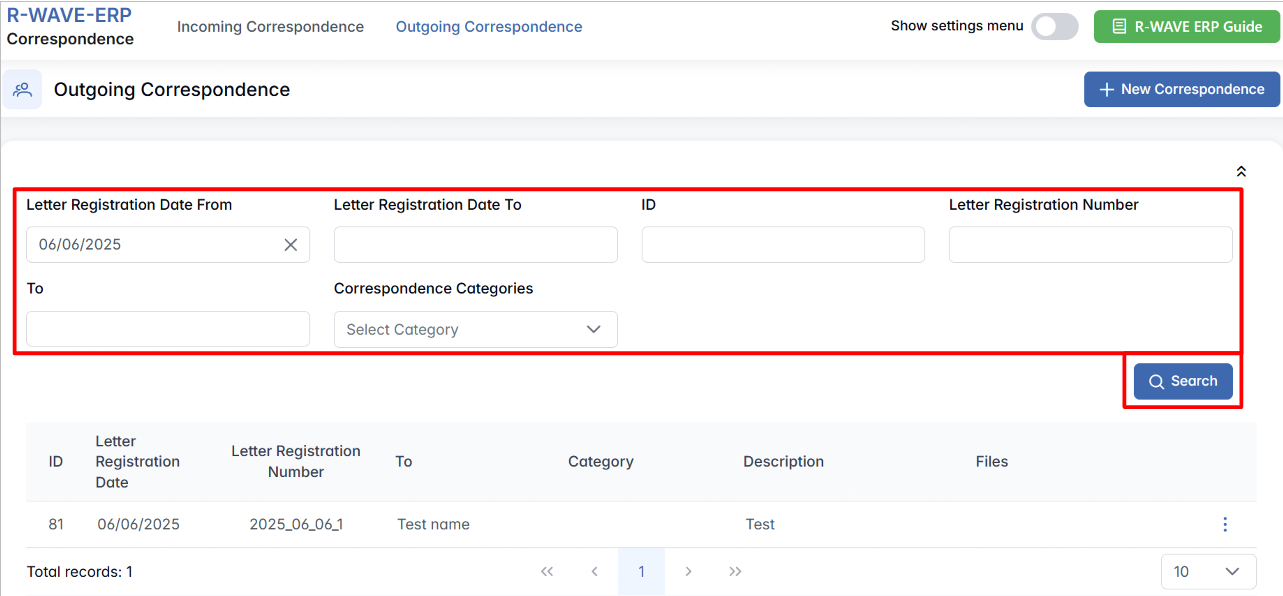
The filter panel at the top of the Outgoing Correspondence page helps you quickly find specific letters based on multiple criteria. Available filters include:
- Letter Registration Date From / To – Filter by internal registration date range.
- ID – Internal correspondence ID assigned by the system.
- Letter Registration Number – Unique outgoing letter number created on registration.
- To – Organization or recipient to whom the letter was sent.
- Correspondence Categories – Classify letters based on predefined types (e.g., Legal, Financial, General).
- Search – Applies the selected filters and refreshes the correspondence list.
Correspondence Table
Below the filter panel, the table displays all outgoing letters matching the applied filters.
Creating Outgoing Correspondence
To register a new outgoing letter or document, follow these steps:
1. Click + New Correspondence
In the upper-right corner of the Outgoing Correspondence page, click the +New Correspondence button. This opens a pop-up window titled Create Correspondence.

2. Fill in the Correspondence Details
Inside the pop-up, complete the following fields:
- Letter Registration Date
This field is automatically populated with the current date. It indicates when the correspondence was created in the system and is used for internal tracking. - Letter Registration Number
Automatically generated in the format YYYY_MM_DD_N (e.g., 2025_06_06_3). This number reflects the date and sequence of registration.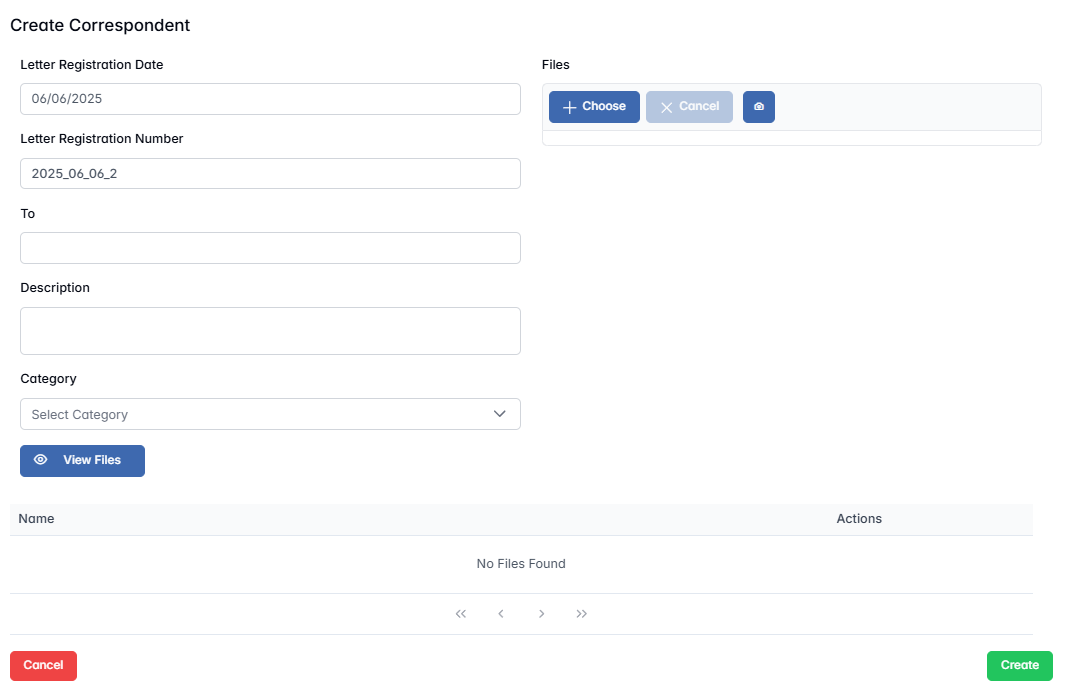
- To
Enter the name of the organization or recipient the letter is being sent to (e.g., "Bank of Slovenia", "Tax Authority"). - Description
Provide a brief summary of the content or purpose of the correspondence (e.g., "Submission of VAT report", "Partnership agreement letter"). - Category
Select the relevant category from the drop-down list of predefined correspondence types (configured via hidden settings). Categories help classify outgoing letters and streamline reporting and filtering.
3. Attach Files (Optional)
If the letter or communication exists in digital form (PDF, scanned image, etc.), you can upload it here:
- Click the Choose button to open your file explorer.
- Select the relevant document(s) from your computer.
- Uploaded files will be shown in the file table with columns for:
- Name – File name as uploaded.
- Actions – Options to download or remove each file.
If no files are uploaded, the message "No Files Found" will appear in the table.
4. Save the Record
Once all fields are completed and files are attached (if needed), click the Create button. The correspondence will be saved and added to the list of outgoing records, fully traceable and filterable within the system.
Editing or Removing Outgoing Correspondence
Just like with incoming letters, outgoing correspondence can be easily updated or deleted:
How to Edit or Remove a Record
- Locate the Record
Use the filter panel if needed to find the relevant outgoing correspondence entry. - Open the Options Menu
In the far-right column of the row, click the three dots (⋯) icon. This reveals available actions.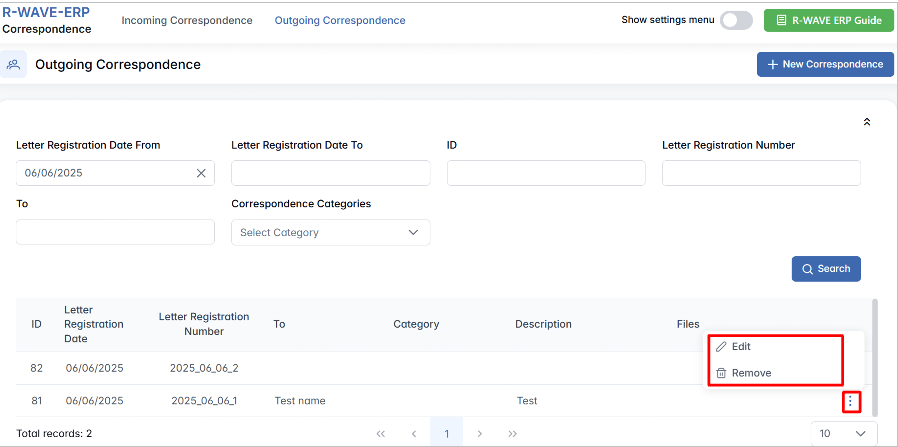
- Choose an Action
- Edit – Opens the Edit Correspondence pop-up window, where you can update recipient details, category, description, or attached files. After changes, click Edit to save.
- Remove – Permanently deletes the correspondence record from the system.
Deletion is irreversible. Only use this action if the record was created in error.
This menu makes it easy to manage your outgoing documents without leaving the main correspondence list.
Hidden Settings in the Correspondence Module
Hidden Settings in the Correspondence Module
To support better organization and classification of official communication, BINU ERP allows you to configure custom Correspondence Categories. These categories help users classify incoming and outgoing letters more accurately during the registration process.
Correspondence Categories are accessible via the hidden settings menu of the Correspondence module. Once activated, you will be able to create, manage, and structure the categories used in both Incoming and Outgoing correspondence.

Incoming Categories Overview
When you open the Incoming Categories section from the hidden settings, you’ll see a table listing all currently defined categories. These categories can represent different departments, communication types, or organizational flows.
Each category is displayed with the following columns:
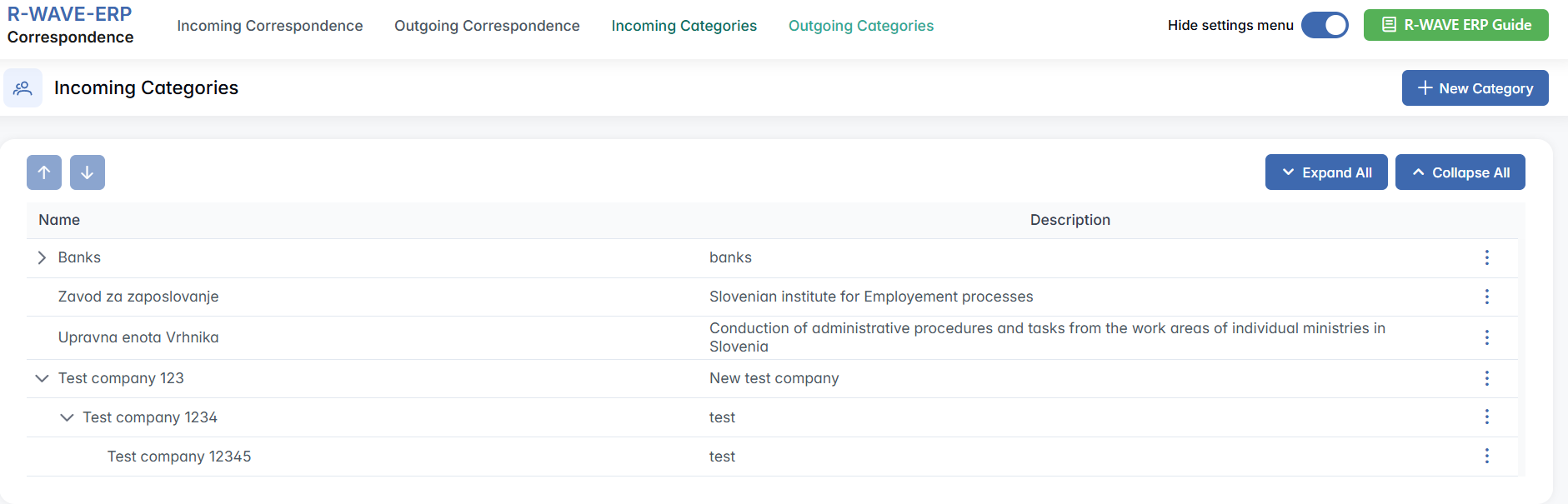
- Name – The title of the correspondence category.
- Description – A short explanation of what kind of correspondence belongs in this category.
Hierarchical Structure
Categories support a nested (hierarchical) structure, meaning you can organize categories and subcategories (e.g., “Finance” as a parent category, with subcategories such as “Tax,” “Invoices,” and “Reports”).
This allows for flexible structuring that matches your company’s communication logic.
Creating a New Incoming Category
To add a new correspondence category:
- Click the +New Category button in the top-right corner.

- A pop-up window titled Create Correspondents Category will appear.
- Fill in the required fields:
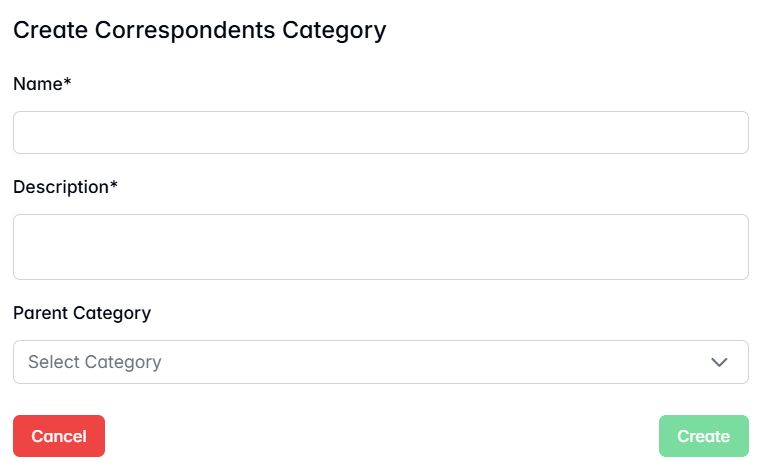
- Name (required) – Enter the name of the category (e.g., "Tax Documents").
- Description (required) – Provide a brief explanation of what this category covers.
- Parent Category (optional) – If this should be a subcategory, select the parent category from the drop-down list. If left blank, the new category will be created at the root level.
- Click Create to save the category.
Once saved, the new category will appear in the table and can be used in the Incoming Correspondence creation form.
Editing or Removing a Category
To modify or delete an existing category:
- Locate the desired row in the table.
- Click the three dots (⋯) at the end of the row to open the actions menu.
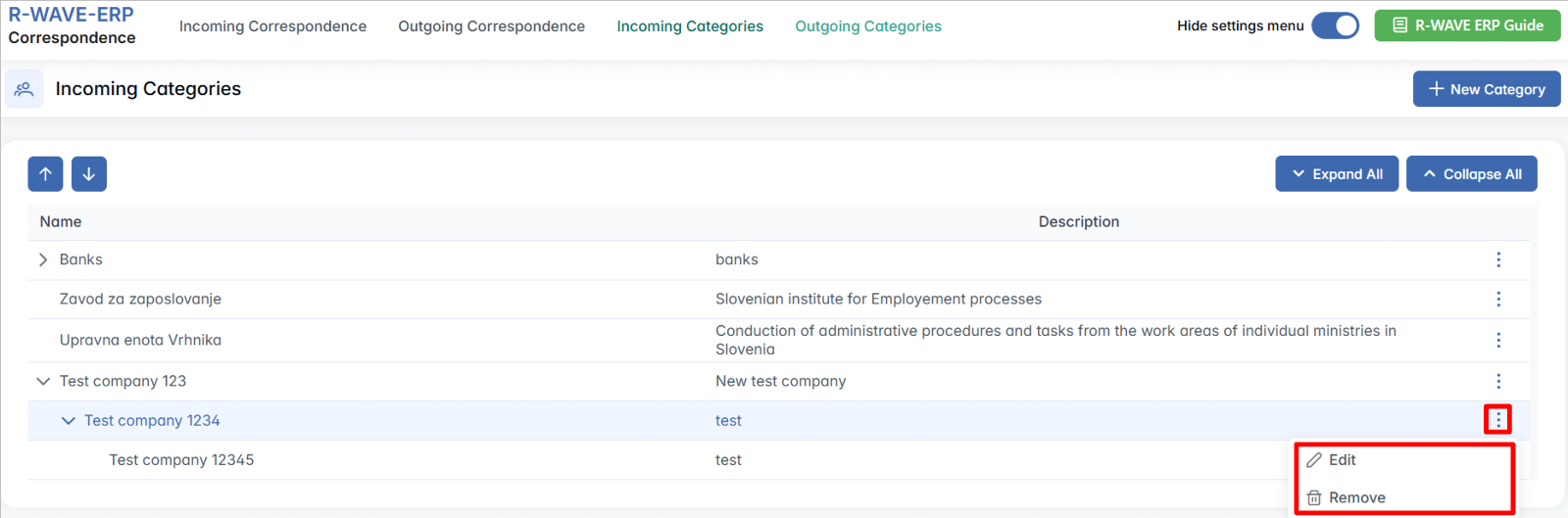
- Choose one of the following options:
- Edit – Opens a pop-up window where you can update the category’s name, description, or parent category.
- Remove – Deletes the category from the system.
Deleting a category will remove it from the drop-down options used when registering correspondence. Be careful not to delete categories currently in use.
Outgoing Categories Overview
When you access the Outgoing Categories section from the hidden settings menu, you’ll see a structured list of all predefined categories used to classify outgoing correspondence.
Each row in the table includes:
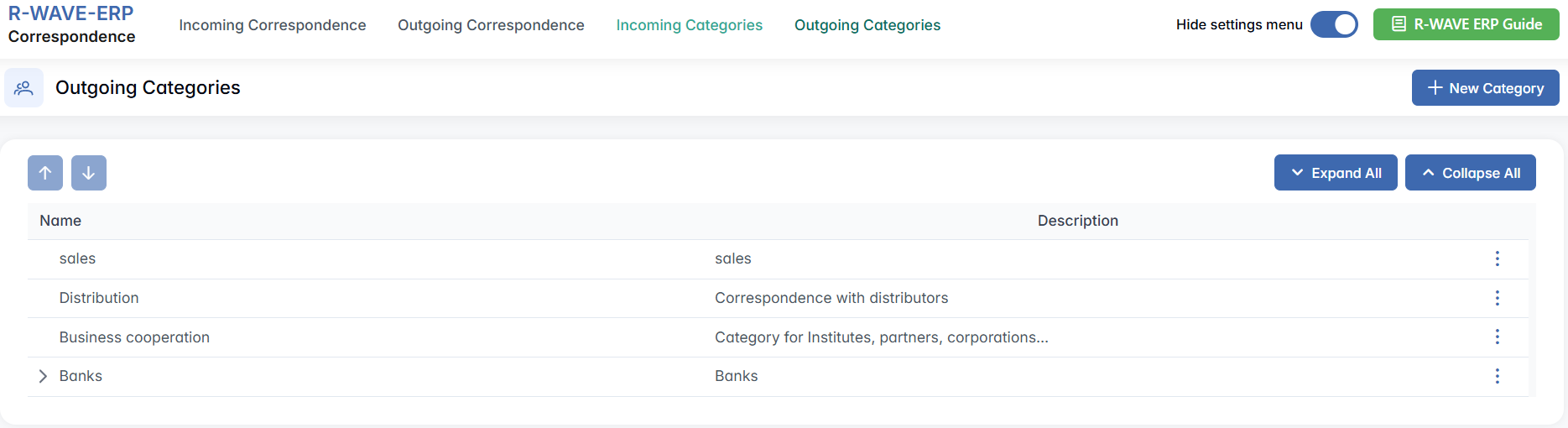
- Name – The name of the category (e.g., "Contracts", "Reports", "HR Letters").
- Description – A short explanation of the type of documents included in this category.
Outgoing Categories also support a hierarchical structure, allowing you to create parent categories with nested subcategories. This is helpful for large organizations with multiple departments or types of communication.
Creating a New Outgoing Category
To add a new category for outgoing correspondence:
- Click the + New Category button in the upper-right corner of the Outgoing Categories page.

- A pop-up window titled Create Correspondents Category will appear.
Complete the form with the following fields: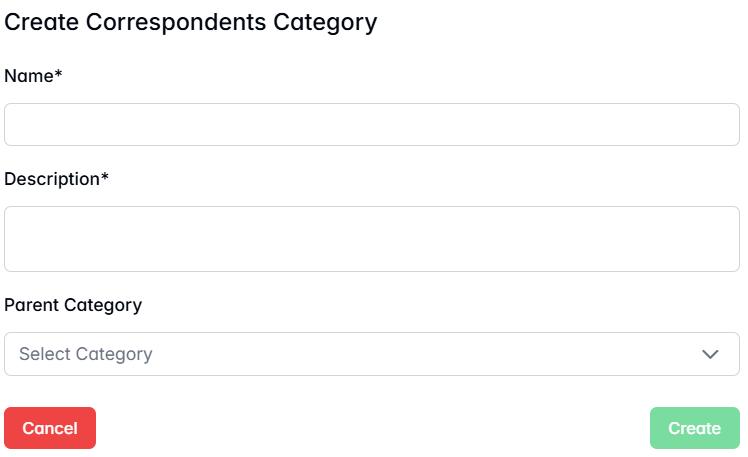
- Click Create to save the new category.
The new category will now appear in the category list and can be selected when creating outgoing correspondence records.
Editing or Removing an Outgoing Category
To update or delete a category from the list:
- Find the desired row in the table.
- Click the three dots (⋯) at the end of the row.
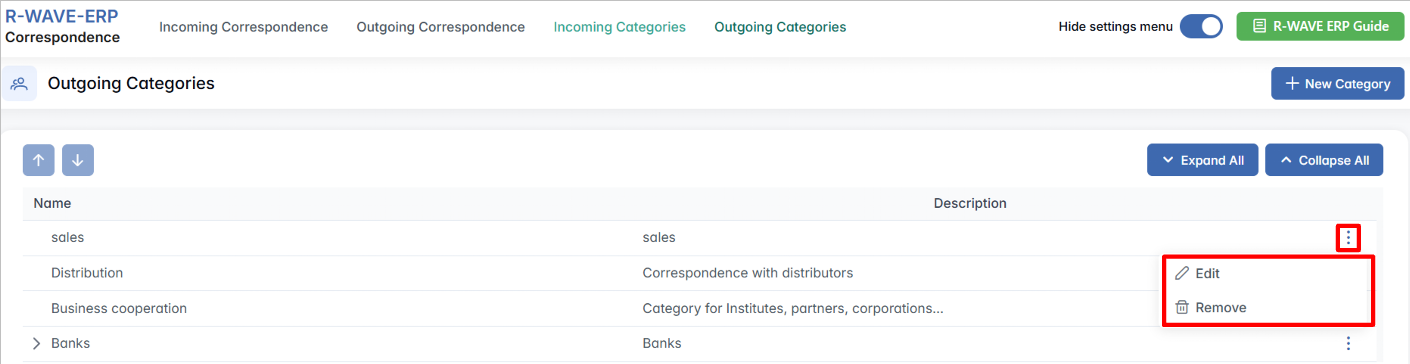
- Choose one of the following options:
- Edit – Opens a pop-up where you can modify the category’s name, description, or parent category.
- Remove – Permanently deletes the category from the system.
Deleting a category will remove it from the drop-down options used when registering correspondence. Be careful not to delete categories currently in use.