How to Use It
The BINU ERP Guide is an integrated help system designed to support users as they work within the ERP environment. It provides real-time, context-aware assistance through a dedicated window that combines visual business process diagrams with step-by-step operational instructions. The guide is accessible from any module and is aimed at improving navigation, clarity, and overall system understanding.
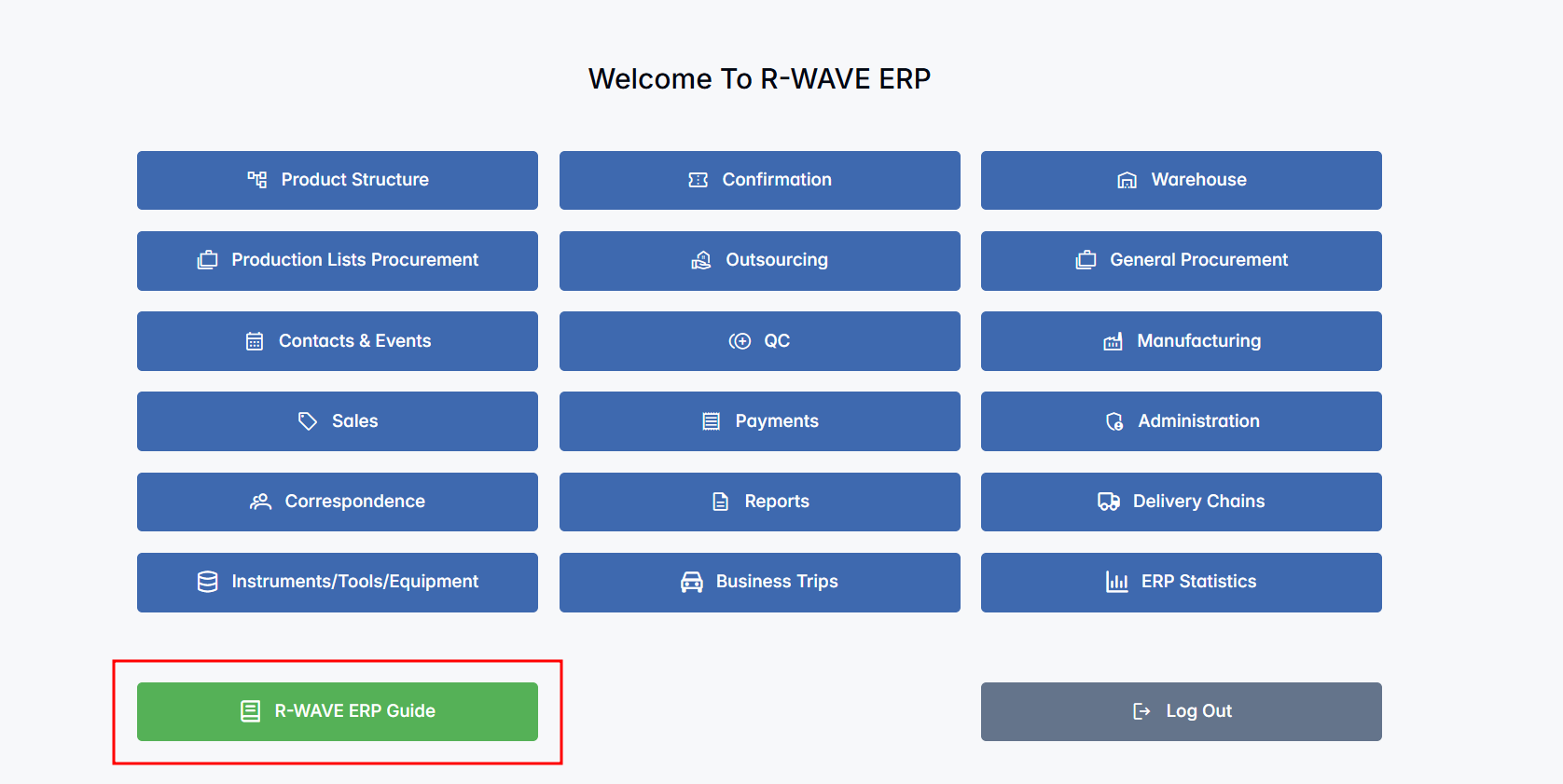
Accessing the Guide
You can access the ERP Guide from any page by clicking the guide icon in the upper-right corner of the screen or by using the guide button located at the bottom of the main menu on the left-hand side.
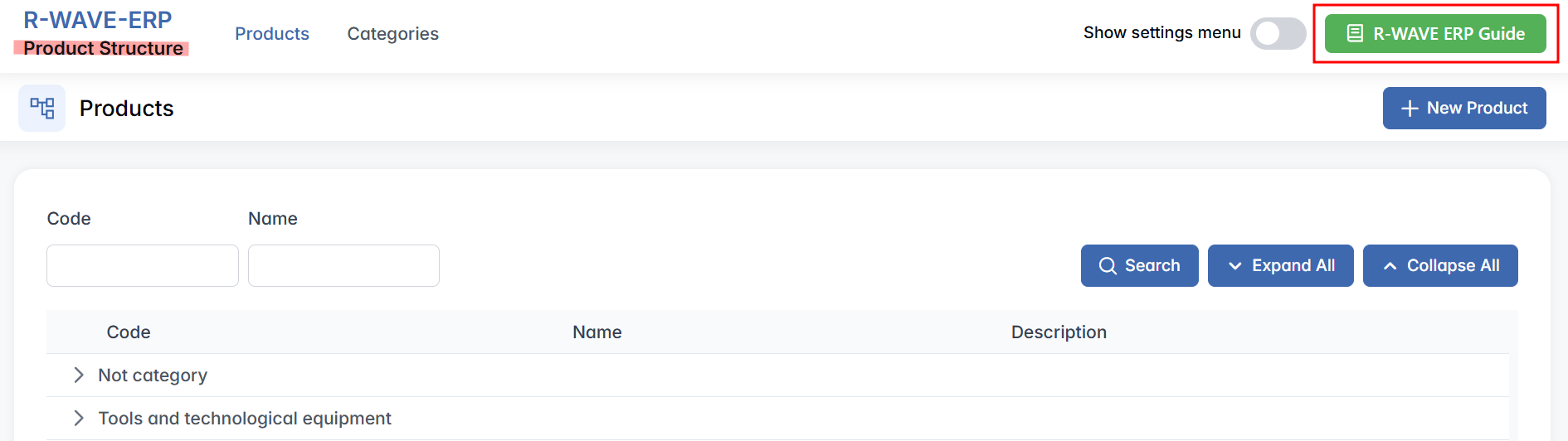
When you open the guide:
- Clicking the Business Flow button at the top of the guide returns you to the main guide view, showing your company’s overall business structure.
- You will see process-specific instructions and a visual diagram for the module or section you are currently in.
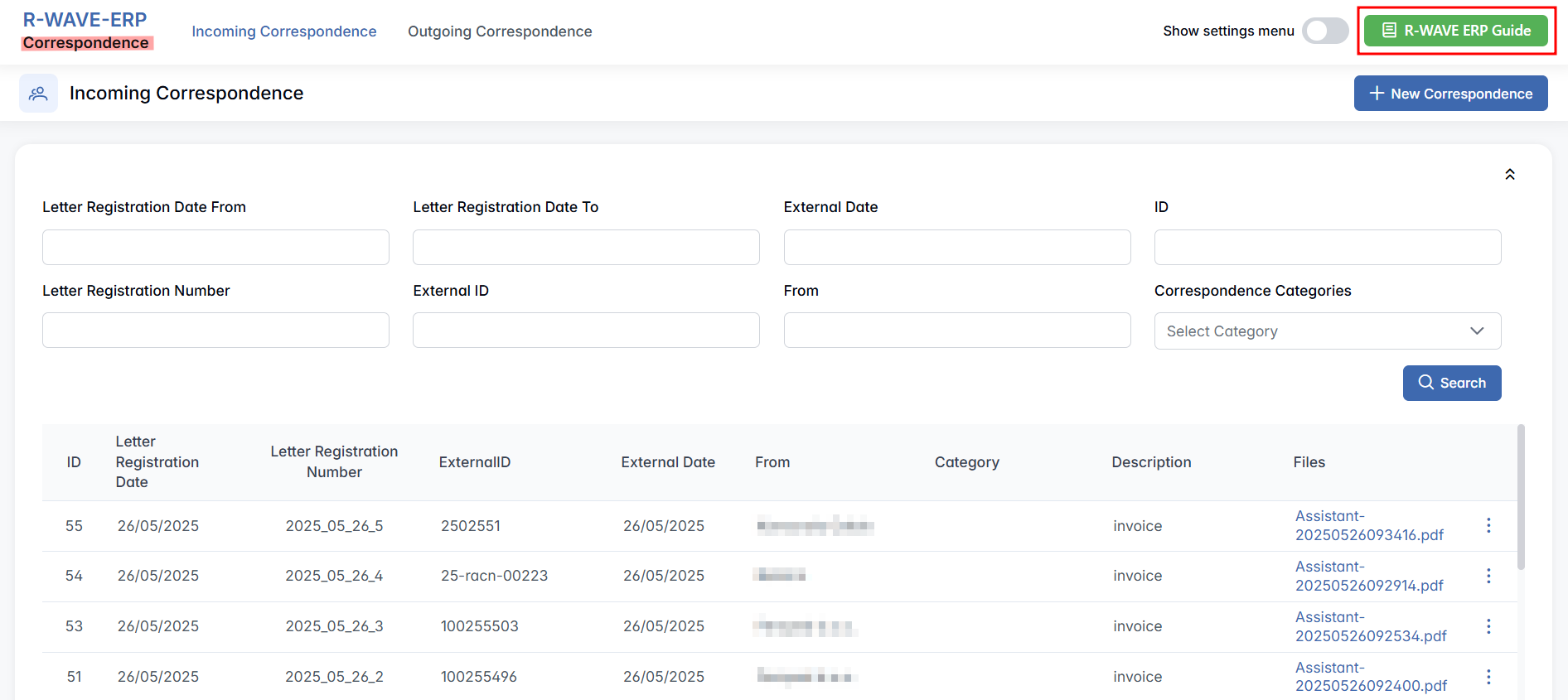
- From the Business Flow view, you can also access module-specific resources:
- Hover over a module block to display two icons at the top of the block:
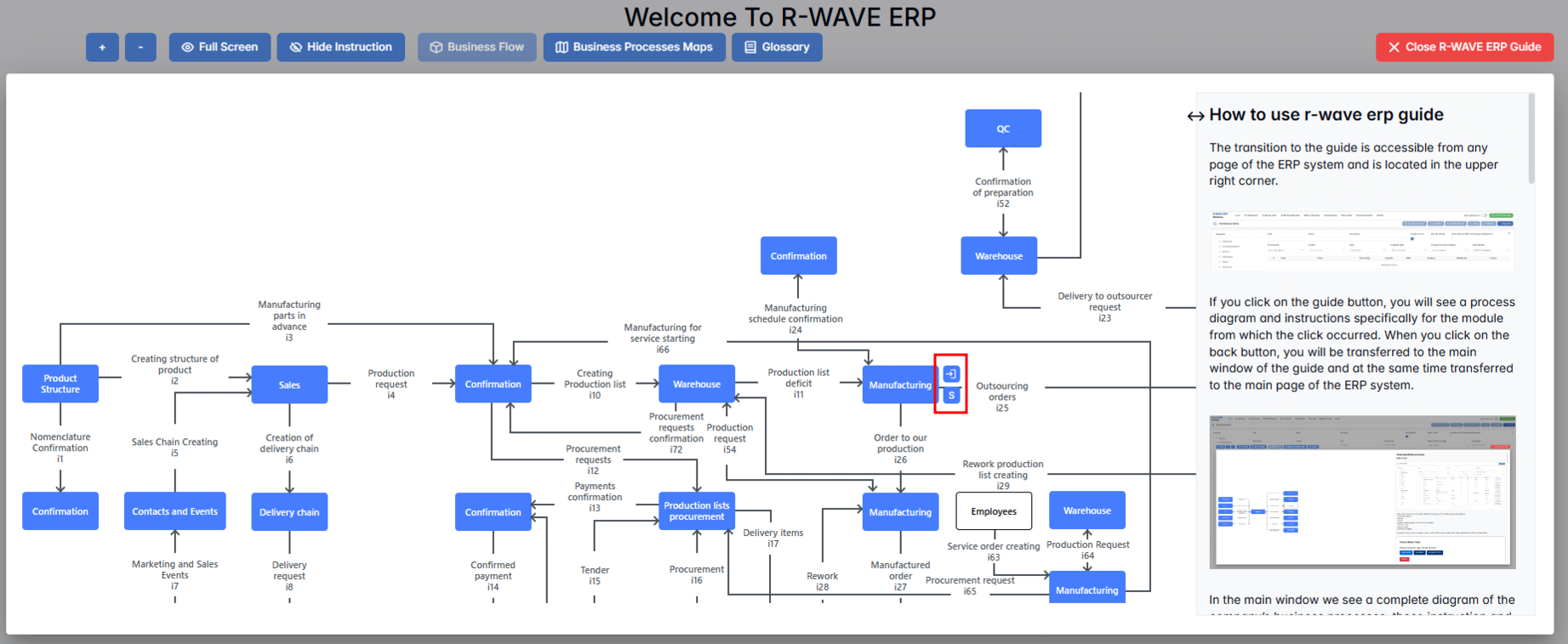
- Open Door icon → Opens the detailed user guide for that specific module.
- S icon → Opens the statistics page to view real-time statistics related to that process or module.
- Hover over a module block to display two icons at the top of the block:
Guide Window Layout
The ERP Guide window is divided into two primary sections:
Left Panel – Business Flow Map
This section displays a visual diagram of your organization’s business processes. It shows how each module is interconnected (e.g., Procurement, CRM, HR, Production), with the current module highlighted to provide clear context.
Right Panel – Instruction Overview
This section provides a concise list of instructions specific to the module or tab you’re currently in. The content is presented in bullet format for quick reference and includes:
- Main actions and functions available (e.g., creating records, filtering data, confirming steps).
- Field descriptions or button behaviors.
- Operational rules or tips to avoid errors.
You can resize this panel by dragging its left edge to create more space for either the diagram or the instructions.

Top Bar Tools
At the top of the ERP Guide window, several tools are available to enhance usability:
Business Flow – Displays the company’s full business process diagram, helping users understand the overall structure of operations.
Business Processes Maps – Opens a detailed view of specific cross-functional workflows. Each entry describes the process, the departments involved, and the related modules.
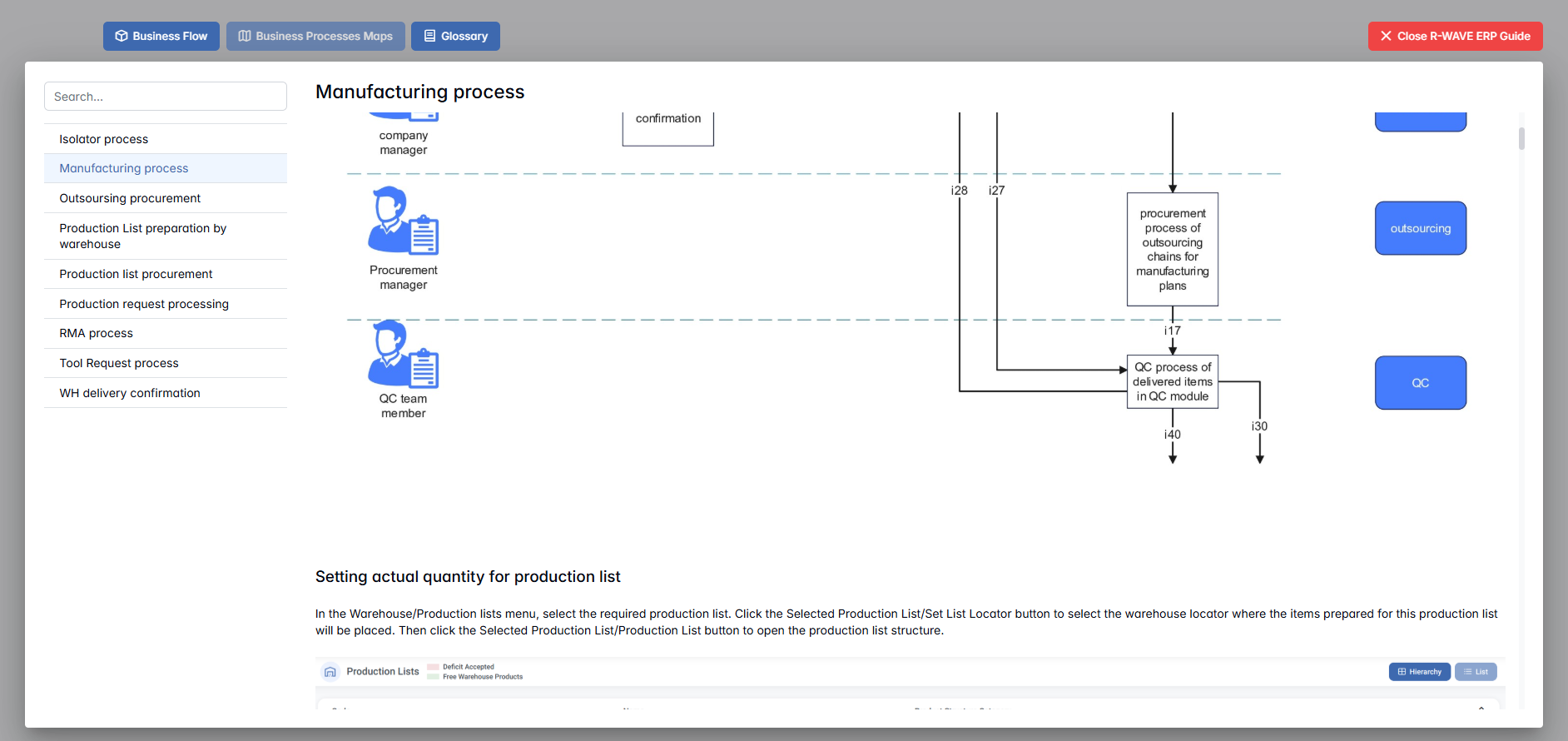
Glossary – Opens a dedicated glossary page with definitions of internal ERP terms and field labels. The glossary layout includes: A searchable list of terms on the left, full definitions on the right, a search bar for quickly locating relevant terms.
These tools allow users to explore the system more deeply and understand how each function fits into the broader operational context.
Purpose and Benefits
The ERP Guide helps users by providing:
- Context Awareness – It shows where the user is within the system and how that module fits into the company’s operations.
- Process Understanding – The business flow map makes it easy to grasp upstream and downstream dependencies.
- Quick Access to Instructions – Clear, focused instructions help users perform tasks without switching between external help resources.
- Improved Usability – Users can work independently and resolve common questions with minimal disruption.
- Faster Onboarding – New employees can explore the system and understand workflows without formal training sessions.