Instruments/Tools/Equipment Module
This module acts as a central hub for managing all physical assets related to technical operations — from individual tools and instruments to complex equipment sets. It allows teams across departments to locate, request, allocate, and monitor usage of items in real time, ensuring operational readiness and reducing downtime due to misplaced or unavailable resources.
Beyond inventory tracking, the module supports structured categorization of tools, assignment to specific areas and locators, and transparency over movement, write-offs, and tool-related requests. It also integrates tightly with procurement and manufacturing processes by reflecting usage and tool requests in related modules.
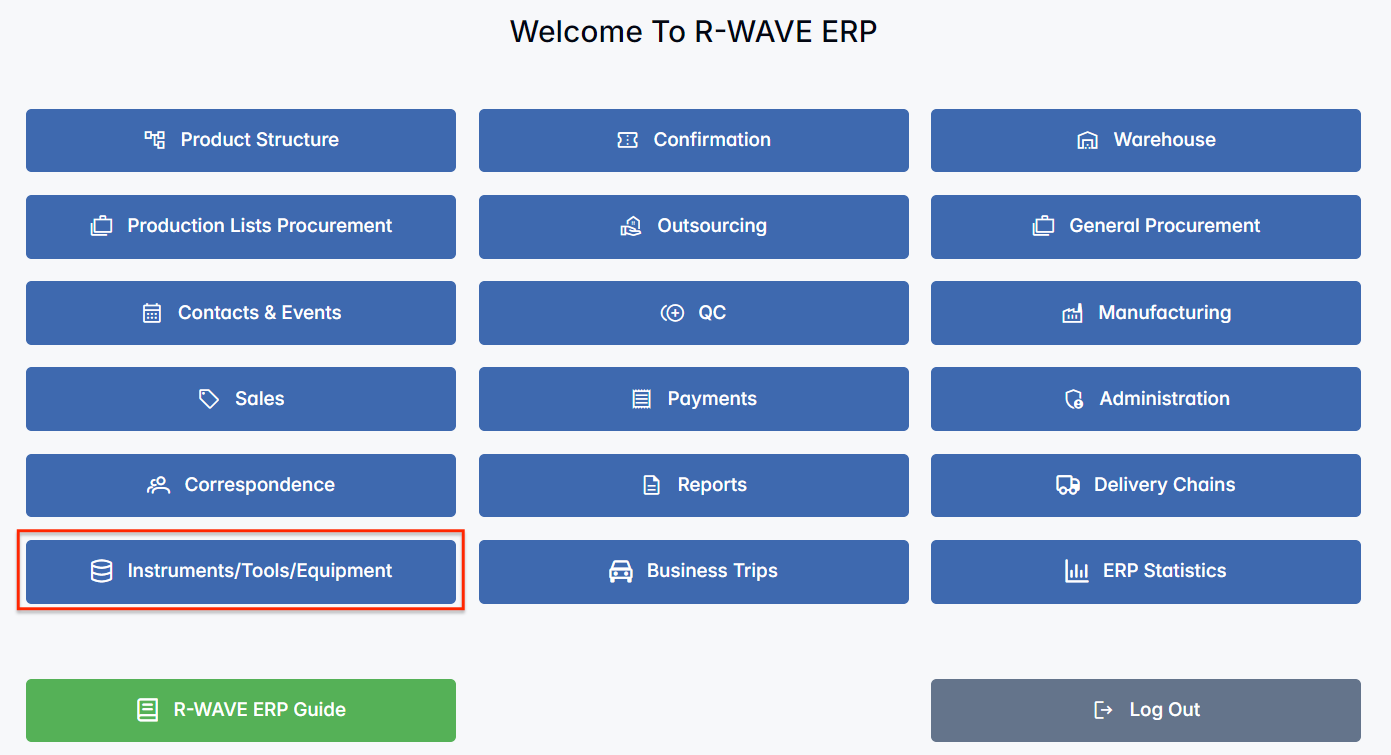
BINU ERP Guide
To support user navigation and clarity, BINU ERP includes a built-in contextual help system in the form of a pop-up guide window. This feature is available across different modules, including Instruments/Tools/Equipment, and is designed to help users understand where they are in the system and how to use the current section effectively.

Purpose
The ERP Guide window helps users by:
- Showing where you are within the system (module context and current section).
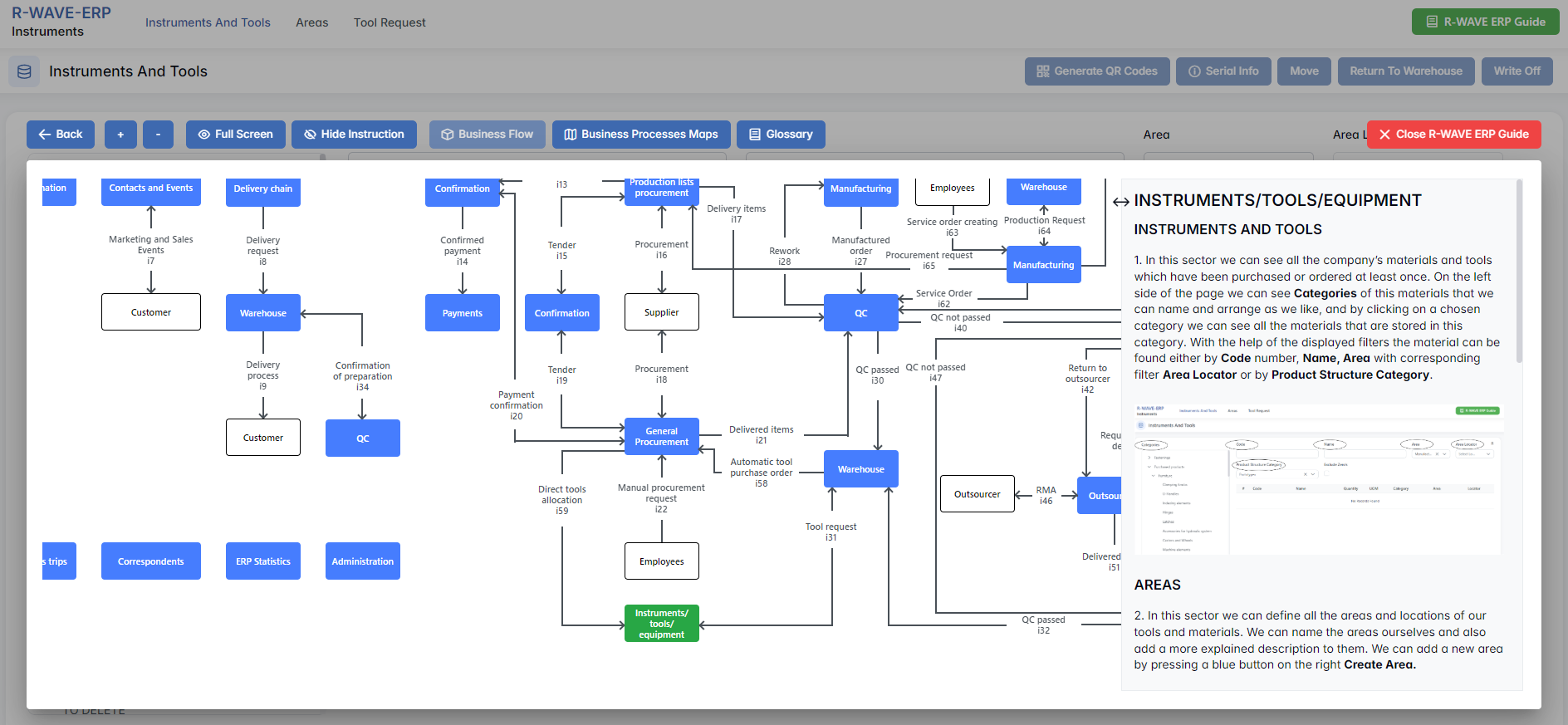
- Providing a visual schema of your company’s business flow, helping you understand how the current module fits into the larger operational structure.
- Offering a quick-reference instruction panel with the main actions and functions available in the current tab (e.g., creating companies, filtering, scheduling events).
Layout and Content
When opened, the ERP Guide window is divided into two main areas:
- Left Side — Business Flow Map
This section displays a structured diagram of your company's processes and how the current module connects to others (e.g., CRM, Procurement, Sales, HR). It visually highlights your current position in the overall ERP environment. - Right Side — Functional Overview
Provides a concise, bullet-style instruction list describing the key operations available in the current module/tab.
Top Bar Options
At the top of the ERP Guide window, you’ll find two optional tools for deeper understanding:
- Business Processes Maps – Opens a full interactive view of your organization’s process structure.
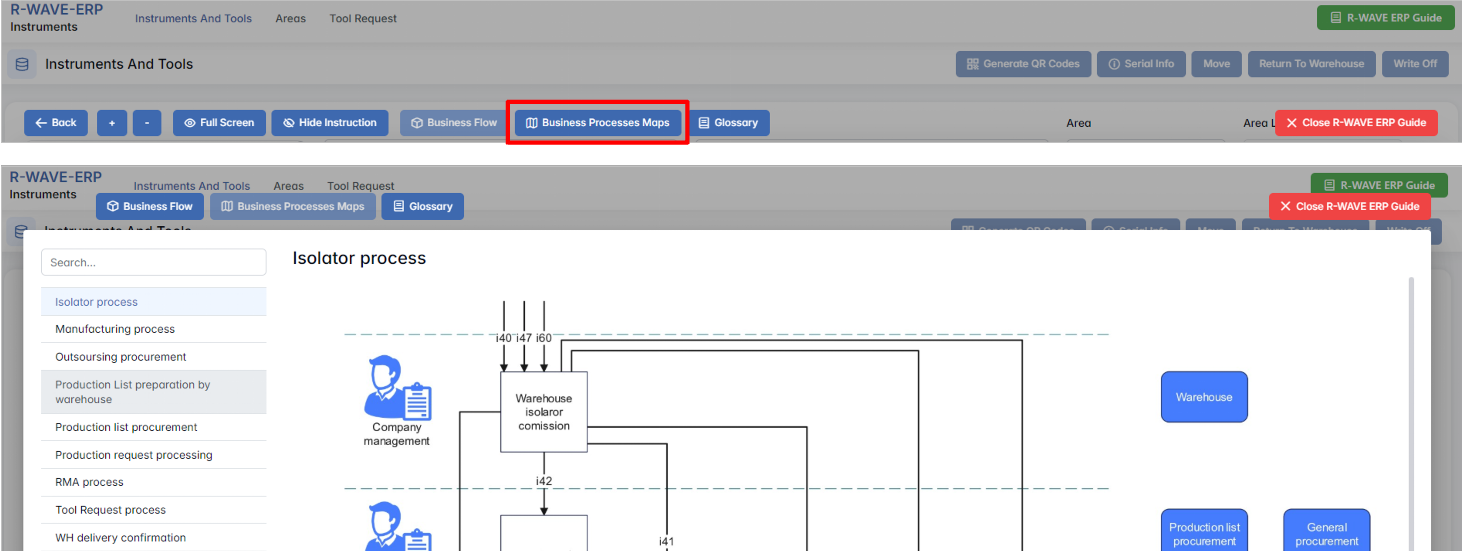
- Glossary – Provides definitions and descriptions of key terms and field labels used in the ERP interface.
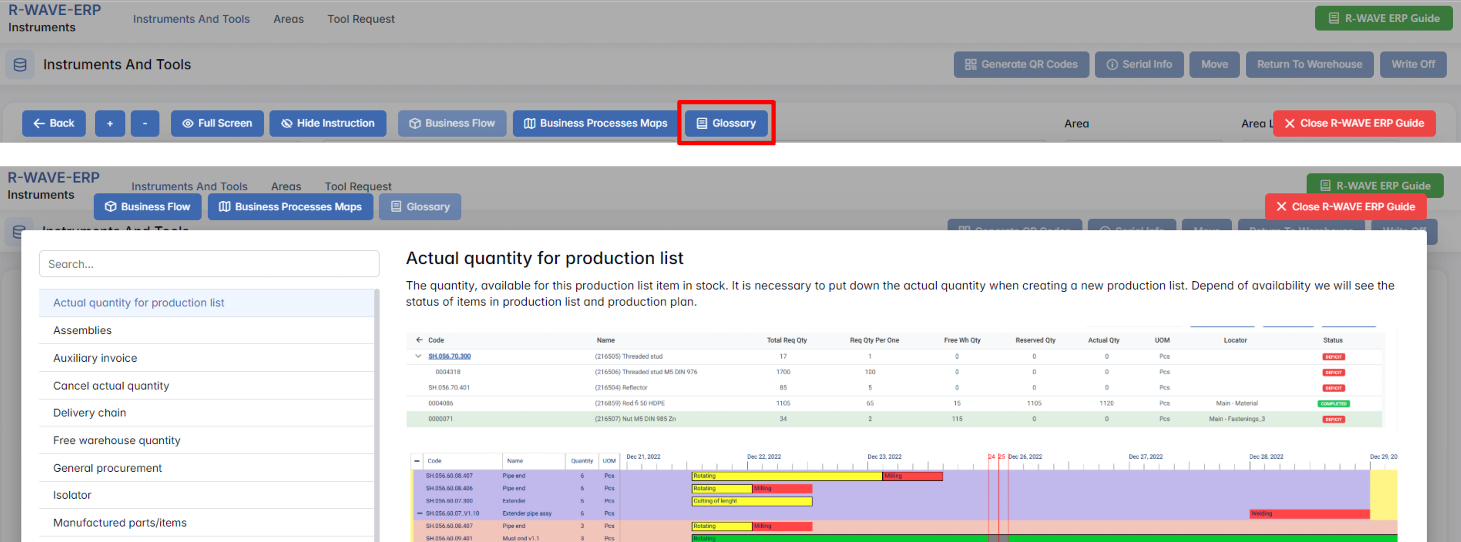
The ERP Guide window can usually be opened via a dedicated icon or help button (often located in the upper right corner of the screen). It is non-intrusive and can be closed or reopened as needed, allowing users to stay focused without losing their place.
Instruments/Tools/Equipment Overview
This module provides a complete overview and management of all instruments, tools, and technical equipment used within the organization. It ensures real-time tracking of tool location, availability, usage history, and requests. It consists of three main tabs:

- Instruments And Tools
- Areas
- Tool Request
Instruments and Tools
Instruments and Tools
This tab displays a list of all physical items (tools, instruments, technical devices) that have been issued to employees through tool requests. It serves as the primary registry for tracking current location, quantity, and availability.
Interface and Filters
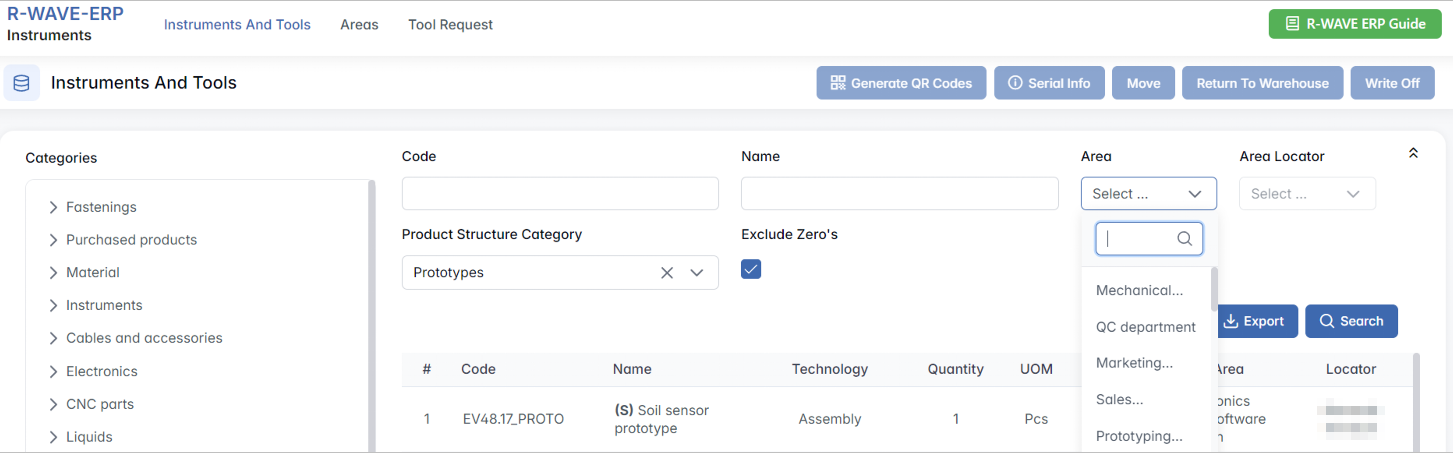
Located on the left side:
Category Panel – Displays a custom hierarchical structure of tool categories (e.g., “Prototypes,” “Electronics,” “Assemblies”). These can be defined manually and grouped logically for convenient navigation.
Main Filter Panel:
- Categories – Select one or more product categories.
- Code / Name – Text search fields to quickly find a tool by its unique code or label.
- Area – Filters by physical storage or usage area (e.g., "FAE department").
- Area Locator – Appears after selecting an Area; allows filtering by specific locator within that area.
- Product Structure Category – Product Structure Category defines the hierarchical role of a component in the production process, indicating its position and dependency within the overall product assembly.
- Exclude Zeros – When checked, hides tools that have zero quantity in the warehouse.
Table Columns
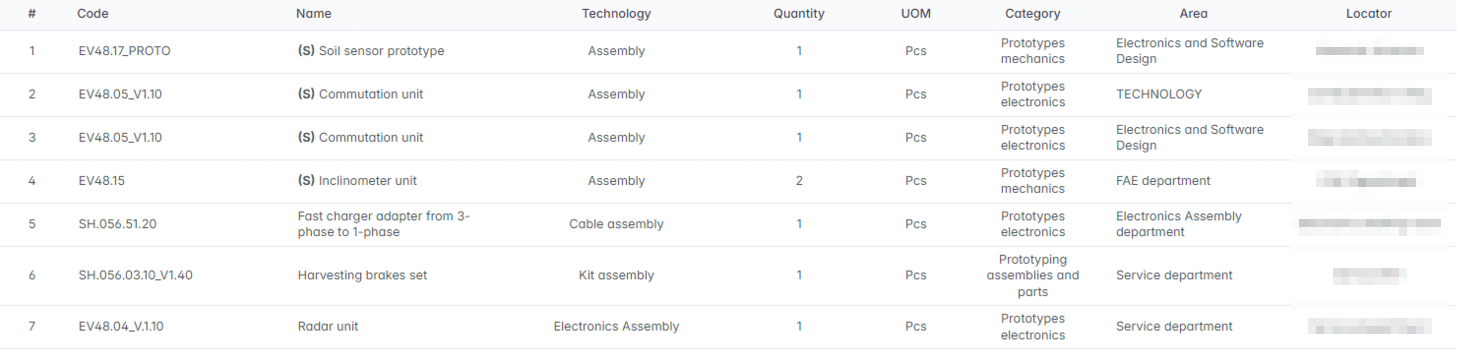
This table provides real-time visibility into what tools are available, where they are located, and in what quantity.
Available Actions
When a row is selected, additional action buttons become available.
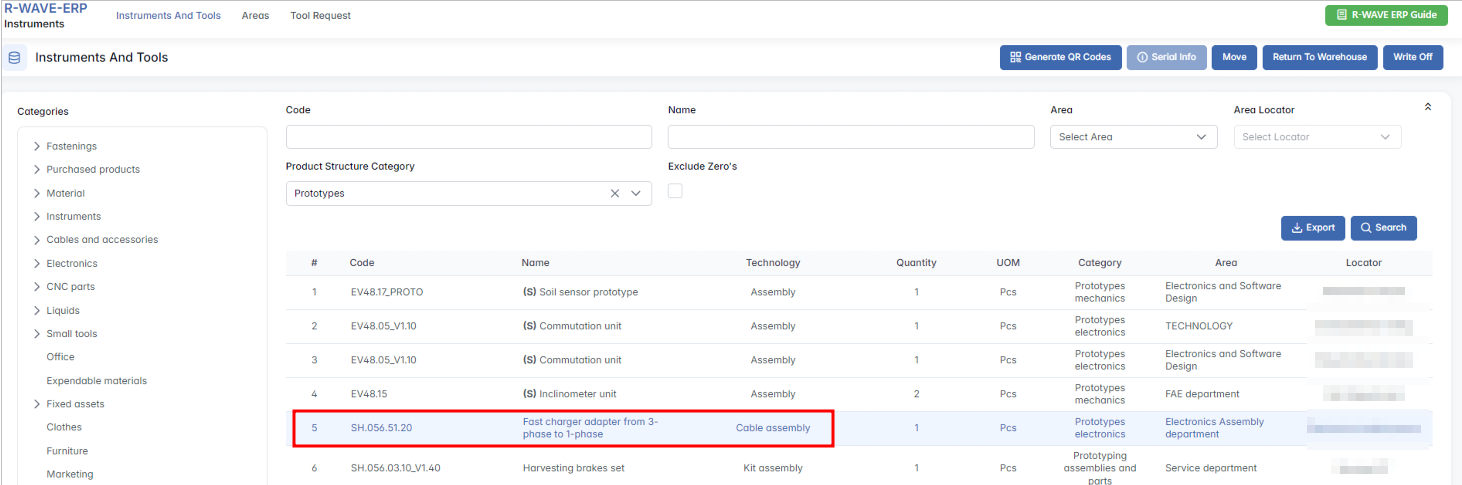
- Generate QR Codes – Generate printable QR codes to stick onto items for fast scanning and tracking.
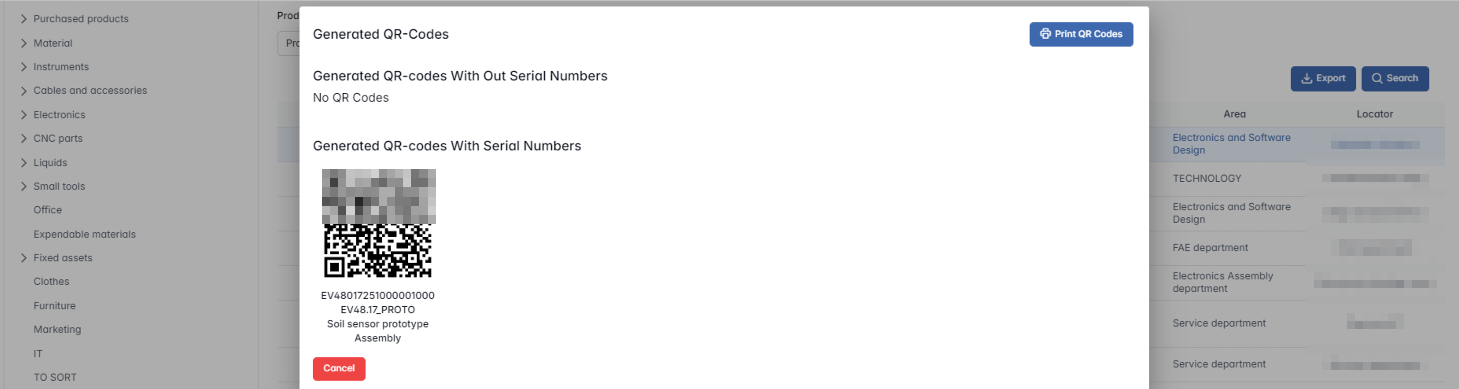
Purpose: Used for warehouse automation, audits, and tool tracking via scanner.
- Serial Info – Available only for items marked with "(S)" in their name, opens a list of serial numbers.
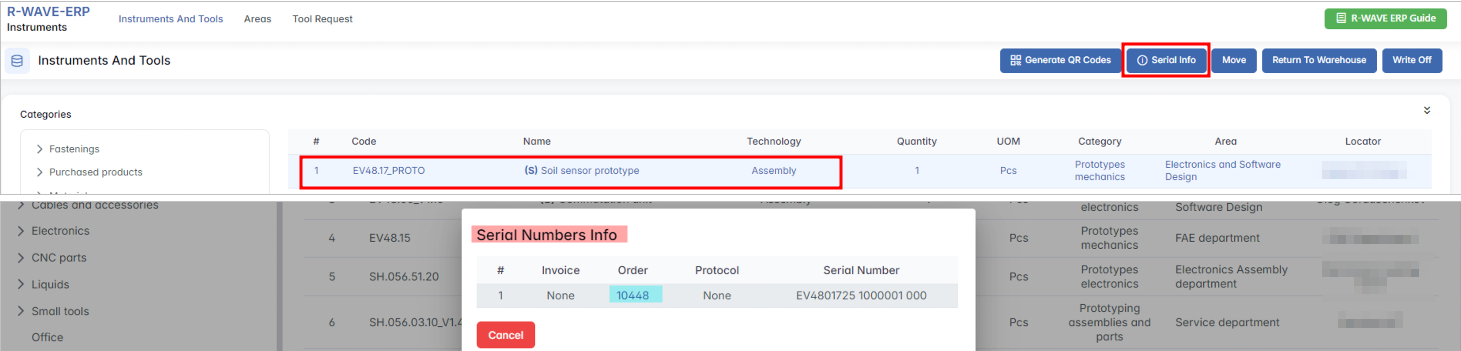
Order – clickable, opens the linked Manufacturing order
- Move – Transfers a tool from one locator to another within the same area or to a new one.

When to use: Reorganizing storage or reallocating tools between departments.
- Return to Warehouse – Returns items currently in use to their assigned warehouse stock.

Purpose: Completes the tool usage cycle and updates availability.
- Write Off – Permanently removes items from stock due to damage, consumption, or obsolescence.

When to use: After tool is broken, outdated, or used in a project irreversibly.
Areas
Areas
This tab allows users to define physical storage or usage areas across the organization. Areas can correspond to departments, labs, warehouses, or even mobile workspaces.
Area Table Columns
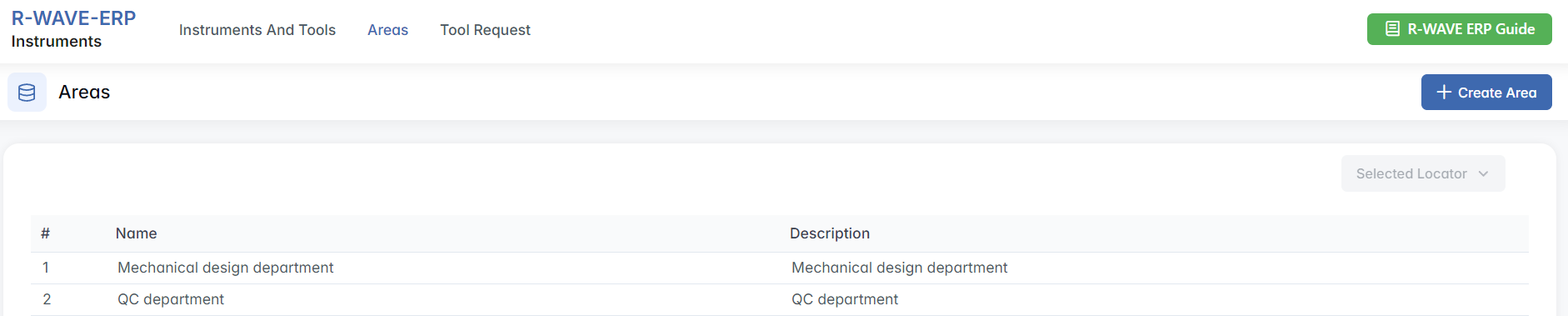
Actions
- Create Area – Opens a form to define a new area (Name, Description).

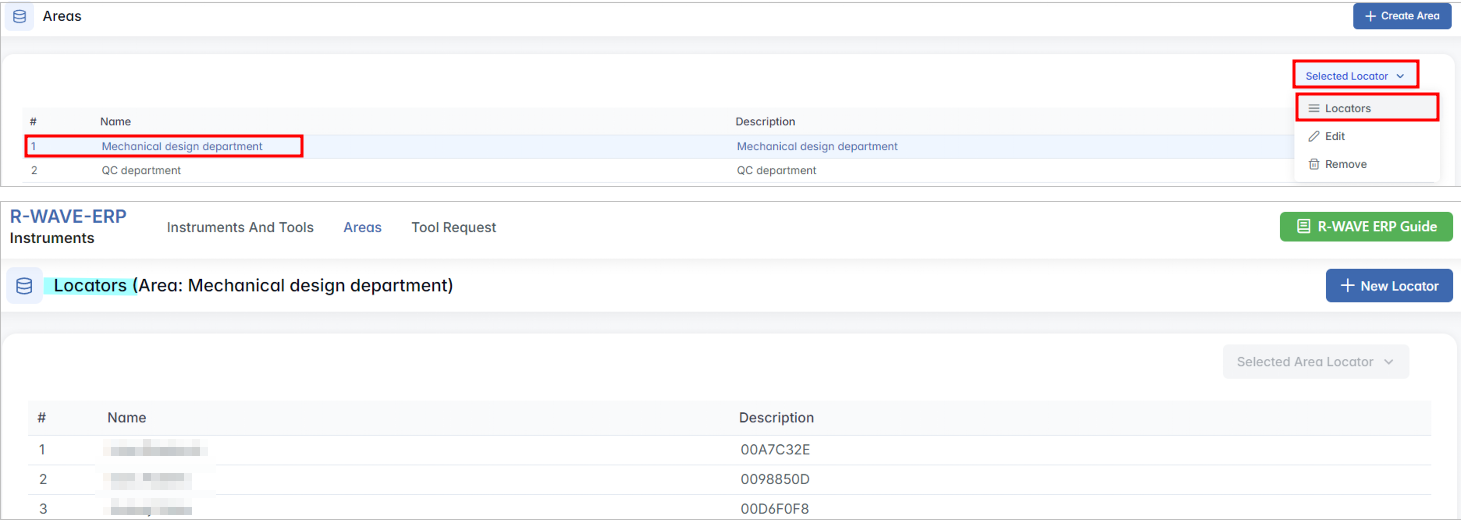
- Selected Area: Locators, Edit, Remove
Locators – Opens a detailed page with Locators assigned to the selected Area.
Edit

Locators Page
For the selected area, you can define exact locations where tools are stored.
- New Locator – Add a specific locator to the area.
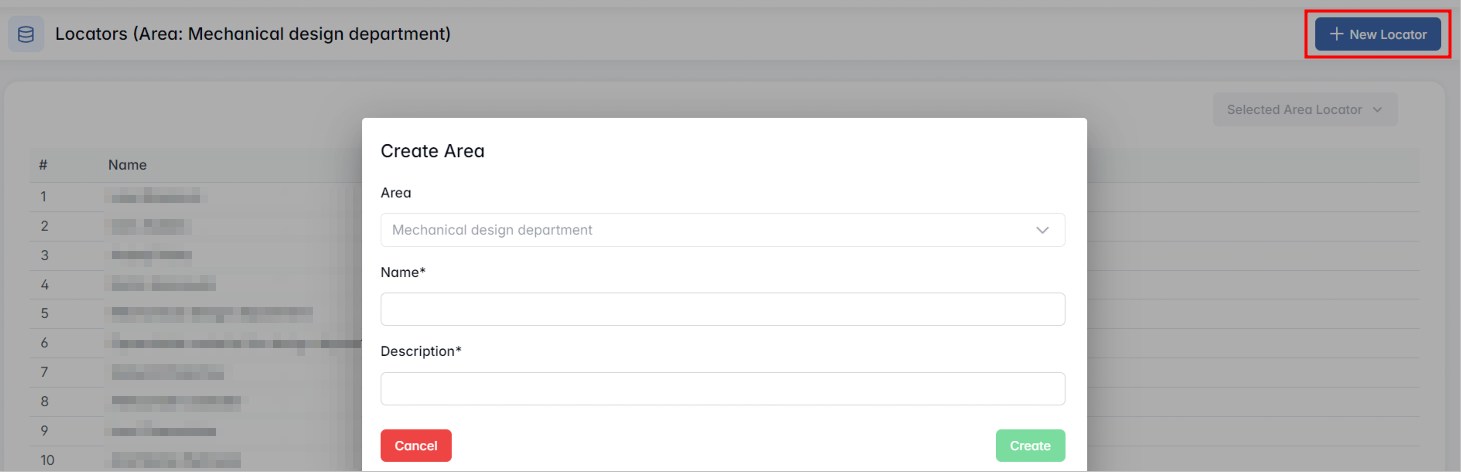
Each locator entry can be:

- Edited – Adjust name or description.
- Removed – Delete the locator if it’s no longer used.
Purpose: Locators support accurate physical tracking of tools, prevent misplacement, and enable fast tool retrieval.
Tool Request
Tool Request
This tab manages warehouse requests requested/submitted by employees for specific tools.
Request Table Columns

Each tool request record includes information on:
- Where the request was made (Area + Locator)
- When it was created and completed (if applicable)
Actions
To add a new request click on + New Request in the upper right corner. With this you will initiate a new tool request. A pop-up window will appear where the user must select a Locator (which area/location needs the tools).

If you would like to see details about an existing request, click on the request and then Selected Tool Request in the upper right corner.

- To view the list of items requested within a specific request, click Nomenclatures. This opens a separate page with information on materials/tools/equipment requested in this order (see the picture below). The Requested in Orders is clickable and it opens the related production order in Production List Procurement (if relevant).
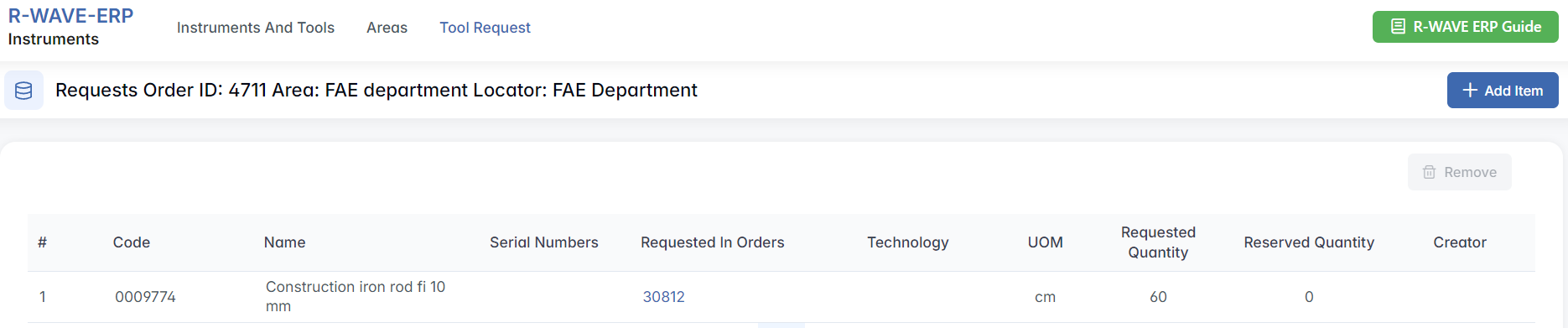
- Edit – Allows changing the Locator (e.g., if tools are needed elsewhere).

Within the Request Order Page
You can add new items to a request by clicking the + Add Item button in the upper-right corner. This opens a catalog search modal where additional tools or materials can be selected.

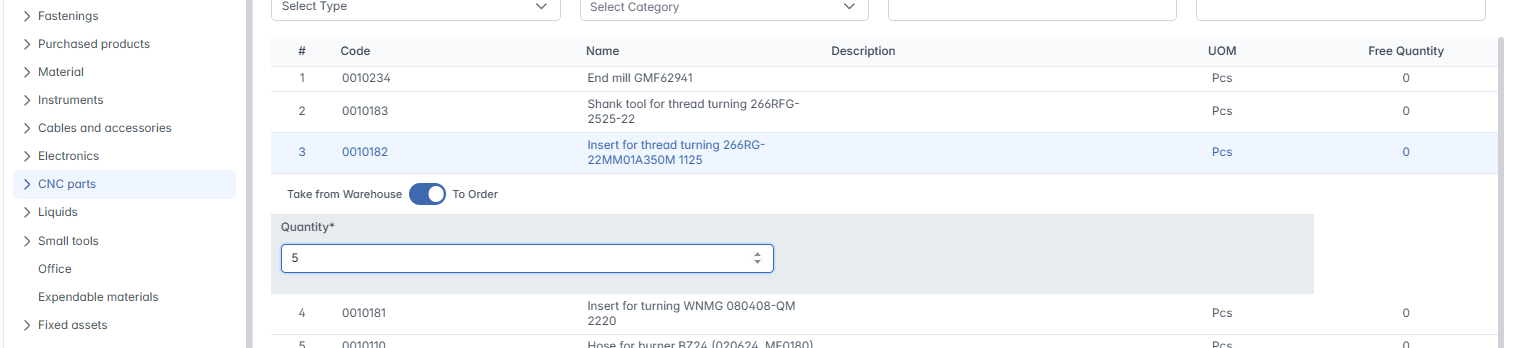
Within the catalog, users can search items by Category, Type, Root Category, Name, or Code.
- If the item is available in stock (its Free Quantity is greater than 0), leave the toggle set to Take from Warehouse, choose the appropriate Locator, and enter the required Quantity.
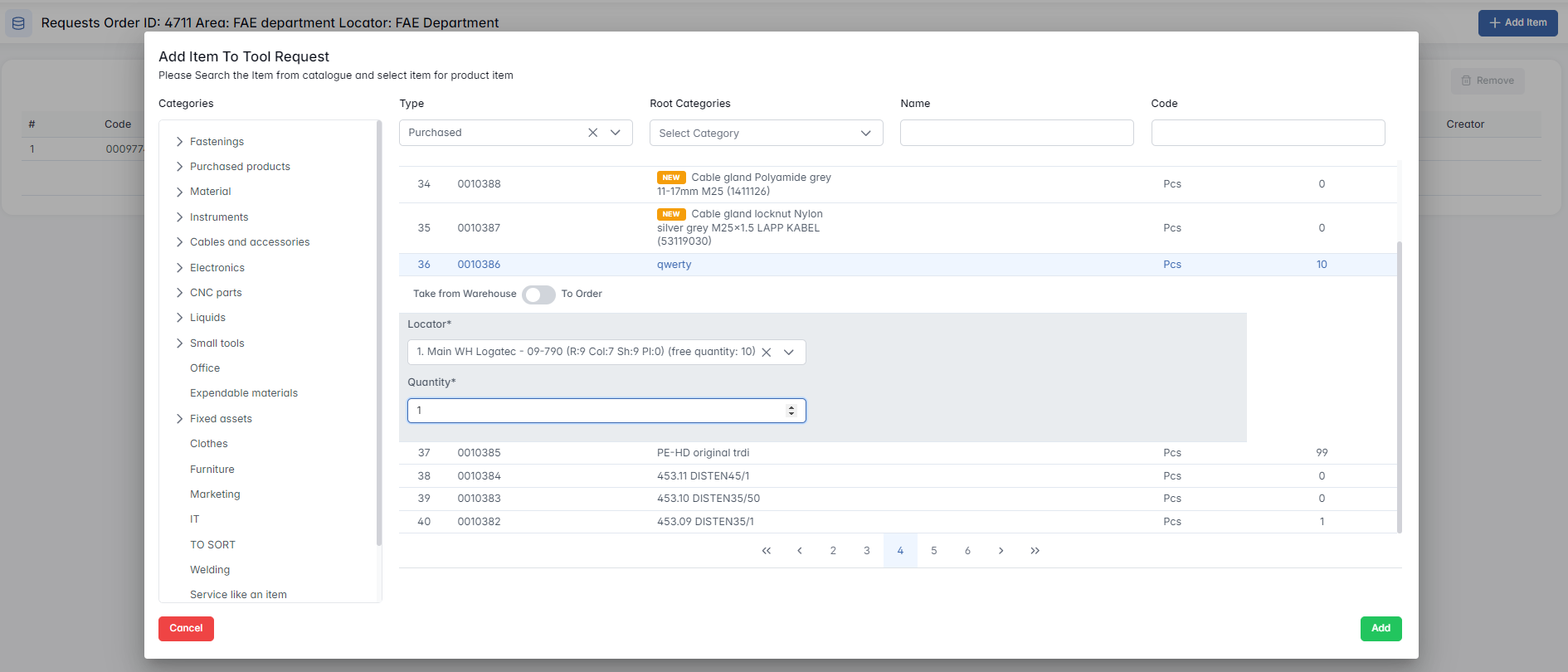
Items marked as NEW in the system cannot be selected. Only confirmed catalog items are eligible for tool requests.
- If the item is not available in stock, switch the toggle to To Order and specify the desired quantity. In this case, the request will be forwarded to the procurement department, and once the item is delivered to the warehouse, it will be assigned to the tool request.