Payments Module
The Payments module in BINU ERP allows you to track and manage both outgoing and incoming payments associated with procurement and delivery chains. It provides real-time visibility of payment statuses, supports document uploads, and allows payment creation directly within the interface.
This module includes the following key tabs:
- Payments (outgoing)
- Delivery (incoming payments)
It helps your team organize procurement and sales-related payments, confirm transactions, and keep financial records up to date.
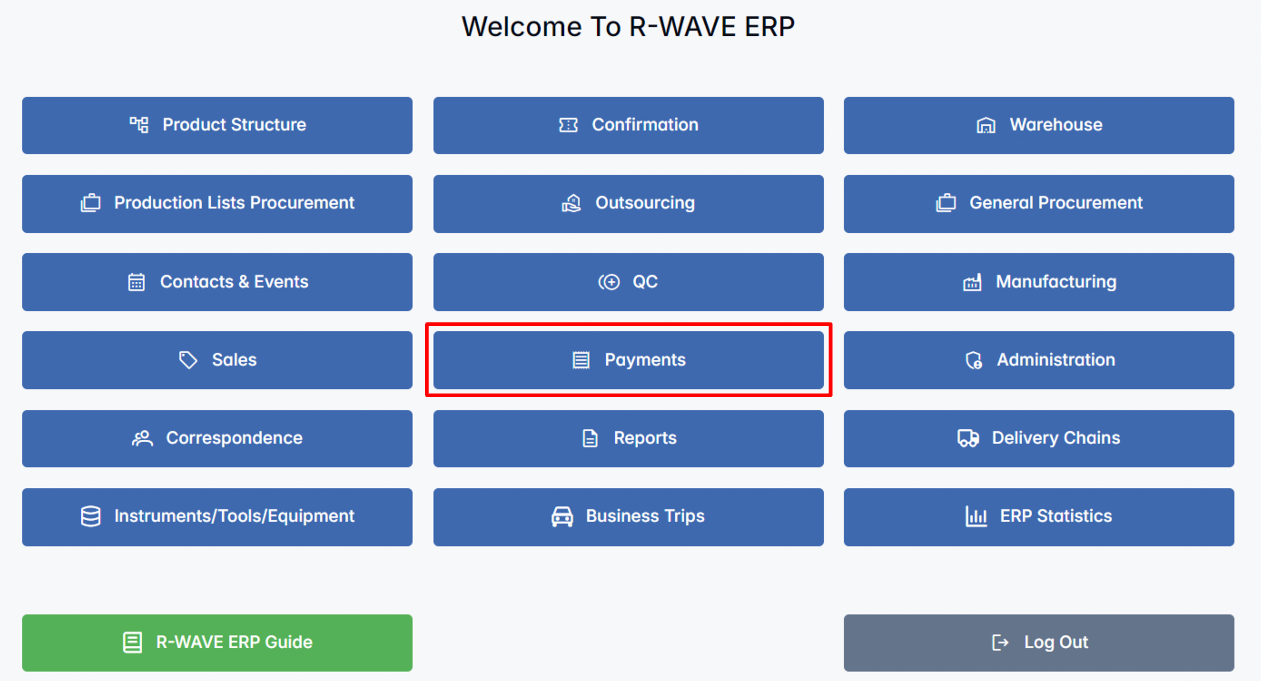
BINU ERP Guide
BINU ERP Guide
To support user navigation and clarity, BINU ERP includes a built-in contextual help system in the form of a pop-up guide window. This feature is available across different modules, including Payments, and is designed to help users understand where they are in the system and how to use the current tab effectively.

Purpose
The ERP Guide window helps users by:
- Showing where you are within the system (module context).
- Providing a visual schema of your company's business flow, helping you understand how the current module fits into the larger operational structure.
- Offering a quick-reference instruction panel with the main actions and functions available in the current tab (e.g., creating companies, filtering, scheduling events).
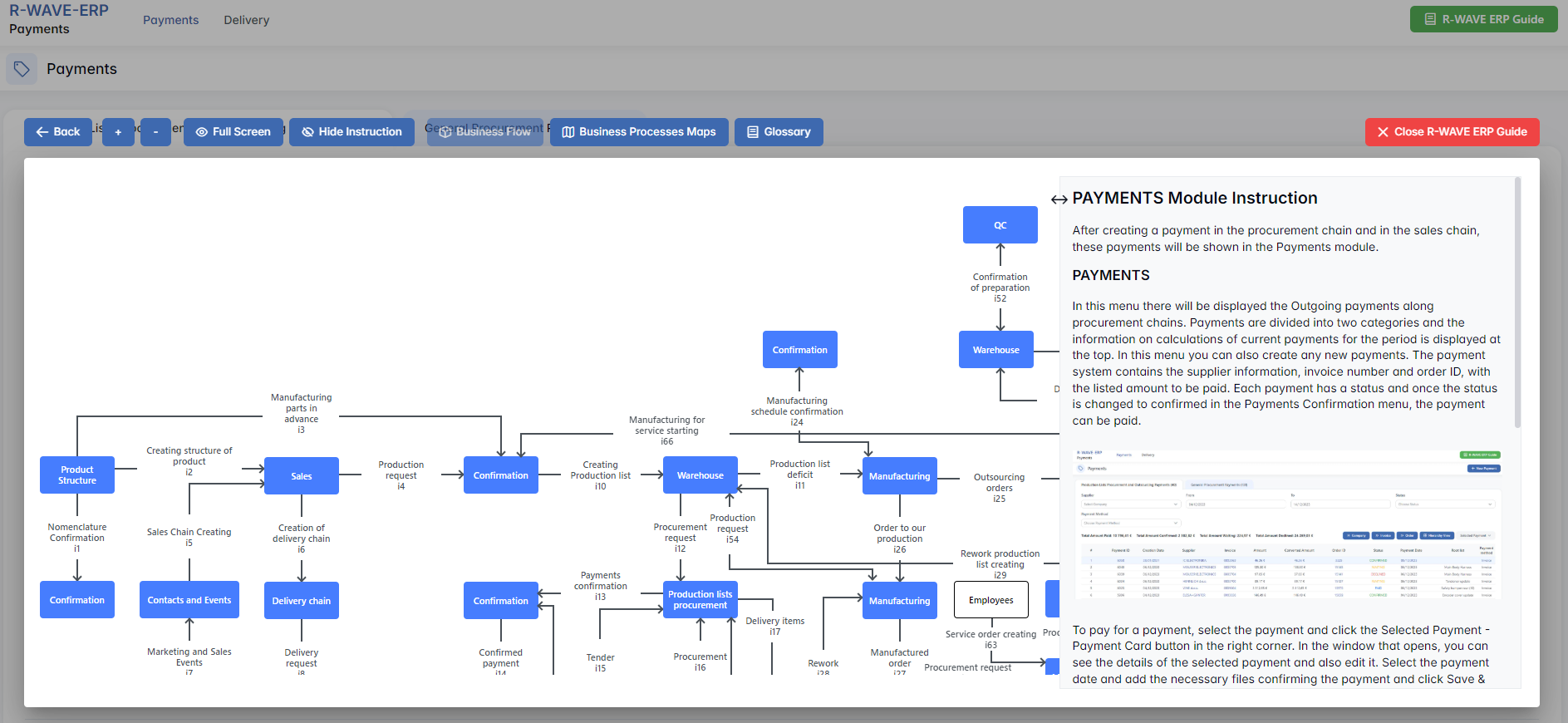
Layout and Content
When opened, the ERP Guide window is divided into two main areas:
- Left Side - Business Flow Map
This section displays a structured diagram of your company\'s processes and how the current module connects to others (e.g., CRM, Procurement, Sales, HR). It visually highlights your current position in the overall ERP environment. - Right Side - Functional Overview
Provides a concise, bullet-style instruction list describing the key operations available in the current module/tab.
Top Bar Options
At the top of the ERP Guide window, you'll find two optional tools for deeper understanding:
- Business Processes Maps -- Opens a full interactive view of your organization's process structure.


- Glossary - Provides definitions and descriptions of key terms and field labels used in the ERP interface.

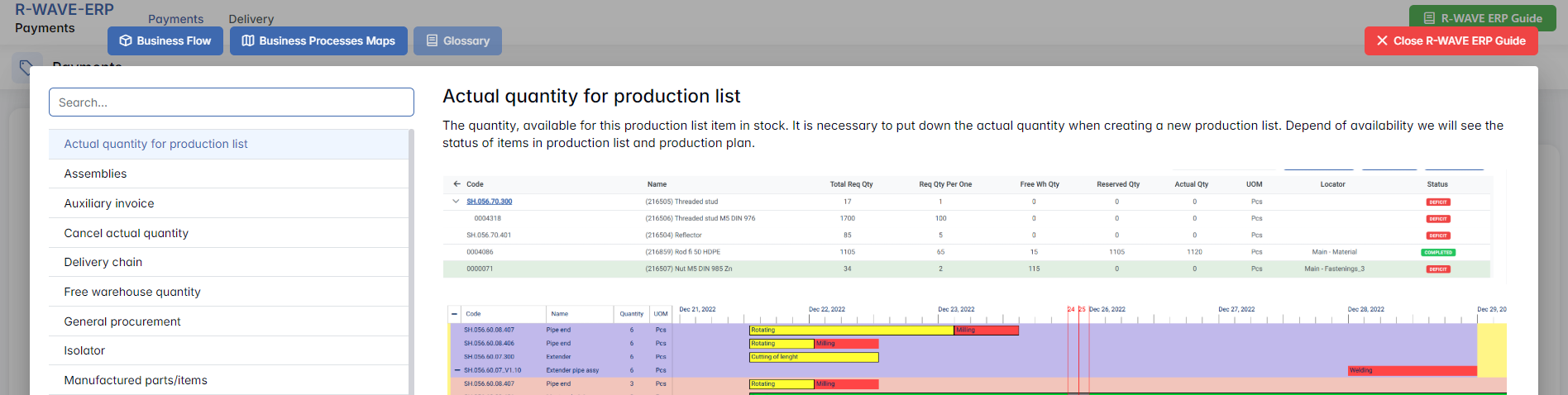
The ERP Guide window can usually be opened via a dedicated icon or help button (often located in the upper right corner of the screen). It is non-intrusive and can be closed or reopened as needed, allowing users to stay focused without losing their place.
Payments Module Overview
Payments Module Overview
The Payments module in BINU ERP serves as a centralized hub for tracking and managing both outgoing and incoming payments associated with procurement and sales operations. Payments appear in this module automatically after they are created within the procurement or delivery chains - no manual creation is possible from this interface.
This module provides financial visibility across key transactions, highlights payment statuses, and allows users to view and update essential payment data including payment date, method, linked invoice, supplier or customer, and confirmation status.
At the top level, the Payments module consists of two main sections:
- Payments - displays all outgoing payments related to procurement chains.
- Delivery - shows incoming payments from customers through delivery chains.
Each payment record includes information such as the invoice number, order ID or delivery chain ID, transaction amounts, status, and links to related procurement or sales data.
Payments
Production Lists Procurement and Outsourcing Payments
Production Lists Procurement and Outsourcing Payments
This tab displays outgoing payment records related to Production Lists Procurement and Outsourcing. The records are shown in a structured table format and represent payment transactions linked to production workflows - including both internal manufacturing and outsourced services.
Filter Panel
At the top of the page, a filter panel is available for narrowing down the displayed records. Users can search using the following fields:
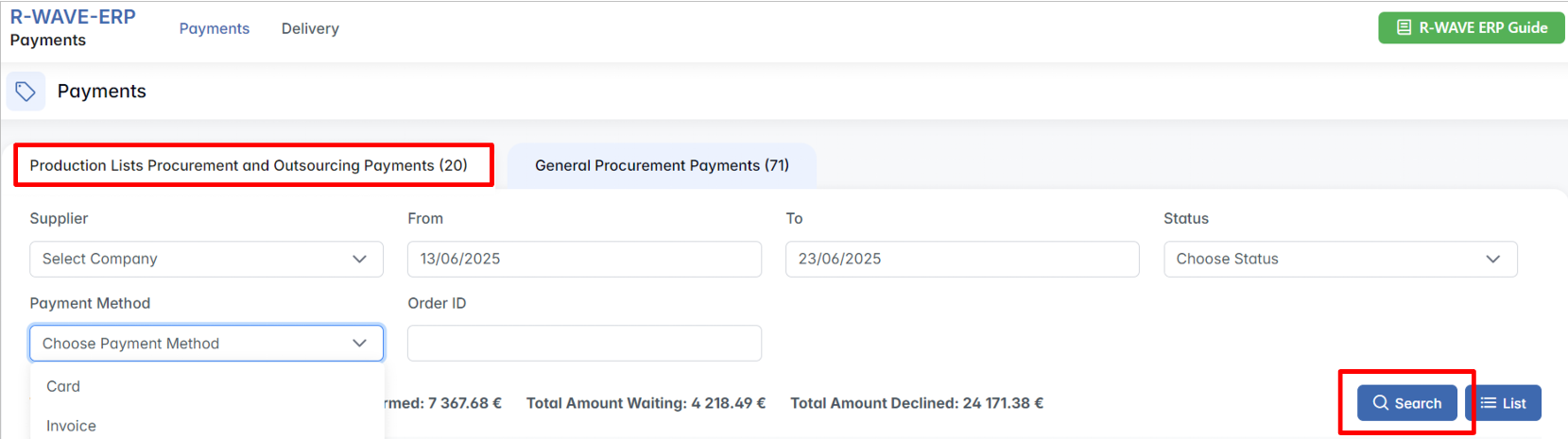
- Supplier - drop-down list to select a supplier.
- From / To - define a creation date range for the payments.
- Status - drop-down list with the options: Waiting, Confirmed, Paid, Declined
- Payment Method - drop-down list with options like Invoice, Card.
- Order ID - free-text field for searching by a specific procurement order.
To apply filters, the user must click the Search button.
To the right of the Search button, two view options are available:
- List - flat tabular view (default).

- Hierarchy View - collapsible grouped view by procurement category.
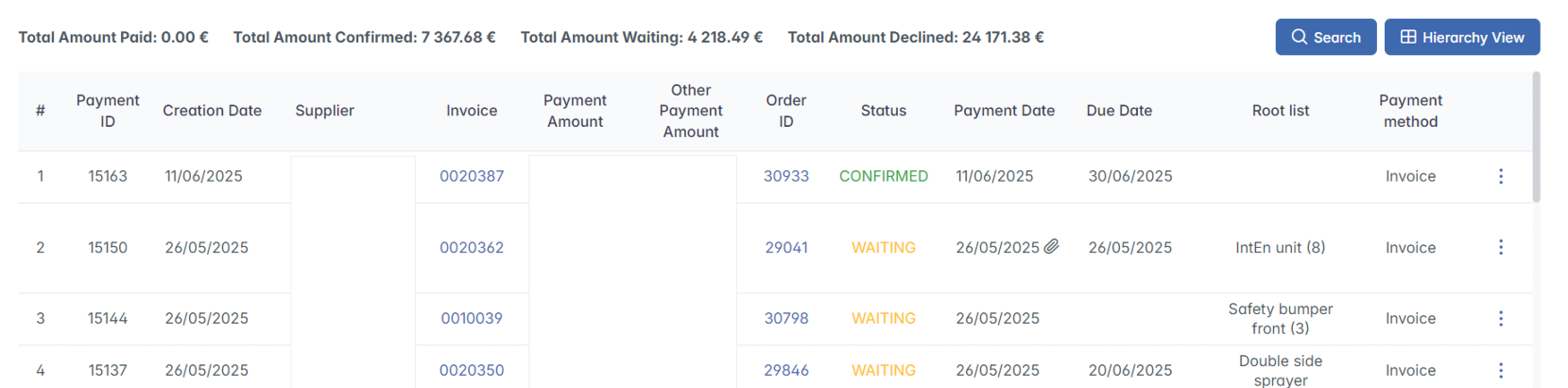
Summary Metrics
Below the filters, a financial summary bar displays the aggregated values for the currently visible payments: Total Amount Paid, Total Amount Confirmed, Total Amount Waiting, Total Amount Declined.
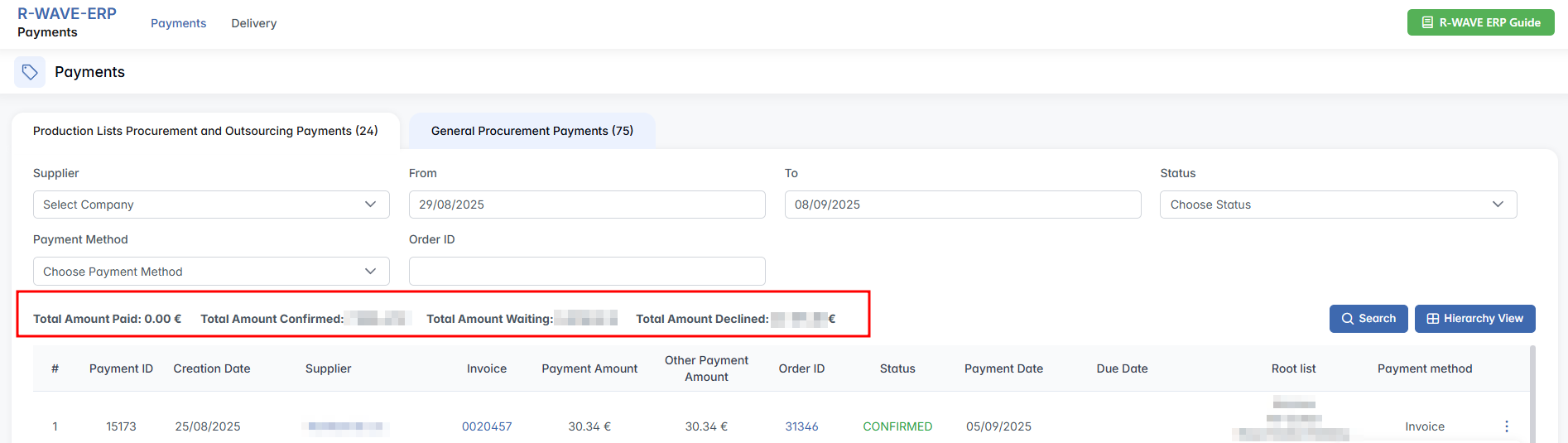
These values update dynamically based on the applied filters.
Payment Table
Filtered results are shown in a structured table with the following columns:
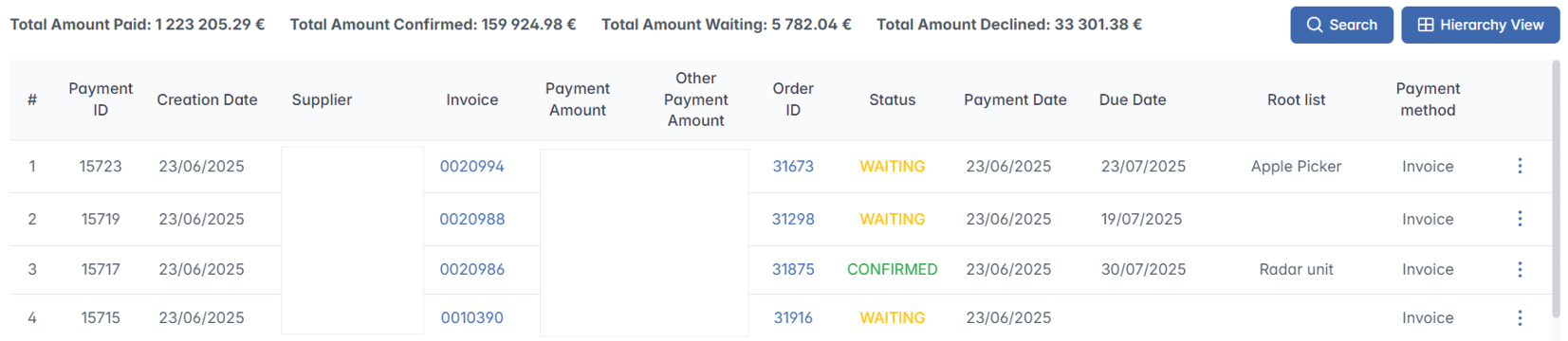
| Column | Description |
|---|---|
| Payment ID | Unique internal identifier for the payment. |
| Creation Date | Date when the payment record was generated. |
| Supplier | Name of the supplier. Clickable: opens the supplier profile. |
| Invoice | Invoice number. Clickable: opens the invoice view. |
| Payment Amount | Total payment amount in euros. |
| Other Payment Amount | Additional payments, if applicable. |
| Order ID | Linked procurement order. Clickable: opens the order. |
| Status | Payment state (Waiting, Confirmed, Paid, Declined) with color-coding. |
| Payment Date | Date the payment was or will be executed. |
| Due Date | Deadline for completing the payment. |
| Root List | Name of the associated production list. |
| Payment Method | Method used for payment (e.g., Invoice, Card). |
Columns Supplier, Invoice, and Order ID are clickable - clicking the number or name redirects to the corresponding page.
Row Actions (⋯ Menu)
Each row contains a three-dot icon on the right, which opens a contextual action menu with:

- Payment Card -- Opens the payment editing window.
- Remove -- Deletes the payment record.
Payment Card Window
Clicking Payment Card opens a modal titled Edit Payment:
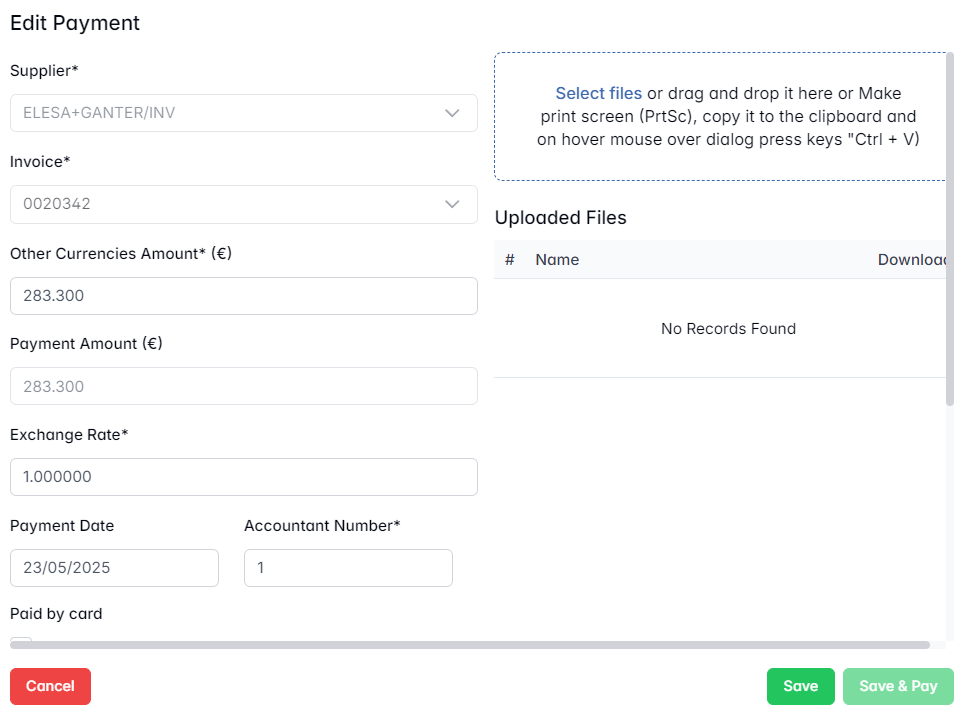
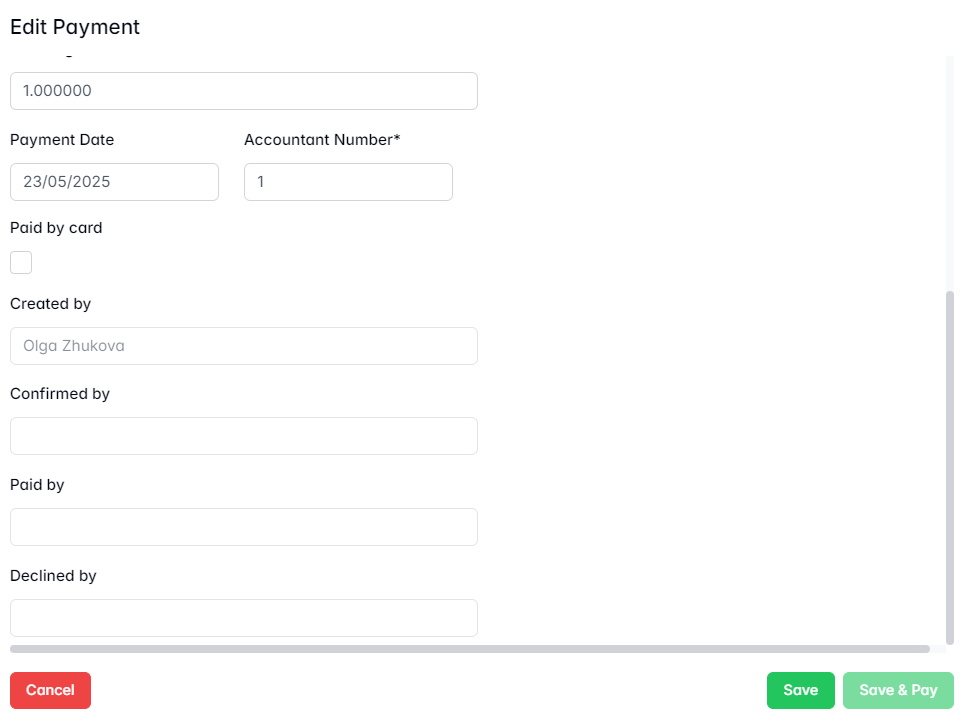
Here you can review and update the payment amount, date, and other financial fields. Most fields (such as supplier, invoice, and exchange rate) are pre-filled and locked after initial confirmation.
You can also:
- Upload confirmation files by dragging them into the Uploaded Files area.
- Tick the Paid by card checkbox if the payment was processed externally.
- See who created or confirmed the payment, and optionally record who paid or declined it.
At the bottom of the window, action buttons allow you to:
- Save the information without completing the payment.
- Save & Pay to register the payment and mark it as "PAID".
General Procurement Payments
General Procurement Payments
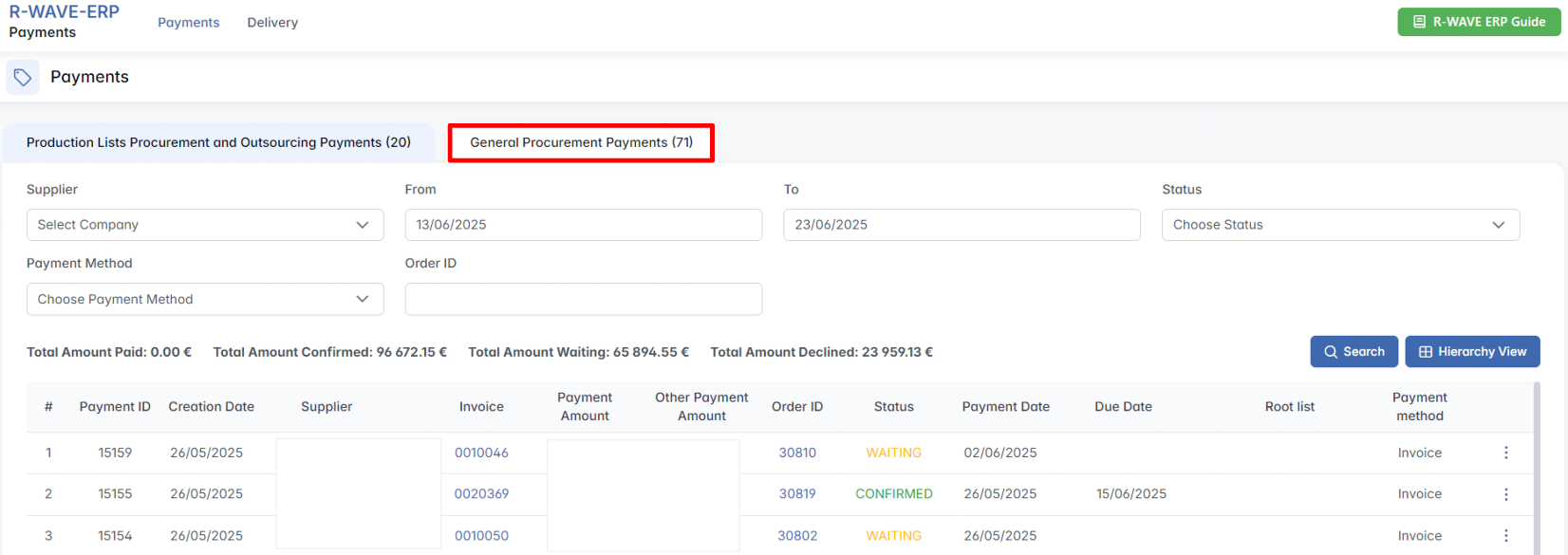
This tab displays all payments related to general procurement outside of production workflows. It includes transactions such as administrative purchases, services, and other operational expenses.
The interface and functionality fully mirror the previous tab - filters, table layout, status tracking, and the Payment Card window behave in the same way.
Delivery
Delivery
The Delivery tab provides an overview of incoming payments along sales chains, based on issued invoices and delivery confirmations. This tab is used to track expected payments from customers and monitor their completion status.
At the top of the tab, a standard filter panel allows users to narrow the list of results using the following fields:
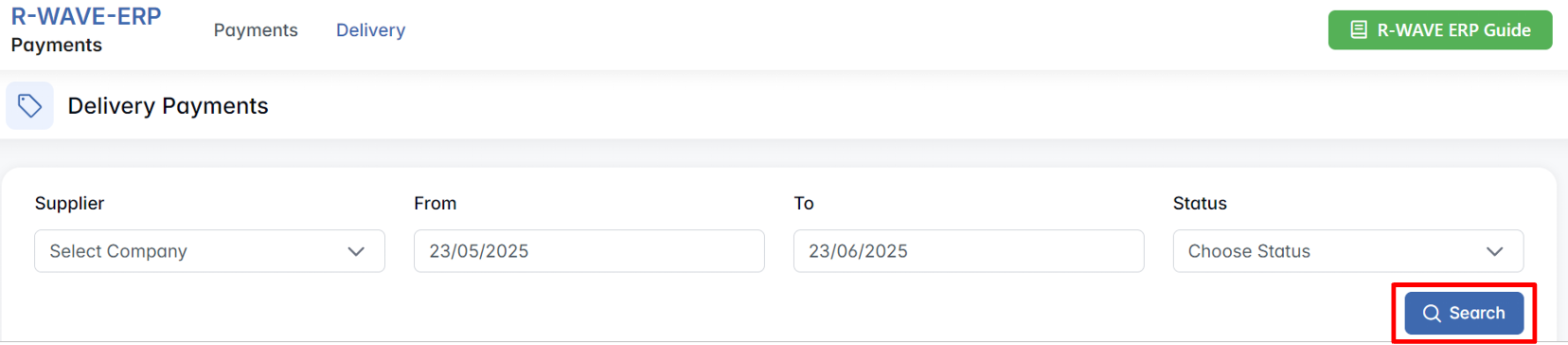
Supplier - dropdown list (refers to customer in this context)
From / To - payment creation date range
Status - dropdown list with available statuses (e.g., Waiting, Paid)
Once filters are applied and the Search button is pressed, the results are displayed in a structured table with the following columns:

| Column | Description |
|---|---|
| Payment ID | Unique identifier of the incoming payment |
| Date | Date the payment record was created |
| Customer | Name of the paying customer |
| Invoice | Invoice number issued to the customer |
| Amount | Total amount expected |
| Delivery Chain ID | Associated delivery chain |
| Status | Current payment status |
| % Paid | Percentage of the invoice amount already received |
The system tracks the progress of each payment, and once the % Paid field reaches 100%, the status is automatically updated to PAID. As in other sections of the module, key fields such as Invoice and Delivery Chain ID are clickable and lead directly to the corresponding records for reference and verification. (should be but for now it is not clickable)
This tab supports financial visibility across the sales pipeline and ensures timely follow-up on outstanding receivables.