Confirmation Module
The Confirmation module in BINU ERP is a central checkpoint designed to support approval and verification workflows across different business areas. It provides a centralized place where authorized users can review submitted records, confirm valid entries, or decline items that require correction.
In this way the company maintains control, accuracy, and compliance across all major business processes. The module ensures that nothing proceeds without proper validation from responsible parties. It plays a key role in production integrity, quality control, procurement discipline, and financial transparency.
The confirmation system is fully integrated with Warehouse, Procurement, Production, and Nomenclature workflows to ensure company-wide consistency and traceability. The module includes several confirmation sections: nomenclature confirmation, payments confirmation, credit lines confirmation, write off confirmation, production lists confirmation, suppliers confirmation, planning confirmation, and procurement request confirmation. This structure helps ensure that important business data and operational decisions are reviewed before they become active or finalized in the system.
The BINU ERP Guide and AI Assistant Tools
The BINU ERP Guide and AI Assistant Tools
The BINU ERP system provides tools to support users in navigating and understanding the processes and functionalities of the system. These tools — the BINU ERP Guide and the BINU AI Assistant — include a built-in contextual help. They are non-intrusive and can be closed or reopened as needed, allowing users to remain focused on their current workflow without interruption.
When you click the BINU ERP Guide icon in the upper-right corner of the screen, the pop-up guide window opens. This feature is available across different modules and is designed to help users understand where they are in the system and how to use the current section effectively.

When you click the BINU AI feature on the side of the screen, the chat window opens, where users can choose their language of conversation. The supported languages are: English, Bulgarian, Croatian, French, German, Hungarian, Italian, Romanian, Russian, Serbian, Slovenian, Spanish, Turkish, and Ukrainian.
The BINU AI Assistant provides explanations and documentation for all topics related to the BINU ERP system. Users can ask about specific terms, business processes, system functionalities, or request documentation on a particular topic. To begin, type your question in the input field at the bottom of the chat window.
The BINU ERP Guide: Quick Overview
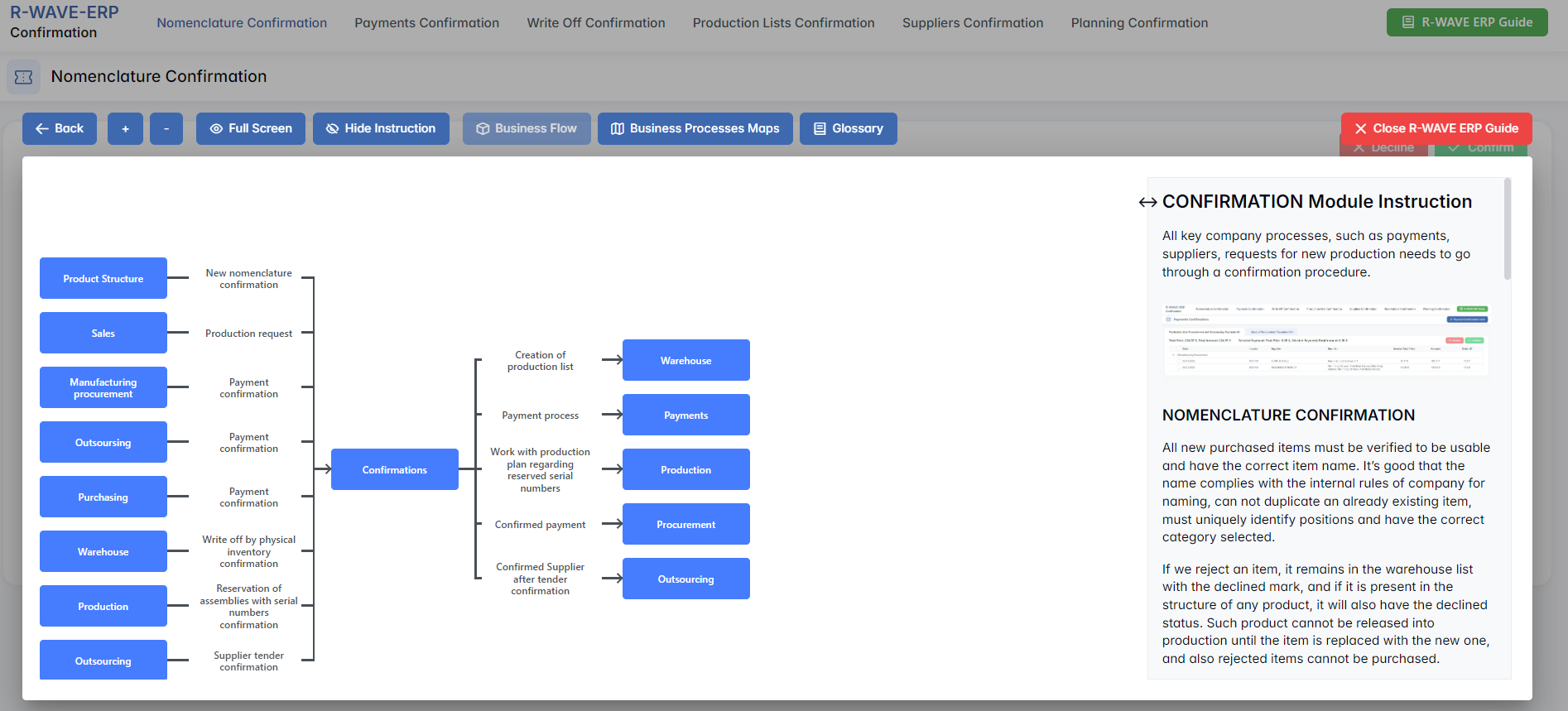
When you click the BINU ERP Guide book icon, you land on the Business Flow map. It has two main sections: the left panel displaying the business flow map and the right panel showing the functional overview.
- Left panel — Business Flow Map — displays a visual diagram of the business processes. It shows how each module is interconnected; for example, you can see how Sales, Manufacturing, Procurement, CRM, QC, and Warehouse are interconnected.
- Right panel — Functional Overview — provides a concise, bullet-style instruction list describing the key operations available in the current module/tab.
Top Bar Options
At the top of the ERP Guide window, you'll find optional tools for deeper understanding: Business Processes Maps, Accounting Flow, and Glossary. The Accounting Flow is meant for financial departments.
Business Processes Maps
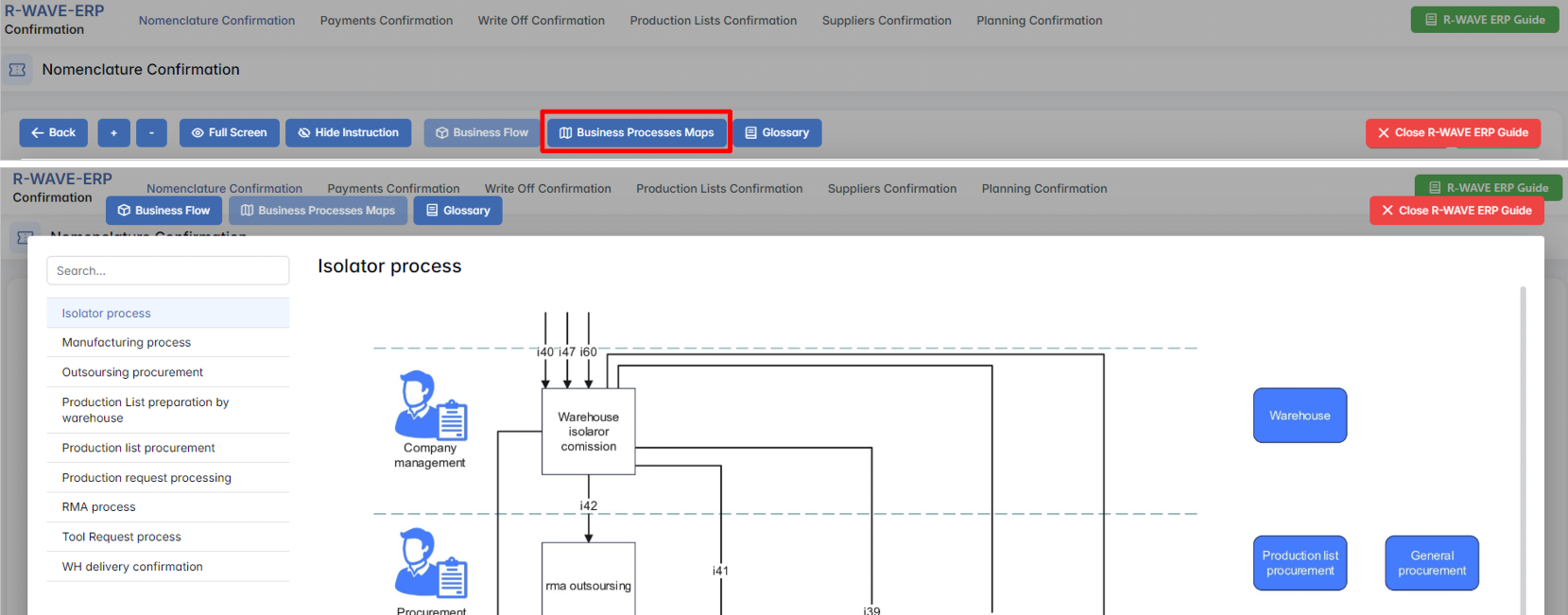
Business Processes Maps provides a visual representation of the company's operational structure and business flow. It helps the user understand how the current module fits into the larger operational structure and makes it easy to grasp the upstream and downstream dependencies within the business processes. The Business Processes Maps can be accessed from various modules.

Accounting Flow: Data Flow Graph and Responsibility Matrix
Accounting Flow is a tool designed for the finance department; it shows where the data originates and defines responsibilities. For this purpose, it consists of two parts: a Data Flow Graph and a Responsibility Matrix.
The Data Flow Graph displays the movement of items from departments to the warehouse and from the warehouse to the departments. Based on these movements, the system tracks the flow of goods entering and leaving the company. The Dashboard section, planned for a future release, will allow users to view real-time data (in, out, balance, product costs).
If you hover over a diagram block, the system highlights the corresponding movement chain.
If you click a block in the diagram, you fix the highlighted chain. To narrow the selection further, click a block in the second, third, or fourth column.

The Responsibility Matrix identifies the department accountable for the selected process.

Glossary
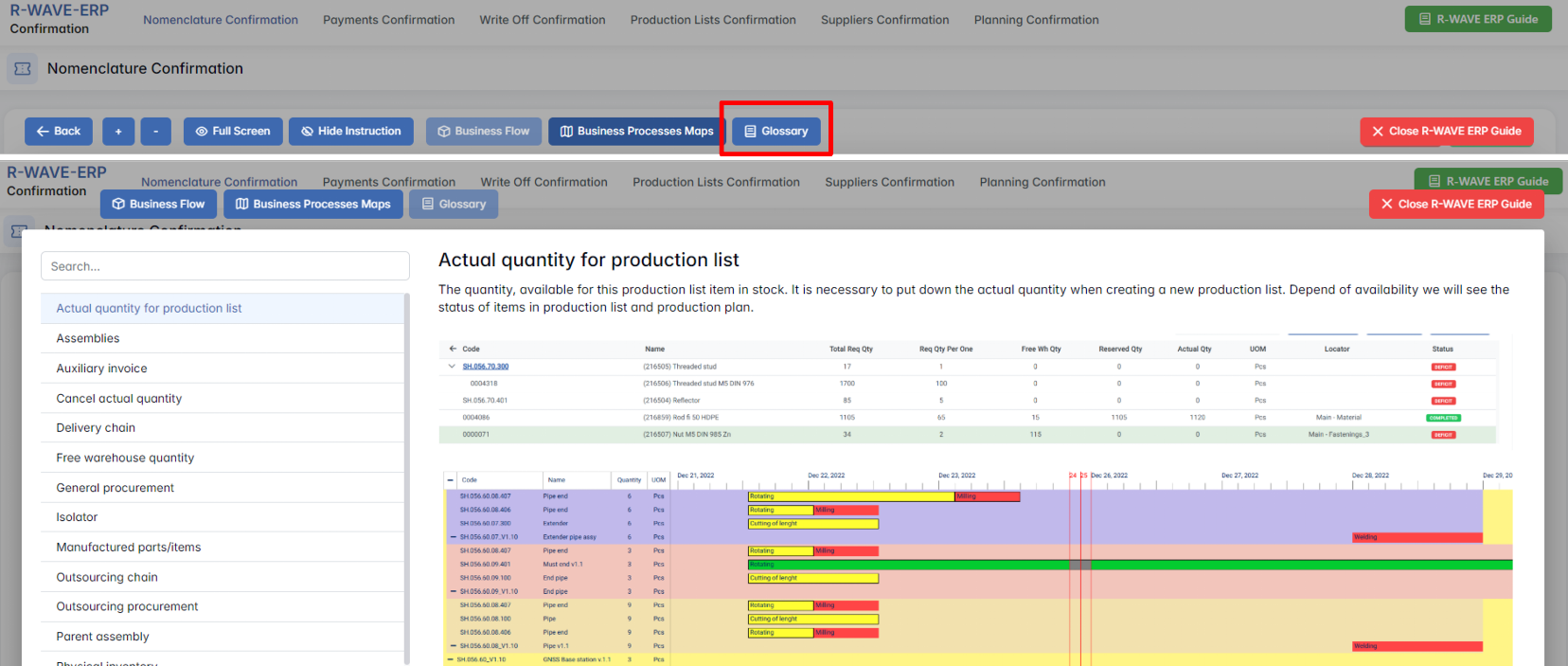
Glossary provides definitions and descriptions of key terms and functionalities used throughout the system. The Glossary can be accessed via the BINU ERP Guide, which is available on any page of the system.
The BINU AI Assistant: Quick Overview
The BINU AI Assistant is specifically designed to help the user with ERP documentation questions. It provides information and assistance related to the BINU ERP system. The BINU AI Assistant understands fifteen (15) languages. It is available on every page as a non-intrusive help tool.
The Purpose of the BINU ERP Guide and BINU AI Assistant Tools
The BINU ERP Guide and BINU AI Assistant help users by:
- Showing where they are within the system (module context and current section).
- Providing a visual schema of the business flow, helping them understand how the current module fits into the larger operational structure.
- Offering a quick-reference instruction panel with the main actions and functions available in the current tab (e.g., creating companies, filtering, scheduling events).
- Offering quick access to the relevant documentation (AI-powered ERP documentation helper).
Confirmation Overview
Confirmation Overview
The Confirmation module in BINU ERP ensures that key business processes undergo a formal review before they are finalized. It introduces an approval layer for operations such as adding new items to the nomenclature, initiating payments, confirming production lists, approving suppliers, and validating planned manufacturing activities.
By requiring confirmation at specific control points, the system helps maintain data accuracy, process consistency, and coordination between departments such as Procurement, Warehouse, and Production.
Navigating the Confirmation Interface
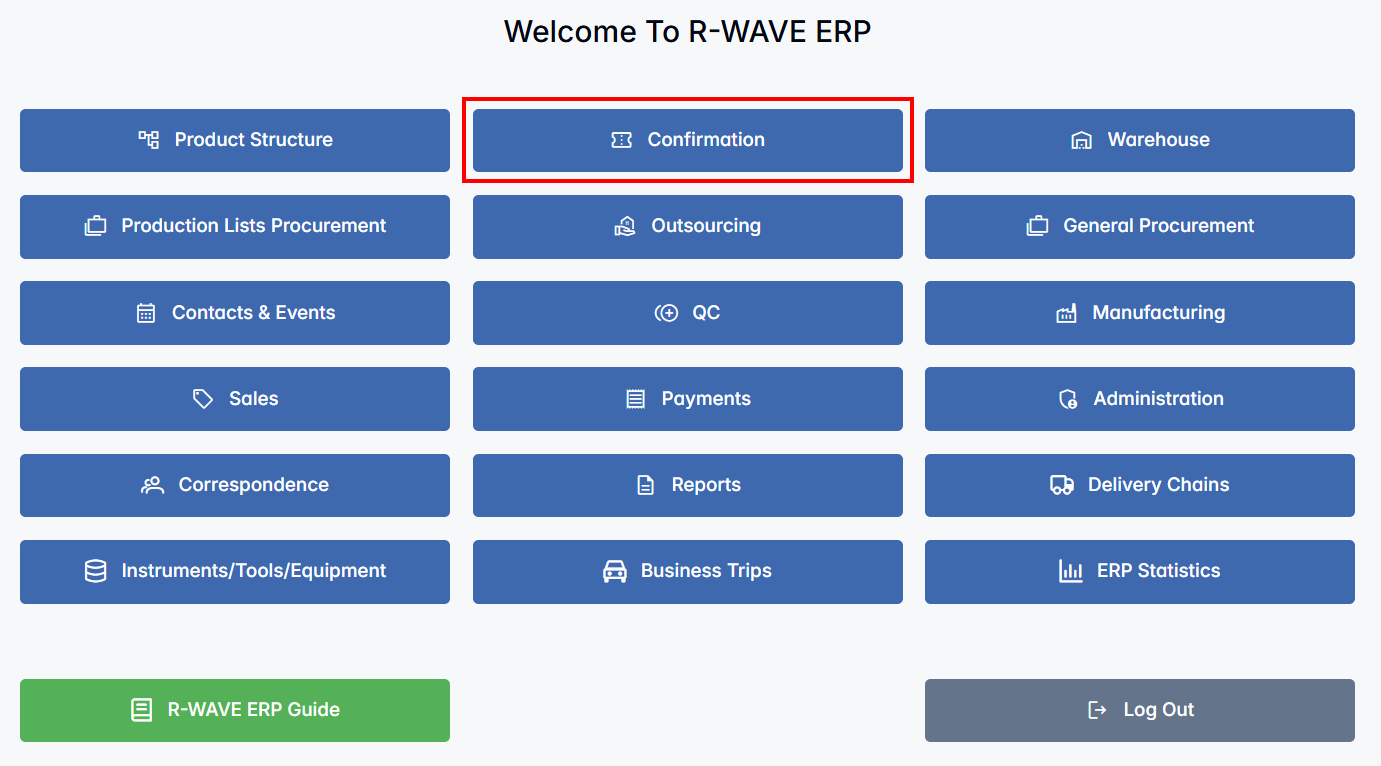
When you access the Confirmation module from the main ERP menu, you are directed to a centralized interface for managing all company-level approvals. This dashboard is organized by confirmation type, with a clear vertical navigation menu.
The following categories are available:
- Nomenclature Confirmation (opened by default)
- Payments Confirmation
- Credit Lines Confirmation
- Write Off Confirmation
- Production Lists Confirmation
- Suppliers Confirmation
- Planning Confirmation
- Procurement Requests Confirmation
Each section corresponds to a specific type of action or process that requires validation from an authorized user. This structure helps teams quickly locate and process pending approvals across different business functions — from item creation to supplier decisions and production scheduling.
Nomenclature Confirmation
Nomenclature Confirmation
The Nomenclature Confirmation tab is used to verify all newly created purchased items before they are allowed into procurement and production processes. This step ensures that every item in the system meets the company's internal standards for naming, classification, and uniqueness.
Purpose
Nomenclature confirmation acts as a quality control checkpoint for purchased items. The goal is to:
- Ensure that the item name is correct, clear, and compliant with internal naming conventions.
- Verify that the category is properly selected and reflects the item's actual purpose or group.
- Prevent duplicate entries — each item must be unique across the entire ERP system.
- Guarantee that every purchased item is usable within product structures and visible to procurement.
How It Works
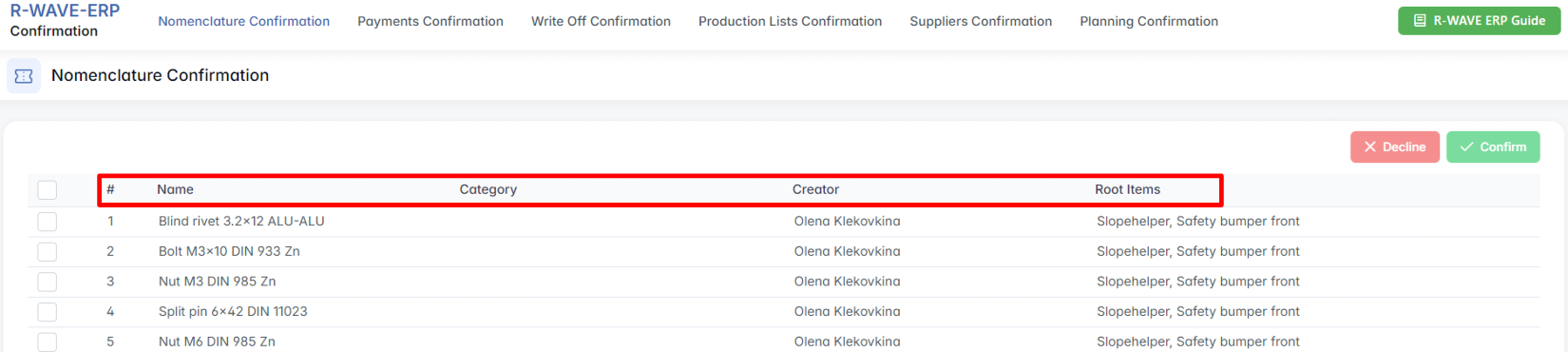
- All new items pending confirmation are listed in a table showing:
- Name of the item
- Category (if already selected)
- Creator (user who added the item)
- Root Items — the products or assemblies in which this item is used

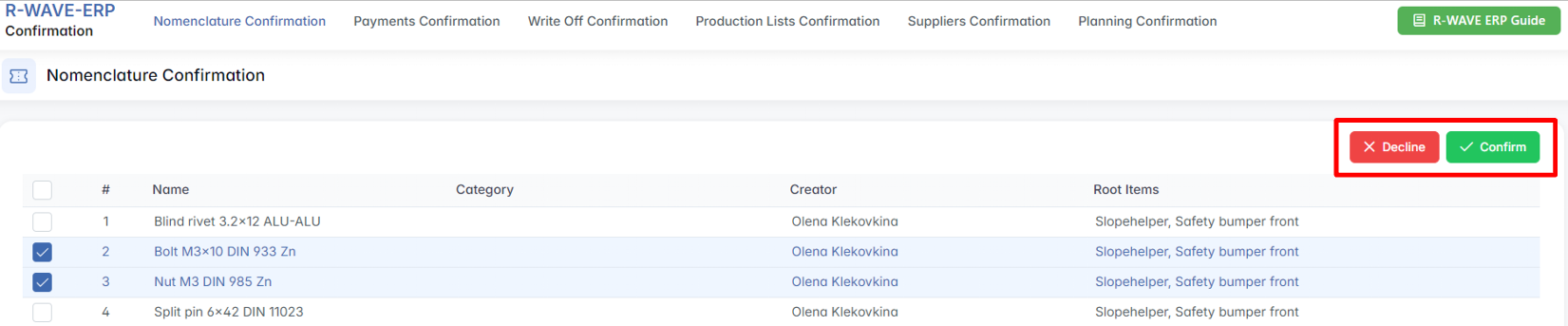
- To confirm or reject an item:
- Tick the checkbox next to the item(s).
- Click Confirm to approve the item — it becomes available for use in procurement and production.
- Click Decline to reject the item — it will remain visible in warehouse lists but marked as declined.
Important Notes
- Rejected items cannot be purchased and will block release of any product structure in which they appear.
- If a rejected item is part of an existing product structure, the entire structure receives a declined status until the item is removed or replaced.
- Once an item is confirmed, it becomes part of the company's validated nomenclature database and can be freely used.
By maintaining strict control through Nomenclature Confirmation, your team ensures product data quality, avoids duplication, and guarantees that only verified items are used in operations.
Payments Confirmation
Payments Confirmation
The Payments Confirmation tab in BINU ERP allows users to review and validate all payment requests generated across procurement chains. This includes payments related to production procurement, outsourcing, general purchases, and service expenses. The goal of this module is to ensure that every financial transaction is thoroughly checked and approved before funds are released.
Navigating the Payments Confirmation Interface
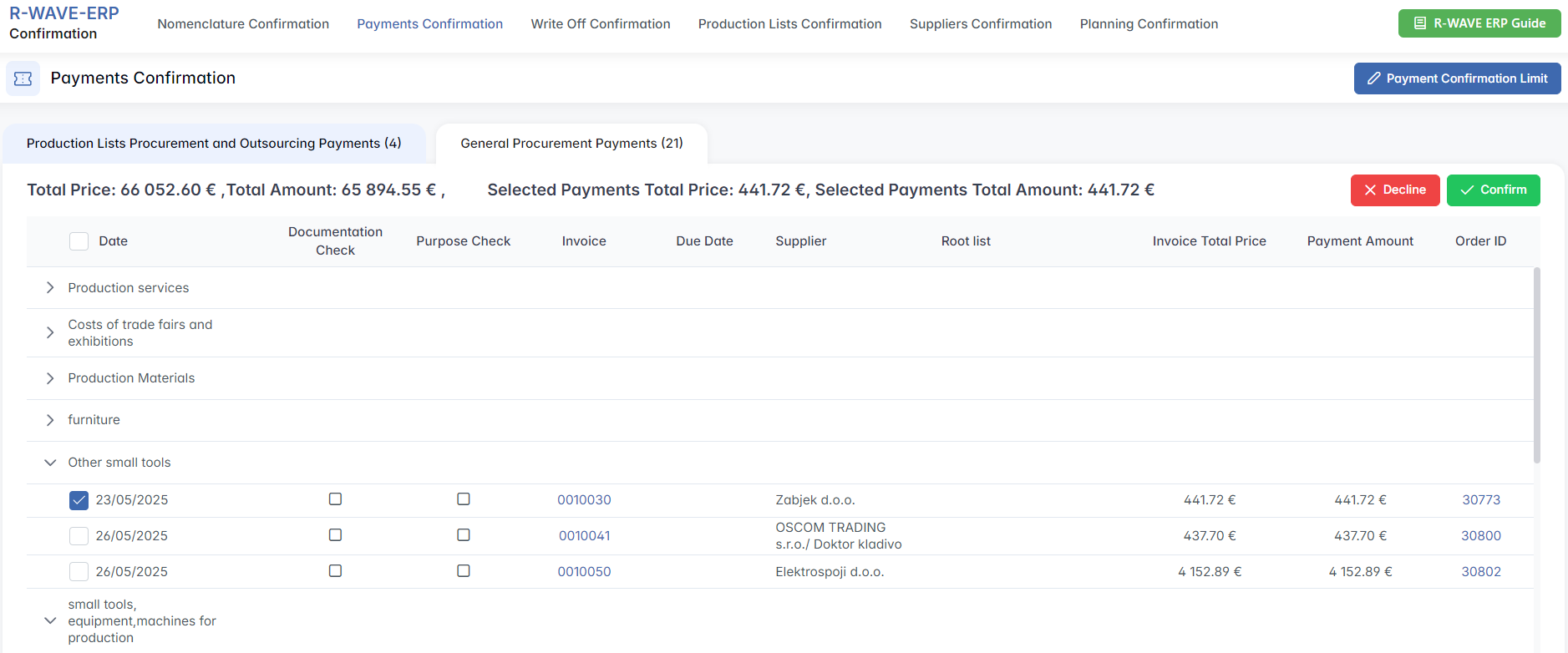
When you open the Payments Confirmation tab in the Confirmation module, you will see a two-tab structure at the top of the screen:
- Production Lists Procurement and Outsourcing Payments – payments related to the procurement of production materials and services from external partners.
- General Procurement Payments – all other operational and overhead payments such as office expenses, event costs, or external services not tied directly to production.
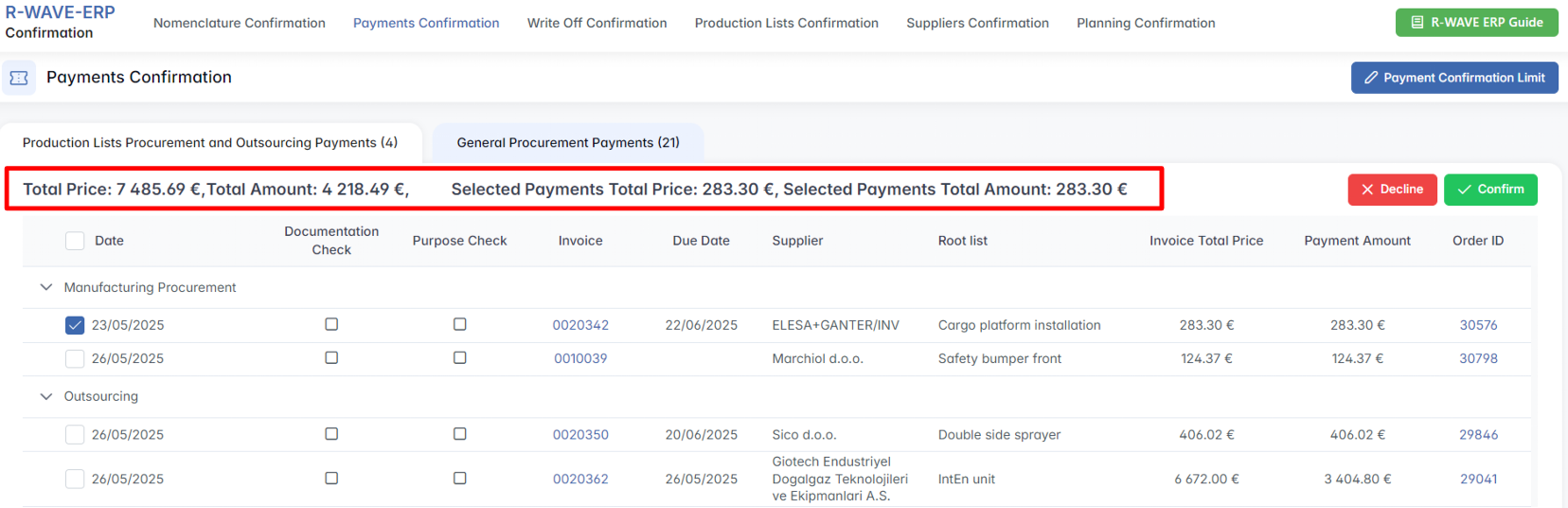
Each tab presents a summarized overview of the total values at the top:
- Total Price – the sum of all payment requests listed.
- Total Amount – the sum that is expected to be paid, which may differ from the invoice totals if partial payments are planned.
- Selected Payments Total Price and Amount – dynamic values that update when the user selects specific rows from the list below.
Payment Confirmation Limit
In the top-right corner of the screen, there is a button labeled Payment Confirmation Limit. Clicking this opens a pop-up where you can define a custom numerical threshold (e.g., 50). This threshold helps manage approvals during bulk confirmation tasks by limiting the number of payments processed at once.
Understanding the Payment Lists
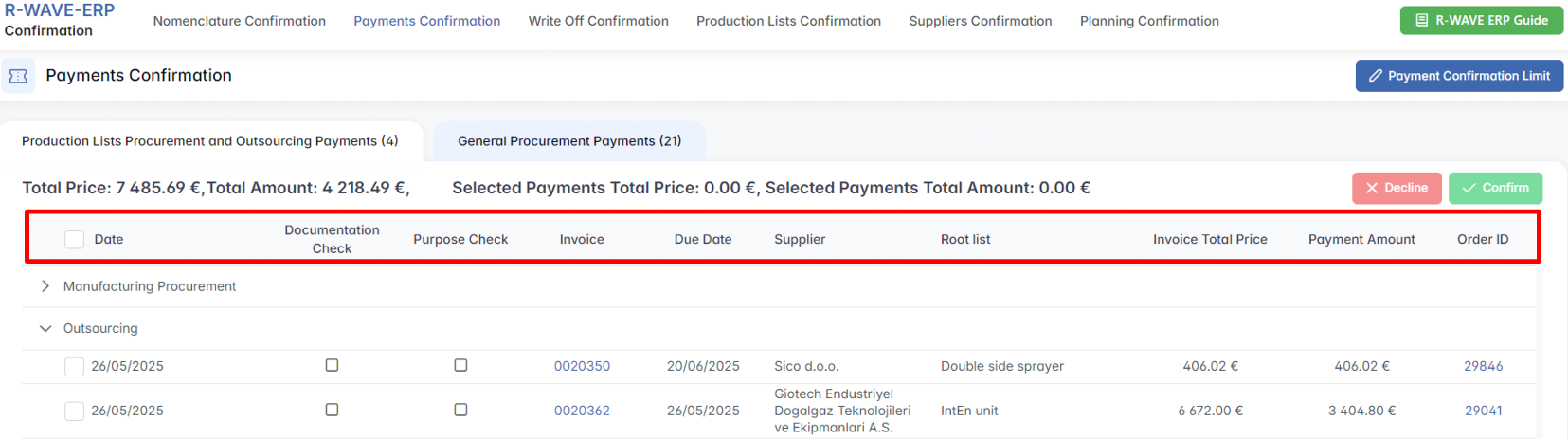
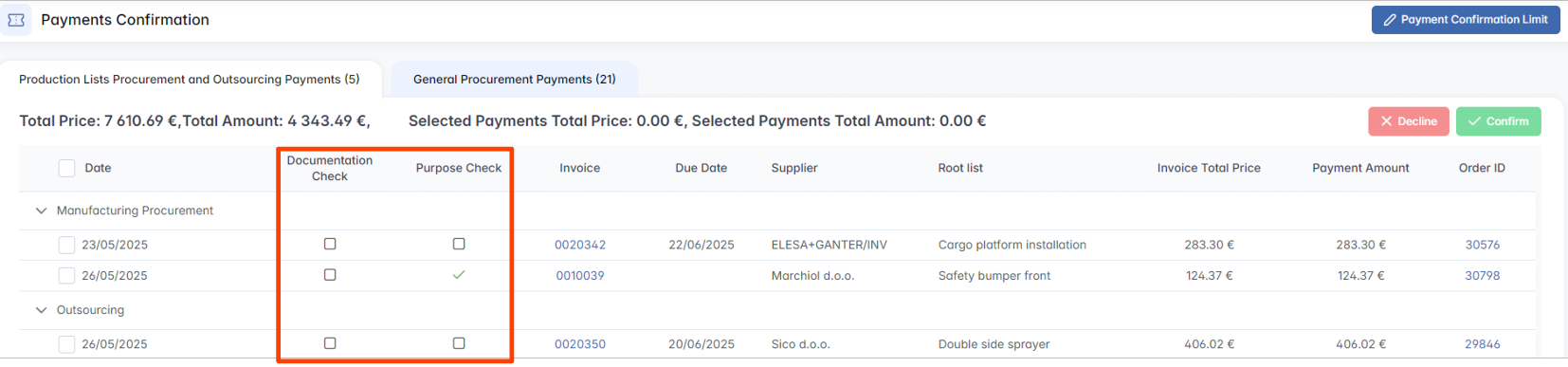
Each tab displays a structured table containing all payment requests pending confirmation. The layout includes the following key fields:
- Date – when the invoice was issued.
- Documentation Check – indicator for whether all required files are attached.
- Purpose Check – whether the payment's justification is complete.
- Invoice / Due Date – reference number and deadline for payment.
- Supplier – vendor or partner to be paid.
- Root List – the associated production or procurement request.
- Invoice Total Price / Payment Amount – amounts requested per invoice.
- Order ID – internal reference number for traceability.

Below the table, the content is organized into collapsible folders. Each folder groups payments by their procurement type or cost category.
Confirmation Marks
In the Payments Confirmation list, two columns display the current status of confirmation marks (the last added ones for each type). These are informational only — their presence or absence does not restrict payment confirmation.
Viewing and Managing Confirmation Marks
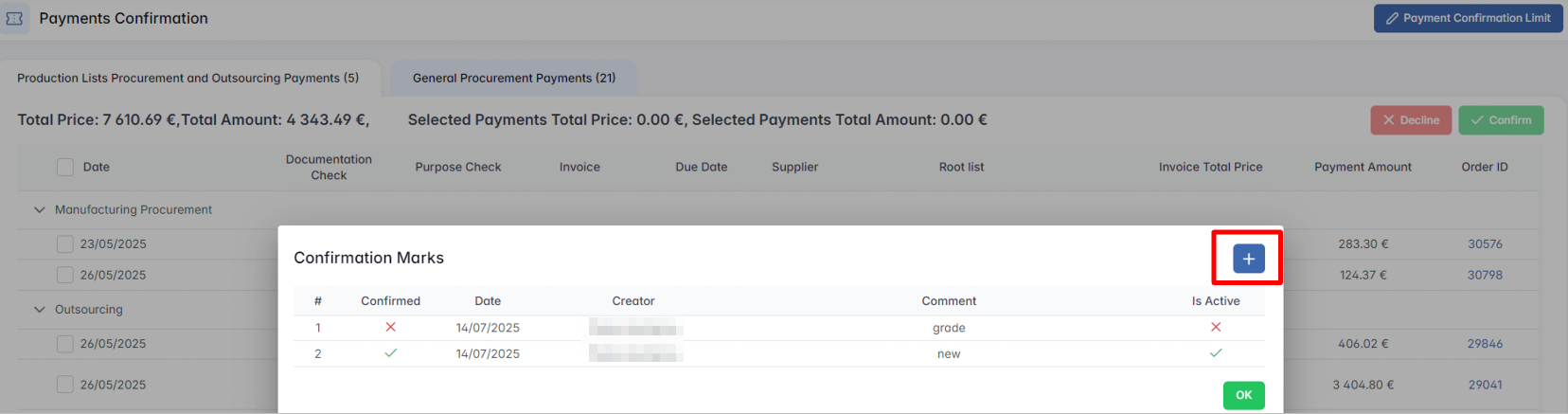
Users with permission can click on a checkbox or mark to open a modal showing the full history and allowing the addition of a new mark. The history table includes:
- Confirmed status
- Date added
- Creator
- Comment
- Active mark (the latest is always active)

To add a new mark, click the + button, enter a required comment, and confirm. The new mark becomes active.

Confirmation Marks in Chain View
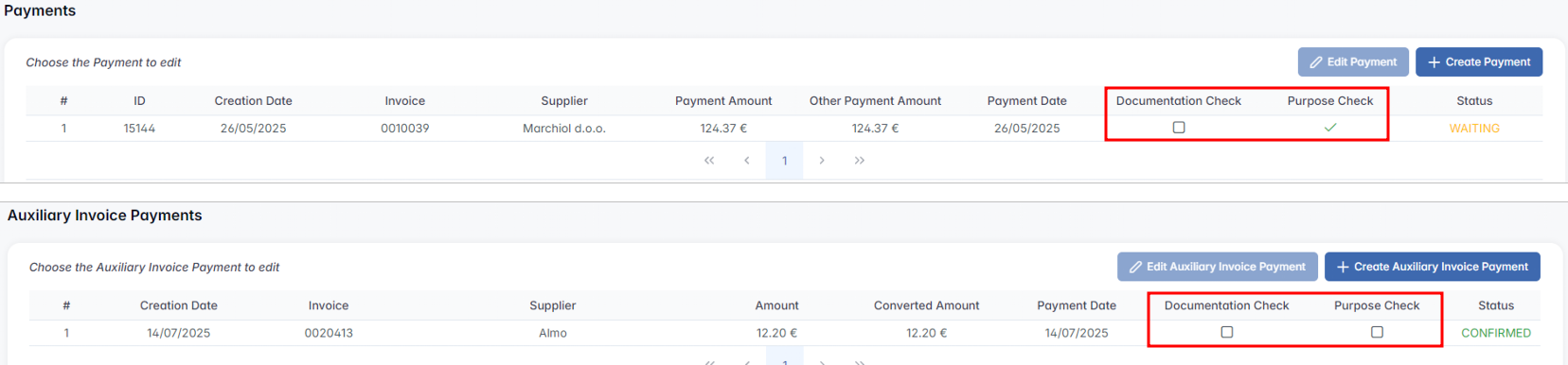
Confirmation mark statuses are displayed in the Chain View for both Payments and Auxiliary Invoice Payments. You can access this view by navigating to: Production List Procurement / General Procurement Module > Procurement tab > select desired chain > Selected Chain > Open Chain.

The checkboxes visible in the Chain View are only for viewing the confirmation status of Payments and Auxiliary Invoice Payments. These checkboxes cannot be directly edited or assigned from this view.
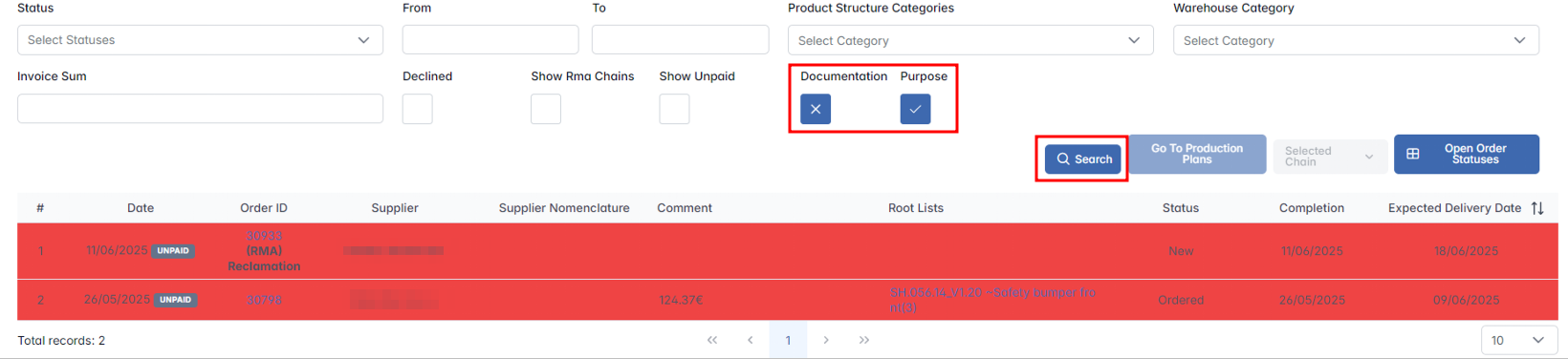
Procurement chains can be filtered by current confirmation mark type and documentation status in Production List Procurement / General Procurement Module.

In the Production Lists Procurement and Outsourcing Payments tab, the main folders are:
- Manufacturing Procurement
- Outsourcing
In the General Procurement Payments tab, you may find folders like Production Services, Costs of Trade Fairs and Exhibitions, Production Materials, and other general expense categories.
Clicking on a folder expands the list of individual payment entries it contains. You can review each entry, and then select one or multiple rows using the checkboxes on the left.
Once one or more payments are selected, the action buttons Confirm and Decline become active at the bottom or top of the screen. These allow you to either approve the selected payments for execution or decline them for further revision.
This modular structure ensures financial control, transparency, and proper documentation across the entire procurement and payment workflow in the ERP system.
Credit Lines Confirmation
Credit Lines Confirmation
All newly created credit lines must be confirmed in the Confirmation module. Open Confirmation > Credit Lines Confirmation. A table displays all credit line requests:

At the top of the table, two summaries are shown:
- Total Amount – overall sum of all listed credit line requests.
- Selected Total Amount – sum of the currently selected requests.
Select one or more requests using the checkboxes. Two action buttons become available:

- Confirm – approves the credit line; the procurement chain is then restricted, and payments can only be created within the approved amount.
- Decline – rejects the credit line; the procurement chain remains unrestricted or follows the rules of other existing lines.
After confirmation or decline, the status is automatically updated in the related Procurement Order page.
Business Logic and Behavior
- Multiple credit lines can be added to the same order.
- Multiple credit lines can be in confirmation at the same time.
- If a credit line is confirmed, all payments in that order must stay within the total of all confirmed credit lines.
- Payments created within a credit line reduce its Rest Amount.
- If a payment is deleted or declined, its amount is returned to the credit line balance.
- If the first credit line is declined, users are allowed to create payments without a credit line.
- If a non-credit-line payment is created after the first credit line was declined, adding new credit lines becomes impossible — the + Add Credit Line button is disabled.
- If there is an active credit line in confirmation, payment creation is temporarily blocked until the credit line is confirmed or declined.
- If no credit line exists for a procurement chain, it is still possible to create payments.
This mechanism ensures financial discipline while maintaining flexibility in cases where no credit line is confirmed.
Write Off Confirmation
Write Off Confirmation
The Write Off Confirmation tab in BINU ERP is designed to manage and approve the removal of items from the company's inventory. Whether due to defects, end-of-use, loss, or completion of usage cycles (such as tools), this module ensures that every write-off is properly reviewed and confirmed before the item is permanently excluded from the warehouse system.
Navigating the Write Off Confirmation Interface
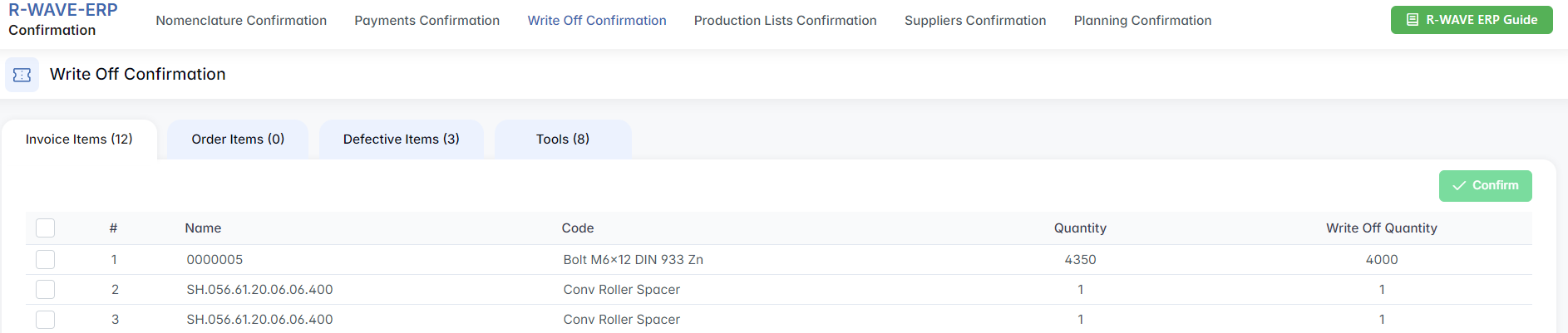
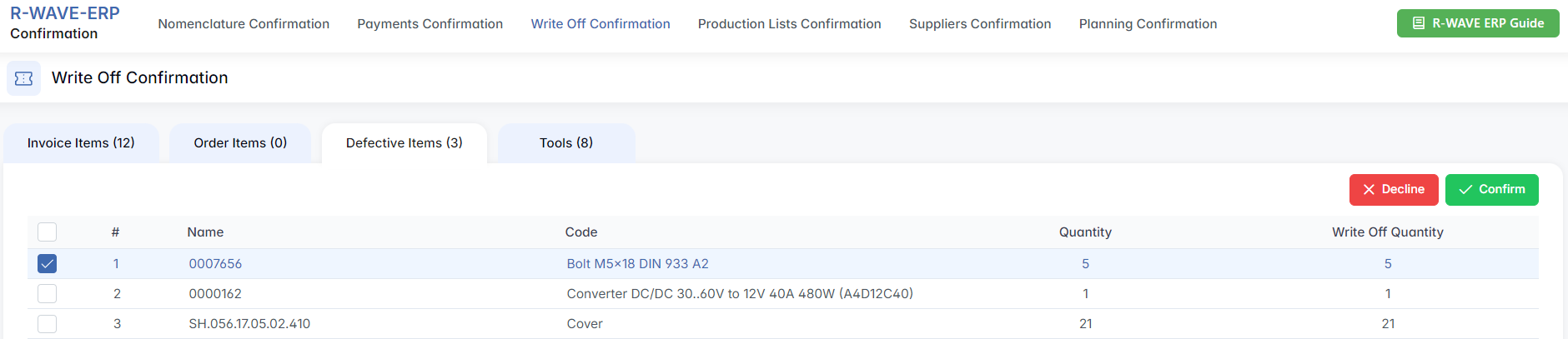
When you access this page, you will see four dedicated tabs, each representing a different category of items marked for write-off. The number of pending items in each tab is shown in parentheses next to the tab name. The available tabs are:
- Invoices Items – products initially entered into stock via invoices that now require removal.
- Order Items – positions added through internal orders or transfers marked for disposal.
- Defective Items – damaged or unusable goods identified during quality control or warehouse handling.
- Tools – instruments, equipment, or reusable components reaching the end of their lifespan or marked as missing.
Each tab contains a structured list displaying items pending confirmation. The layout of the lists is consistent across tabs:
This structure allows users to compare the total quantity in stock with the quantity being written off. You can review and validate whether the proposed write-off amount is accurate before confirming.
For the Tools tab, the list contains a slightly extended format to reflect equipment tracking specifics:
- Area refers to the department or operational zone where the tool is assigned.
- Locator provides information about the specific storage location within the facility.
Confirming or Declining Write-Offs
Each row is accompanied by a checkbox on the left. Once one or more rows are selected, the action buttons Confirm and Decline become active.
- Confirm will approve the write-off, and the item will be removed from the warehouse system. A corresponding entry is then automatically created in the Reports > Out tab for traceability.
- Decline cancels the write-off request, and the item remains available in the system.
This process ensures accountability for stock adjustments and provides a clear audit trail of all removed items, whether consumables, raw materials, or tools.
Production Lists Confirmation
Production Lists Confirmation
The Production Lists Confirmation tab in BINU ERP is responsible for reviewing and validating product structures before they are officially released into production. This step is crucial to ensure that all components, assemblies, and related data have been correctly configured and approved before any manufacturing activity begins.
Overview of the Interface
Upon entering the module, you are presented with a structured table listing all product structures (also referred to as production lists) that are awaiting confirmation. These lists represent finalized builds of products or subassemblies prepared by engineers or planners and now pending approval from responsible parties.
- Code – Unique identifier of the product structure.
- Name – Descriptive name of the position or assembly.
- For Order – Displays related sales or internal orders, if applicable.
- Creator – The user who created the production list.
- Quantity – The number of units intended for production.
- Is Grouped – Indicates whether the structure is part of a grouped production batch.
In the final column of each row, you will see either:
- ✅ Green tick – The production list has already been confirmed and is ready for use.
- ❌ Red cross – The production list has not yet been confirmed.
Confirmation Actions
Just like in the other confirmation modules, each row is accompanied by a checkbox. You can select one or more rows from the list, after which the Confirm and Decline buttons become active.
- Confirm – Approves the production list, officially releasing it to the system. Once confirmed, the structure becomes available under Warehouse > Production Lists and can be used in real production processes.
- Decline – Rejects the structure, keeping it in the list with an unconfirmed status. Declined production lists cannot be launched until they are revised and resubmitted.

This step ensures that only reviewed and approved product structures are sent to manufacturing, helping prevent production errors, missing components, or misaligned versions.
Suppliers Confirmation
Suppliers Confirmation
The Suppliers Confirmation module in BINU ERP is used to verify and confirm supplier proposals submitted through tenders in procurement chains. It ensures that selected suppliers and their offers (price, delivery time, and terms) are reviewed and formally approved before purchase orders are finalized.
Navigating the Interface
The module is divided into three tabs, corresponding to different procurement types:
- Production Procurement Confirmations
- Outsourcing Confirmations
- General Procurement Confirmations
Each tab follows the same two-panel structure:
1. Suppliers Confirmation Orders
This section displays a list of available orders that are waiting for supplier confirmation.
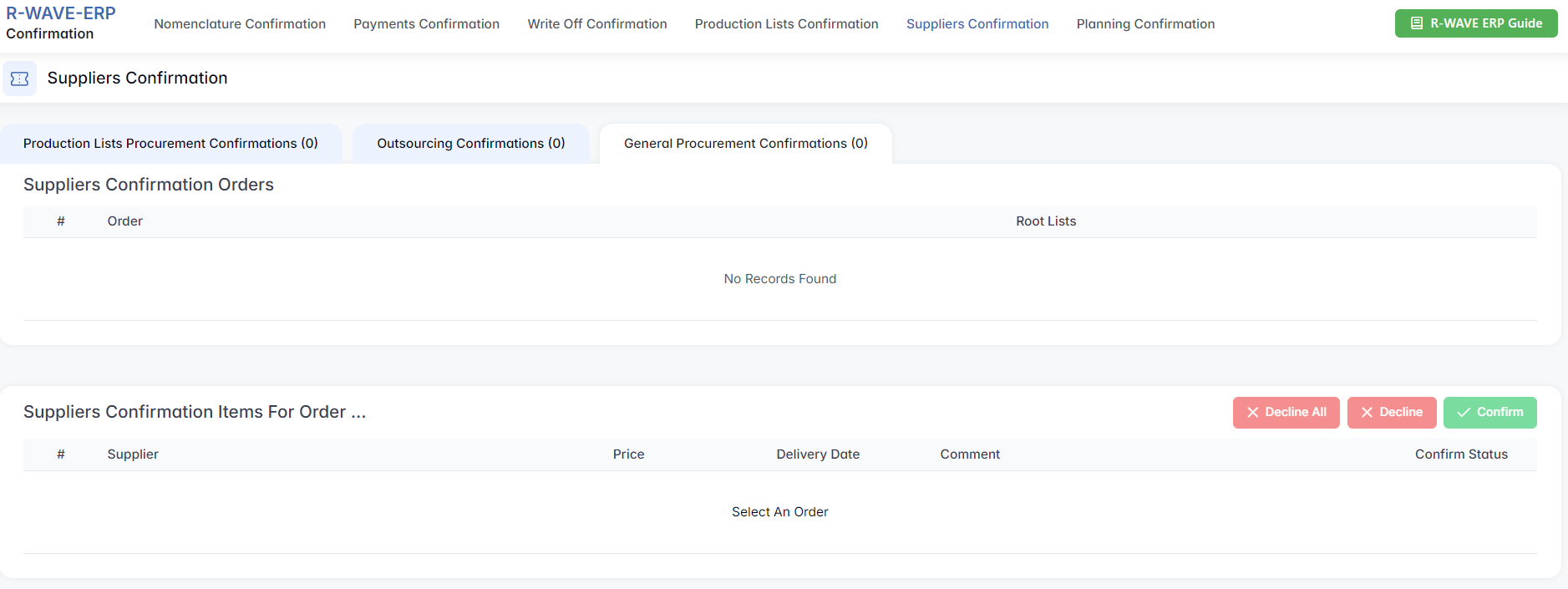
- Order – order number or reference
- Root Lists – product or component groups related to the order
To view supplier offers, select an order from this list — the bottom panel will then update accordingly.
2. Suppliers Confirmation Items For Order
Once you select an order, this panel displays all supplier offers related to that order.

- Supplier – the name of the supplier participating in the tender
- Price – proposed price by the supplier
- Delivery Date – suggested delivery timeline
- Comment – any notes added by the supplier
- Confirm Status – current status (waiting for confirmation, confirmed, or declined)
Below the table are three control buttons that activate once you select a supplier:
- Confirm – approve the selected supplier and offer
- Decline – reject the selected supplier
- Decline All – reject all supplier offers for the current order
Once a supplier is confirmed, their data will be automatically reflected in the procurement chain. If none of the suppliers are confirmed, the tender remains open and unassigned.
Planning Confirmation
Planning Confirmation
The Planning Confirmation tab in BINU ERP is designed to manage the approval of production planning changes. It ensures that any adjustments to planned production dates — whether it's confirming new schedules or requesting corrections — go through a formal confirmation process.
This module helps maintain production discipline and prevents unauthorized changes to timelines. It supports collaboration between departments by making planning changes visible, trackable, and subject to approval.
Navigating the Interface
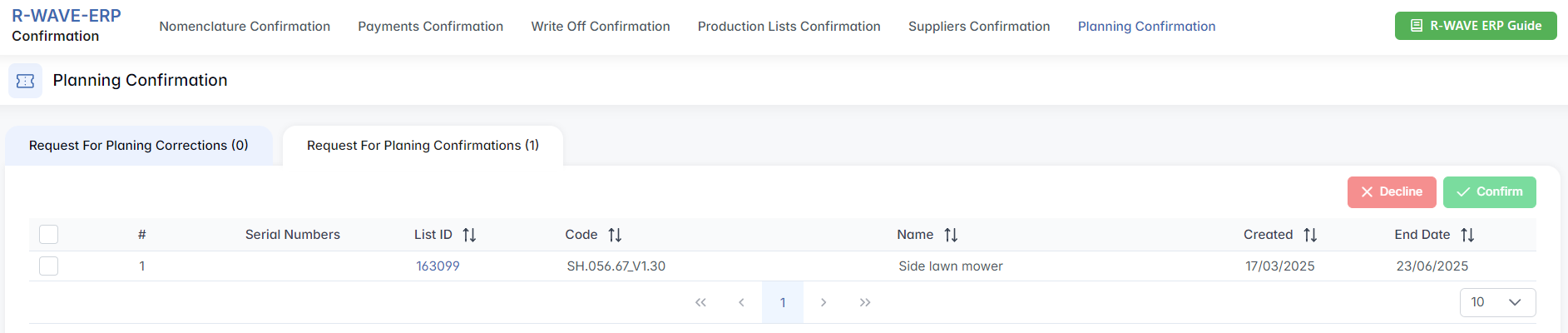
The page is divided into two separate tabs, each representing a different type of planning request:
- Request for Planning Corrections
- Request for Planning Confirmations
Each tab displays a table with the same structure, listing all current planning requests that are awaiting action.
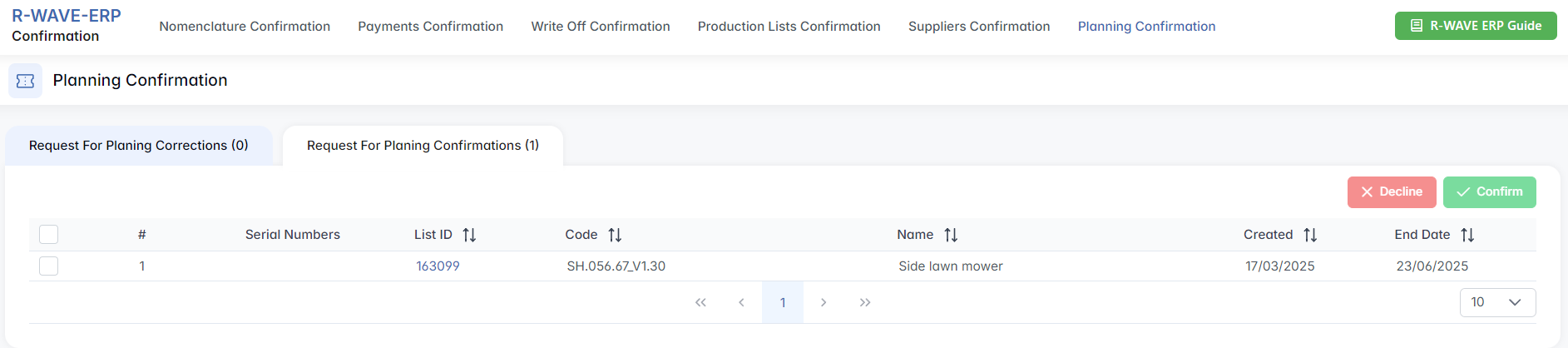
- List ID – internal identifier of the production list
- Code – product or structure code
- Name – product name
- Created – date when the request was generated
- End Date – proposed or adjusted production end date
At the top of each column, there is a sorting function. You can click the arrow icon beside the column title to sort the entries in ascending or descending order, making it easier to find or group planning requests based on specific criteria.
Confirming or Declining Requests
Select the relevant row by checking the checkbox next to it. Once selected, two buttons will become available:
- Confirm – approve the proposed date or correction.
- Decline – reject the proposed change and keep the current schedule.

Approved changes are automatically reflected in the production plan and become locked from further edits, unless a new rescheduling request is submitted.
Procurement Request Confirmation
Procurement Request Confirmation
The Procurement Request Confirmation tab in BINU ERP is used to review and manage material requests submitted for production or assembly. It serves as a checkpoint where responsible users can either confirm or decline the need for specific components before they are forwarded to procurement or planning processes.
This step ensures that only validated requests proceed, reducing unnecessary purchases and aligning procurement with actual production needs.
Navigating the Interface
1. Filter Panel
At the top of the page, users can filter the list of procurement requests using the following fields:

- Name – product name.
- Code – internal product or material code.
- Category – field to select the item category.
- Date – request creation date.
- Creators – names of request creators.
- Select Users – dropdown to choose specific users.
- Root List – name of the associated root production list.
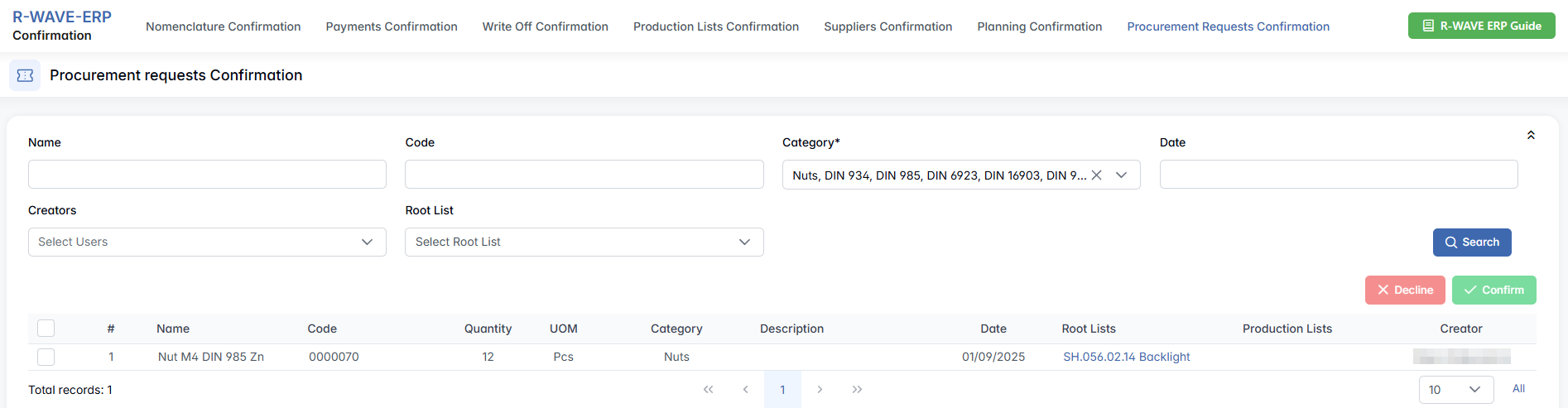
To apply the filter, click the Search button. Matching results will appear in the table below.
2. Results Table
The filtered results are displayed in a structured table with the following columns:
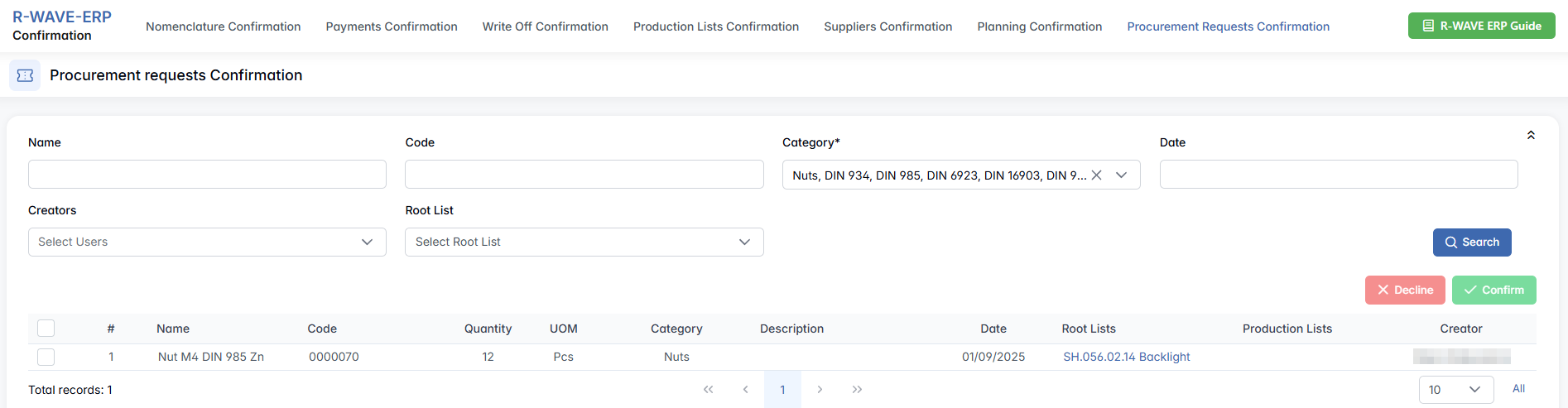
- Name – requested product or material name.
- Code – internal product code.
- Quantity – requested quantity.
- UOM – unit of measure (e.g., Pcs).
- Category – category of the item (e.g., Nuts, DIN 933).
- Description – additional description of the item.
- Date – date when the request was submitted.
- Root Lists – root-level product or assembly list.
- Production Lists – sub-level or specific structure where the item is used.
- Creator – name of the person who submitted the request.
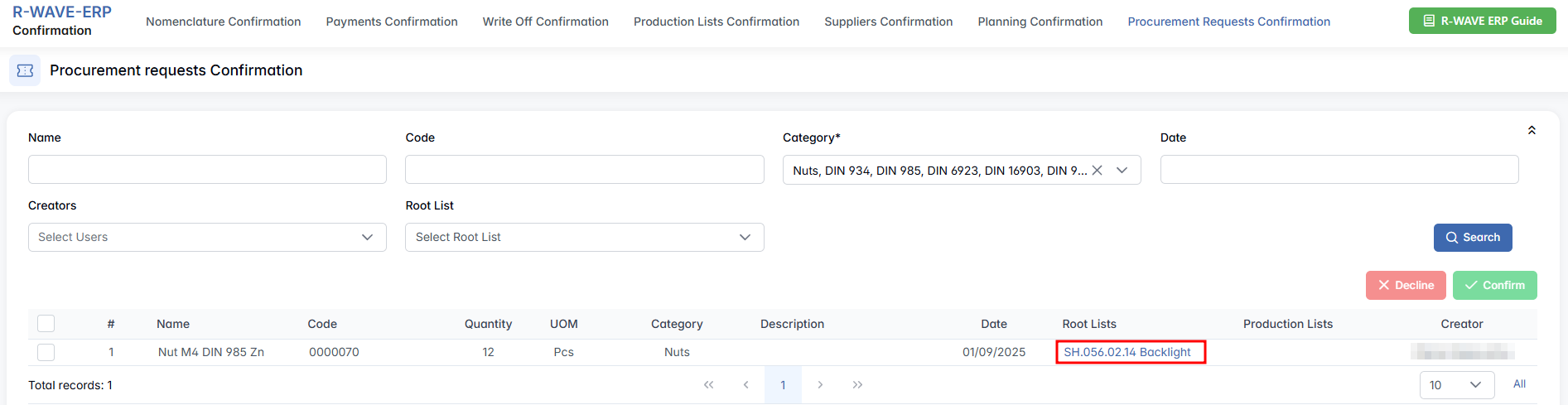
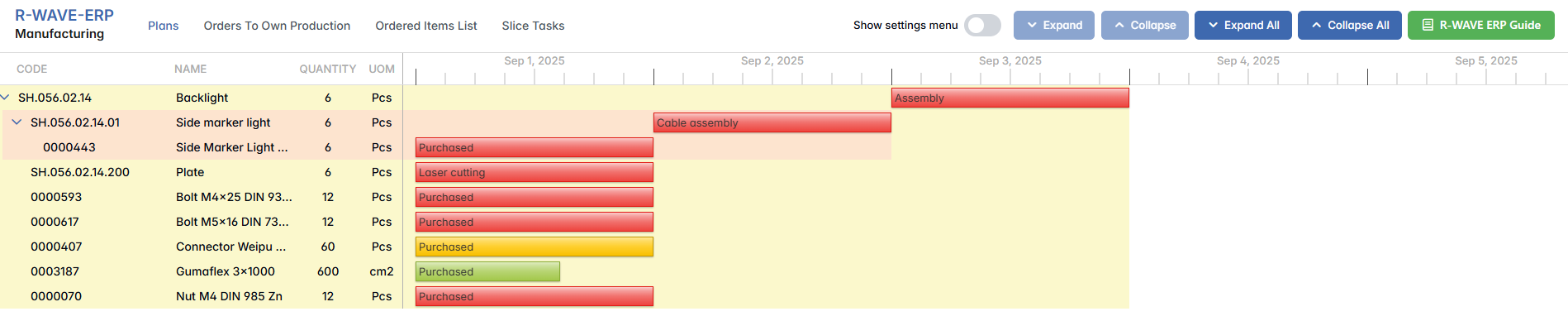
If the Root Lists field contains data, it is clickable and redirects the user to the relevant Plan page for detailed context.
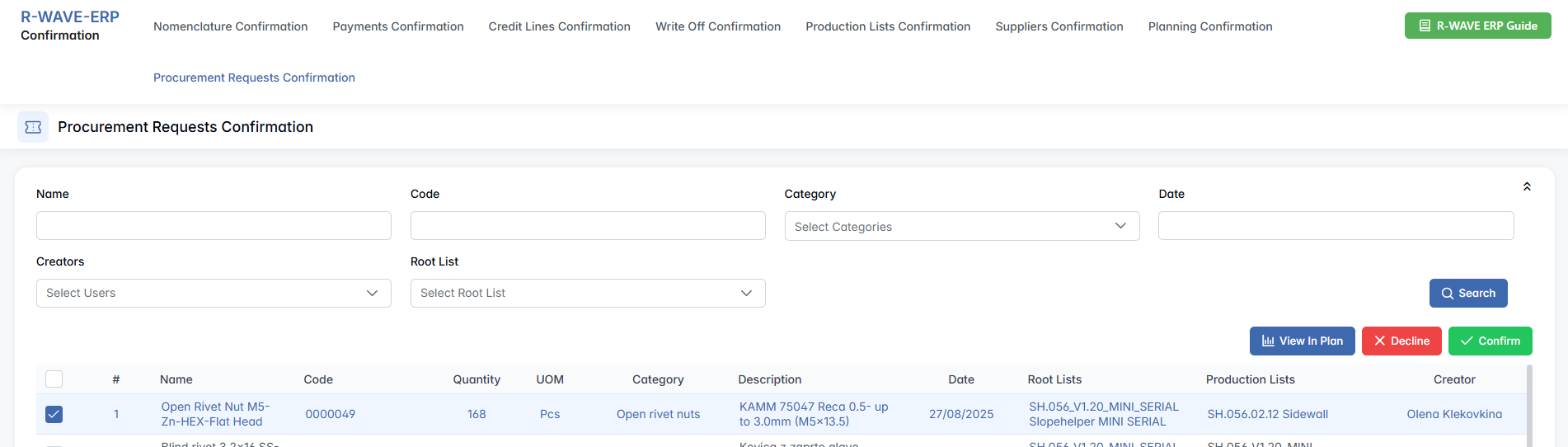
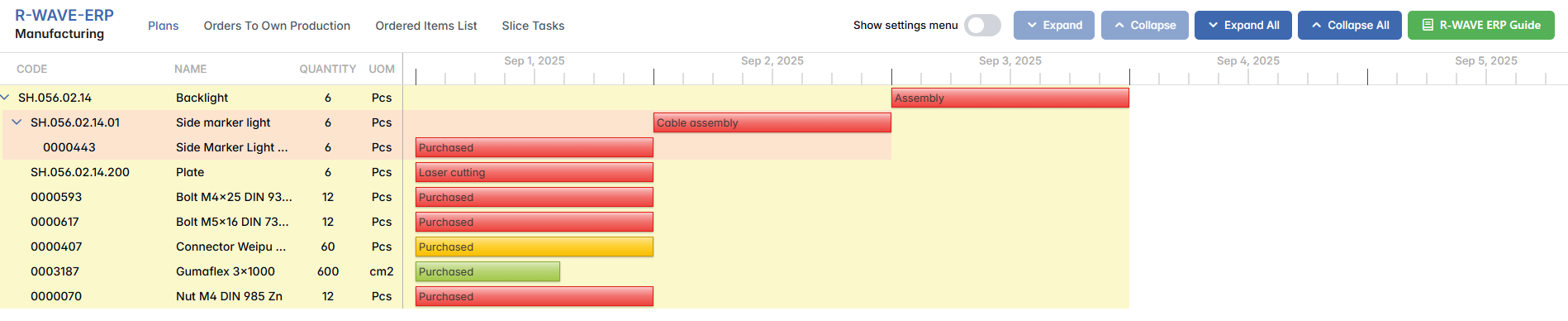
Confirming or Declining Requests
To take action:
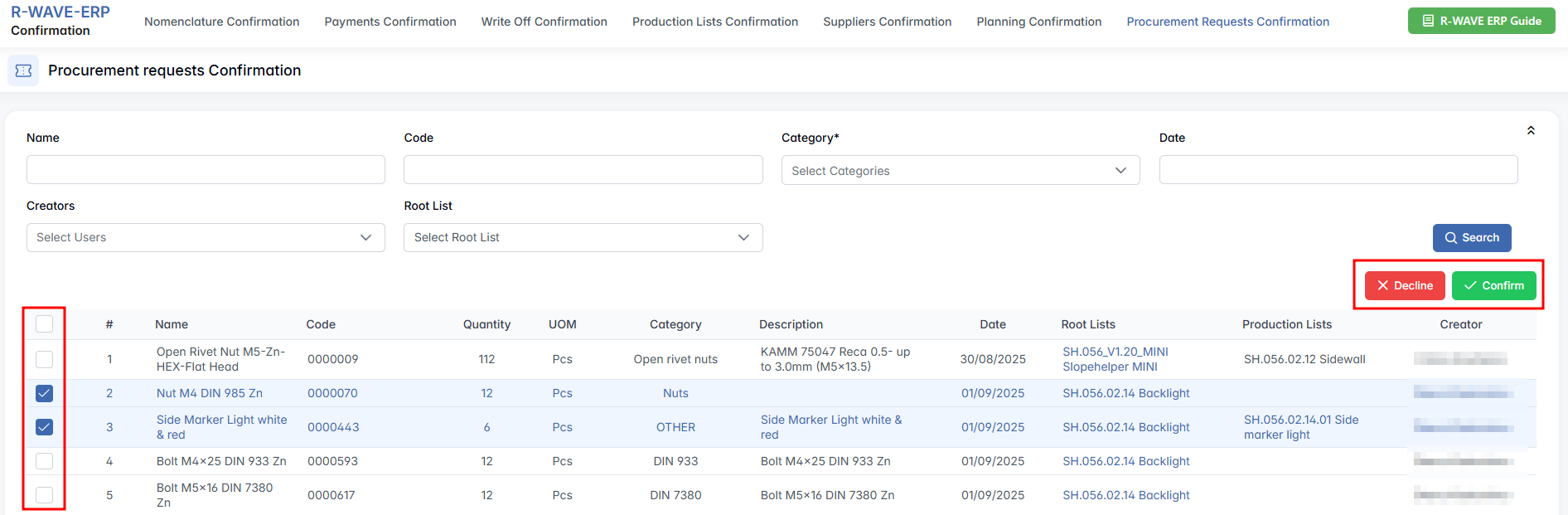
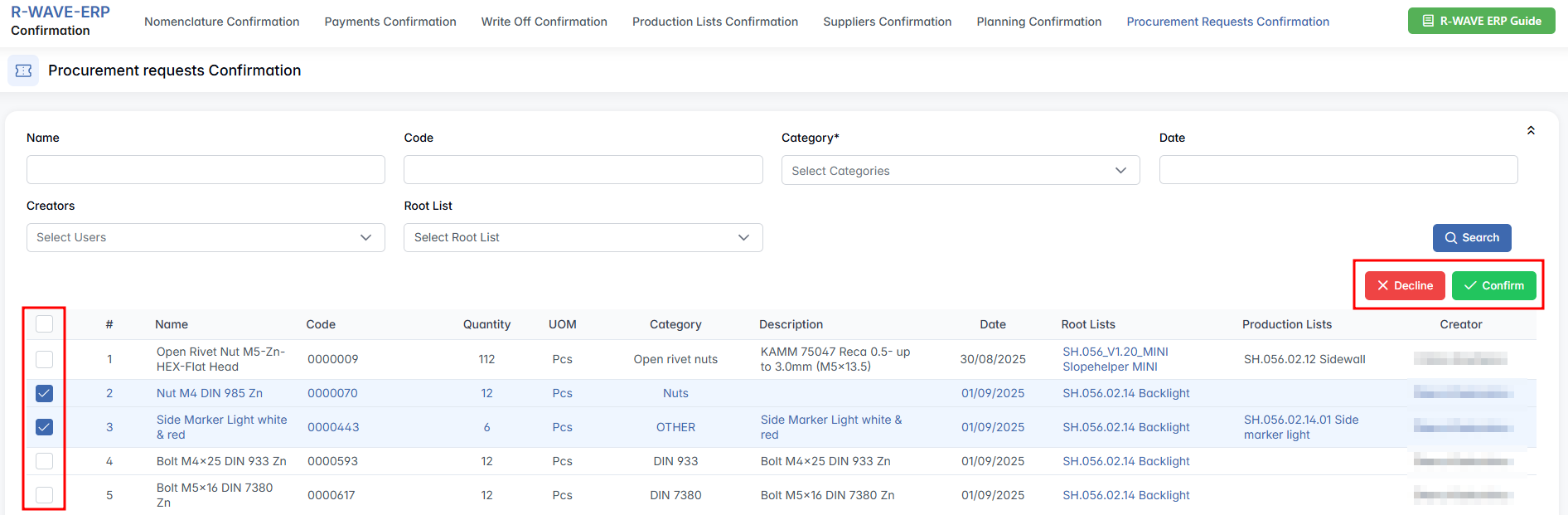
- Select one or more rows using the checkboxes on the left.
- Two action buttons will appear above the table:
- Confirm – approves the selected request(s) for further processing.
- Decline – rejects the selected request(s), preventing them from proceeding.
This functionality supports multi-select, allowing you to manage multiple requests in a single operation.
View In Plan
The third option you can choose is View In Plan, which takes you directly to the Plan site in a separate tab. Select a position and click View In Plan.
