BINU ERP Guide and BINU AI Assistant
The BINU ERP Guide and BINU AI Assistant are integrated help systems designed to support users as they work within the ERP environment. They provide real-time, context-aware assistance. The BINU ERP Guide combines visual business process diagrams with step-by-step operational instructions. The BINU AI Assistant is an AI-powered ERP documentation helper — it helps users understand workflows, offers step-by-step instructions, and guides them through the modules. The tools are accessible from any module and aim to improve navigation, clarity, and overall system understanding.
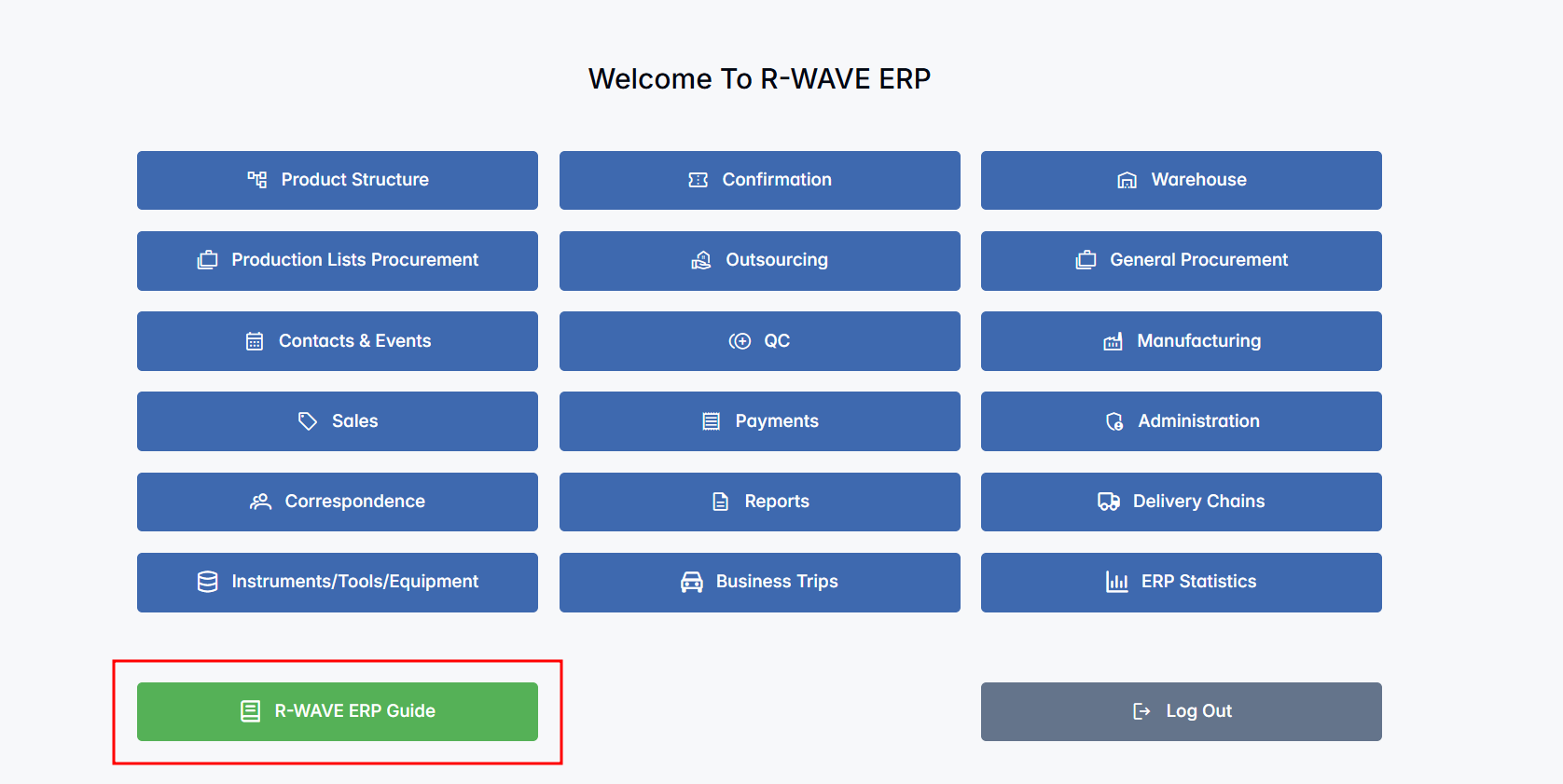
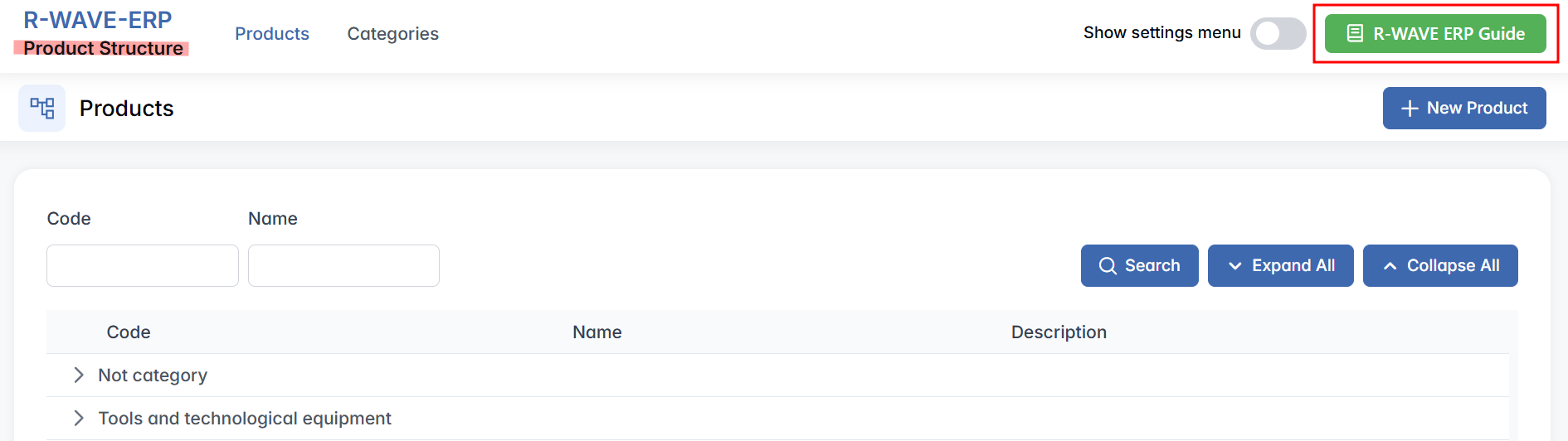
Accessing the ERP Guide and AI Assistant
You can access the BINU ERP Guide from any page by clicking the book icon in the upper-right corner of the screen.
You can access the BINU AI Assistant from any page by clicking the BINU AI icon on the right-hand side of the screen.
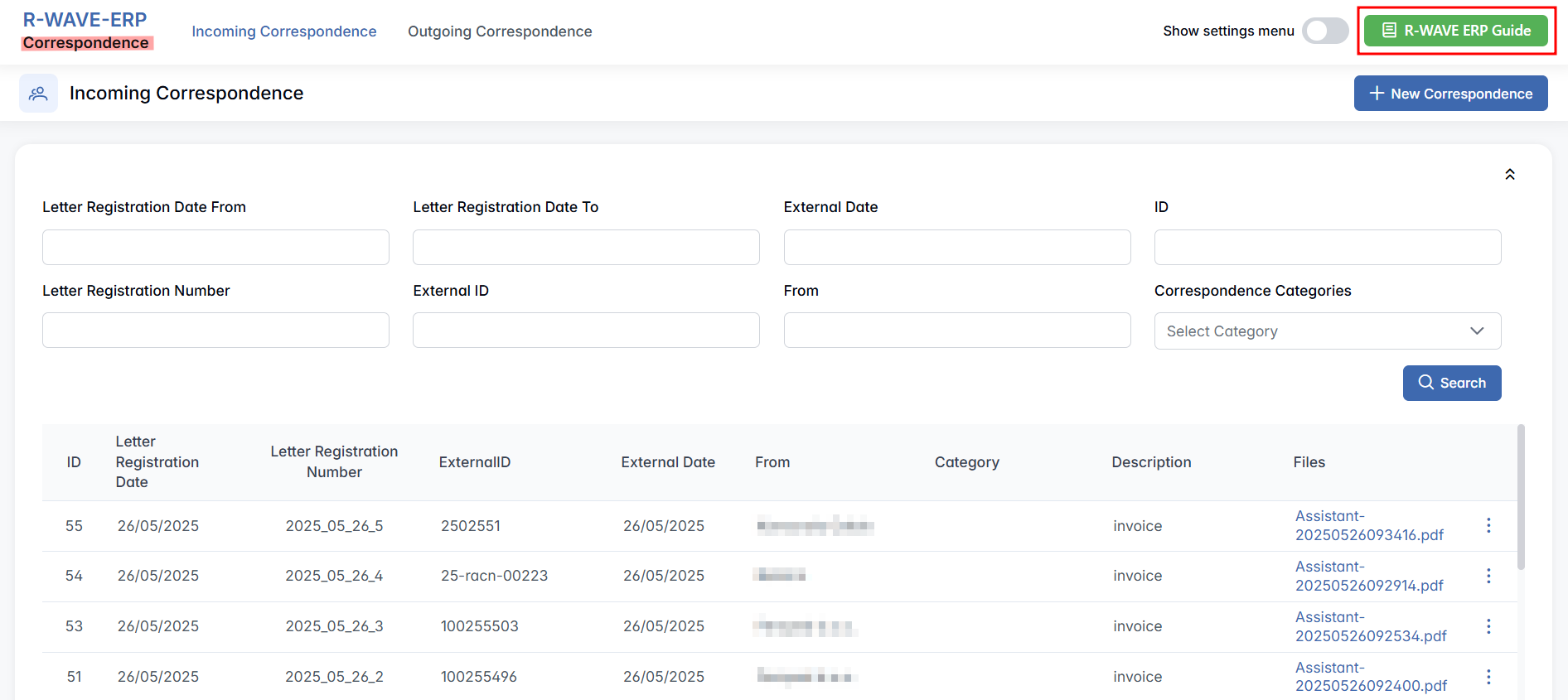
The BINU ERP Guide
When you click the BINU ERP Guide book icon, you land on the Business Flow map — a visual diagram of the modules and the business flow, showing the whole cycle of the discrete manufacturing process and all of its possible variations.
Business Flow Page: the Left and Right Panels
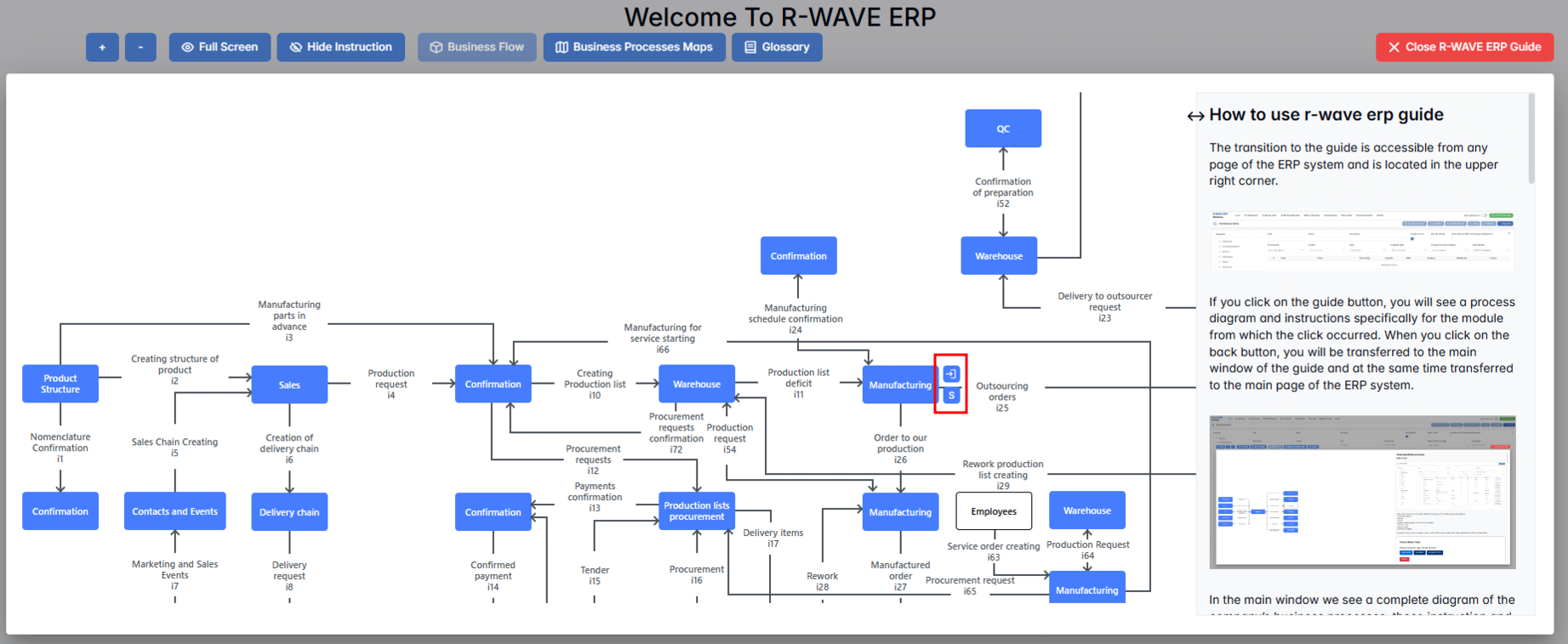
The BINU ERP Guide window has two main sections: the left panel displaying the business flow map and the right panel showing the instructions.
- Left panel — Business Flow — displays a visual diagram of the business processes. It shows how each module is interconnected; for example, how Sales, Manufacturing, Procurement, CRM, QC, and Warehouse connect.
- Right panel — Detailed Instructions — shows the instructions for the module you are currently in. You can widen the window, open the Table of Contents and search topics from it, or open the instructions in a new window. The content is presented in bullet format and covers the main functionalities, their descriptions, button behavior, operating rules, and tips for avoiding errors.
The Two Icons: Open Doors and Statistics

When you hover over a module, two active icons appear next to the module block: the Open Doors icon and the S (Statistics) icon.
- The Open Doors icon opens the detailed user guide for that specific module — it takes you to the business flow of that module and, on the right side, gives instructions on how to perform the process.
- The S icon opens the statistics page, where you can view real-time statistics related to that module or process.
The Top Bar Tools
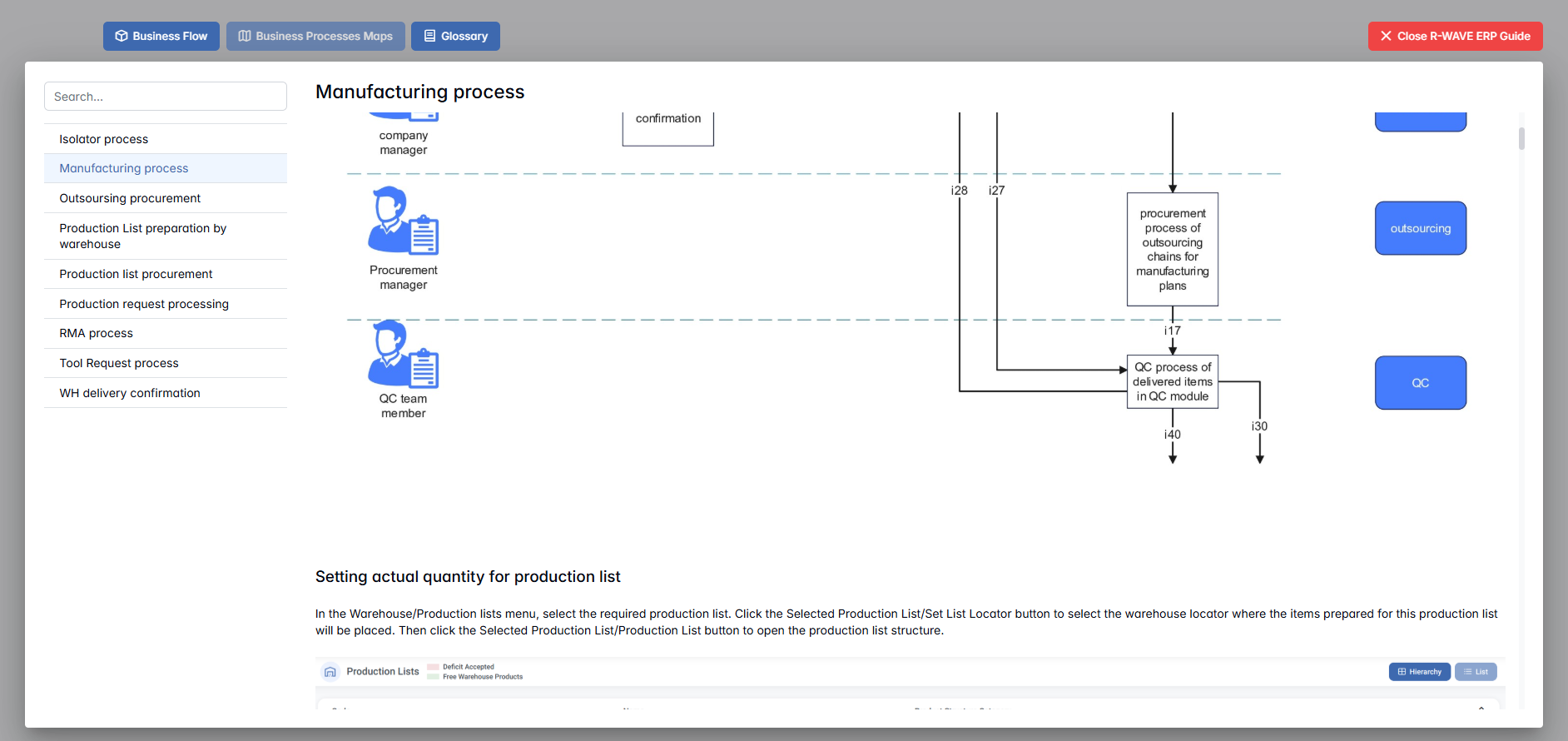
With the top bar tools you can zoom the page in and out, open it in full-screen mode, and open Business Processes Maps, Accounting Flow, and the Glossary.
The Business Flow page serves as the landing page after clicking the BINU ERP Guide icon. It presents the complete business processes through diagrams, helping users understand the overall operational structure.
Business Processes Maps
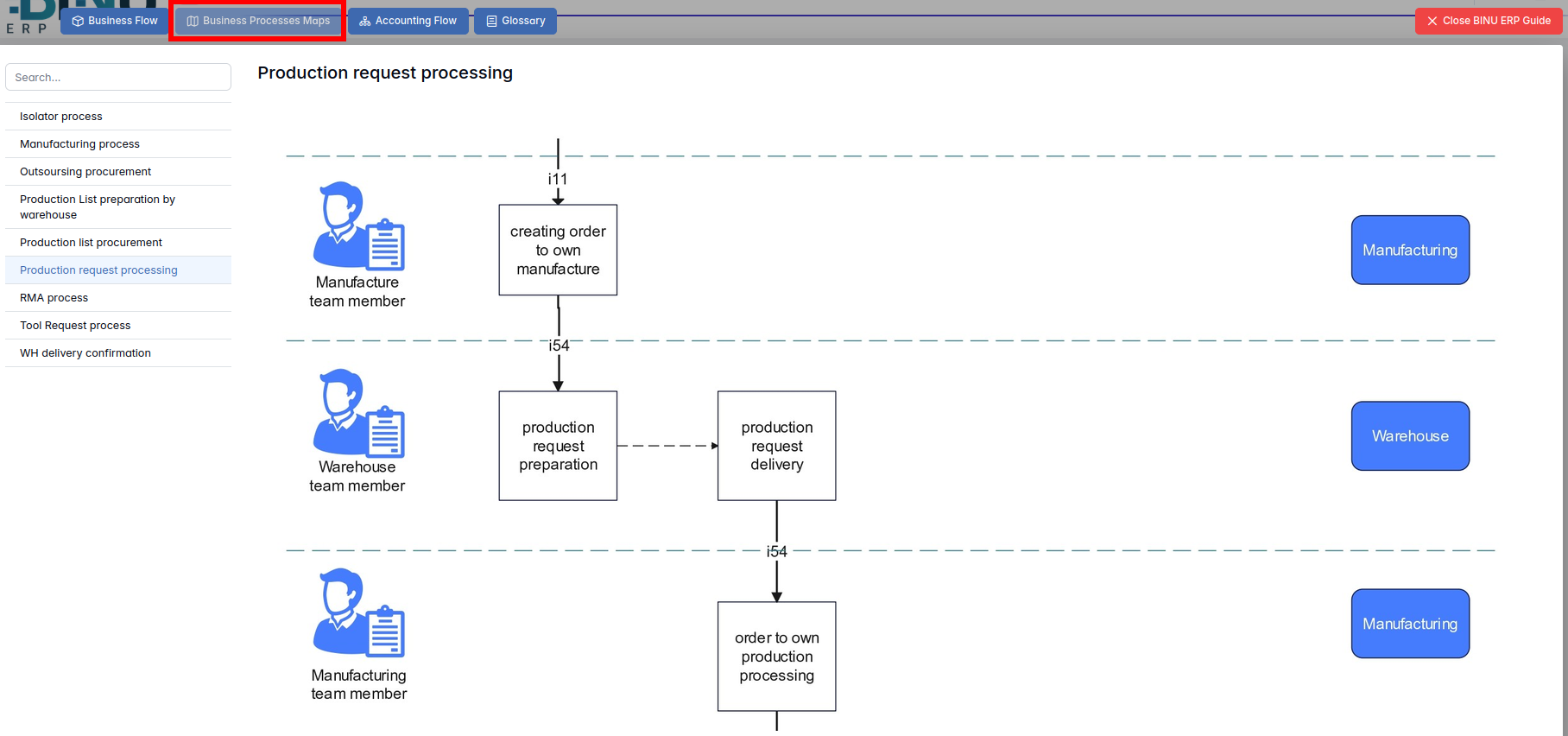
Business Processes Maps offer a detailed view of specific cross-functional workflows. Each entry describes the process, the departments involved, and the related modules.
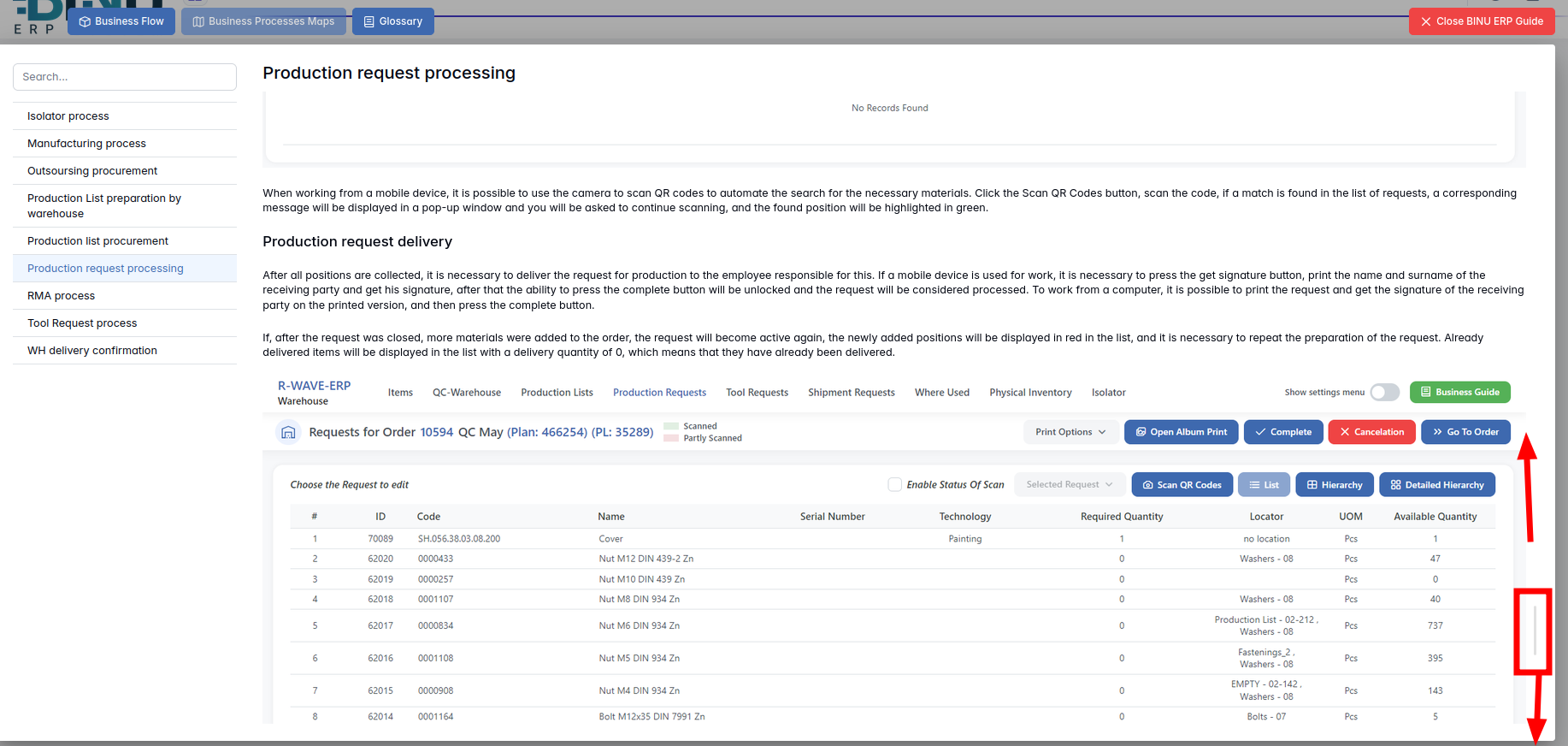
Scroll down to find a description of the process illustrated through a real-case example.
Accounting Flow
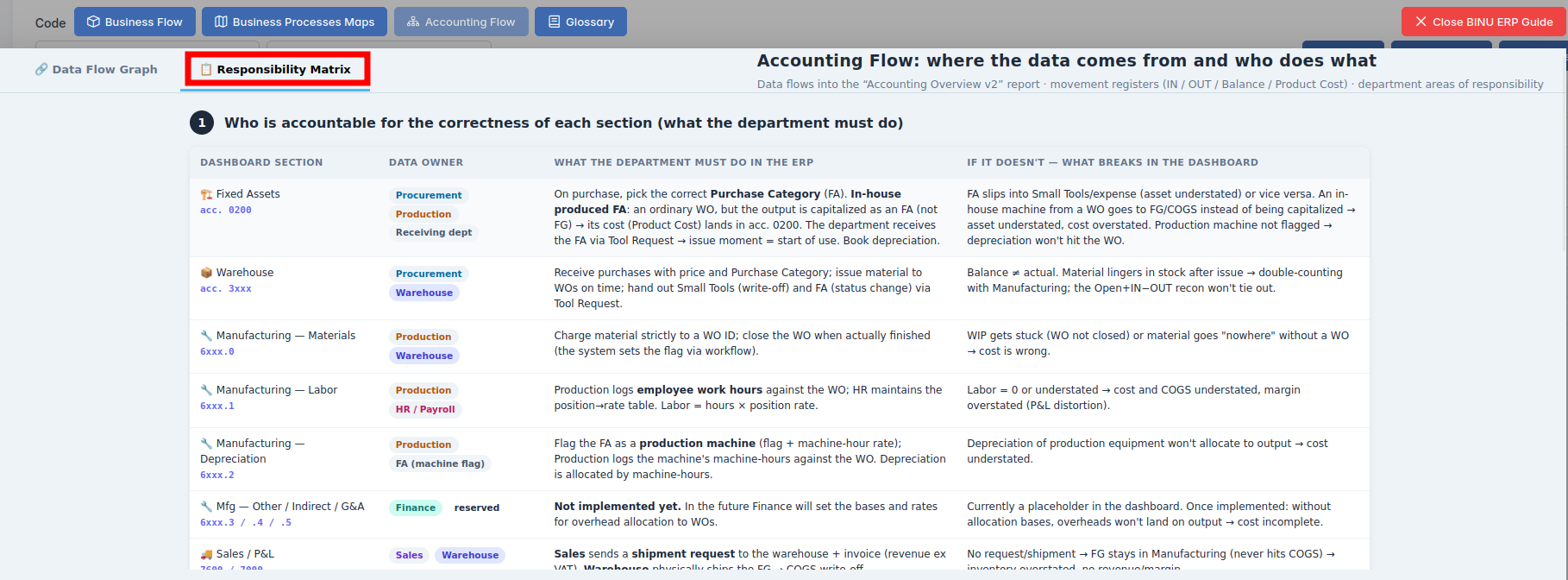
The Accounting Flow is a tool designed for the finance department; it shows where the data originates and defines responsibilities. It consists of two parts: a Data Flow Graph and a Responsibility Matrix.
The Data Flow Graph displays the movement of items from departments to the warehouse and from the warehouse to the departments. Based on these movements, the system tracks the flow of goods entering and leaving the company.
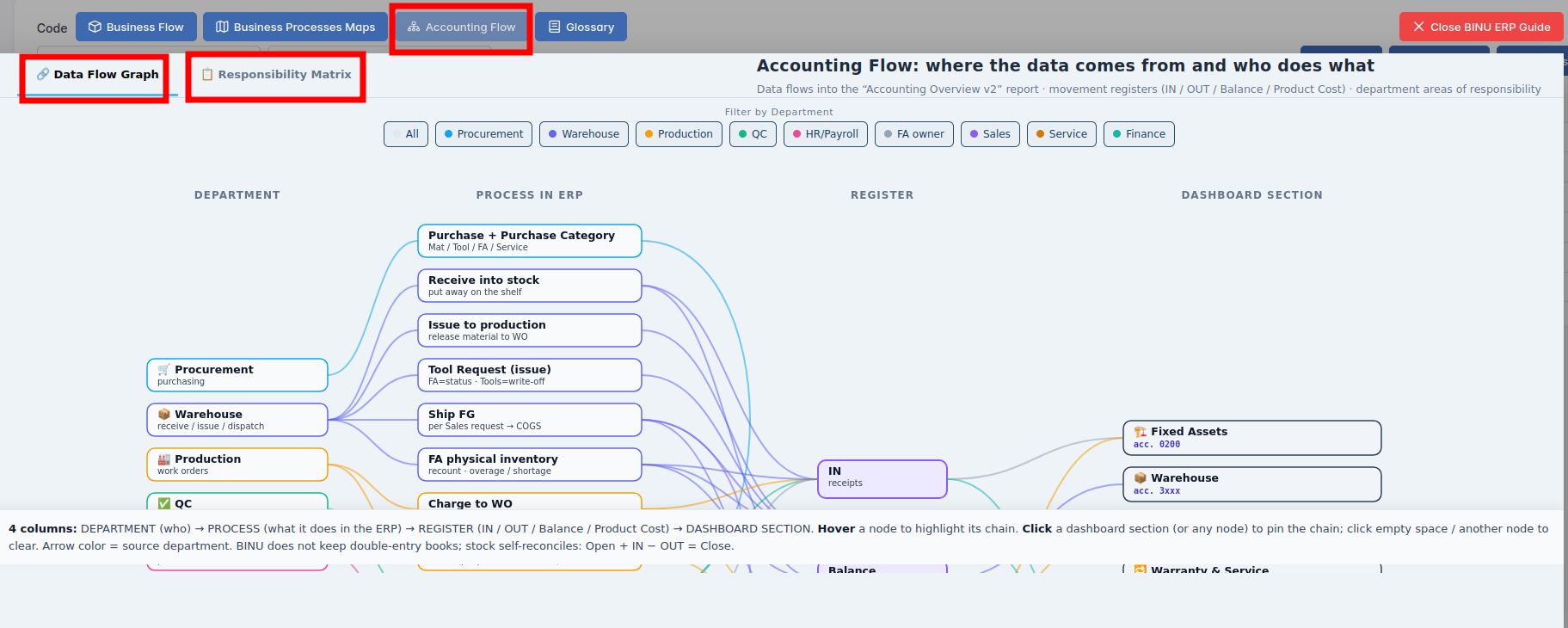
The Responsibility Matrix identifies the department accountable for the selected process.
Glossary
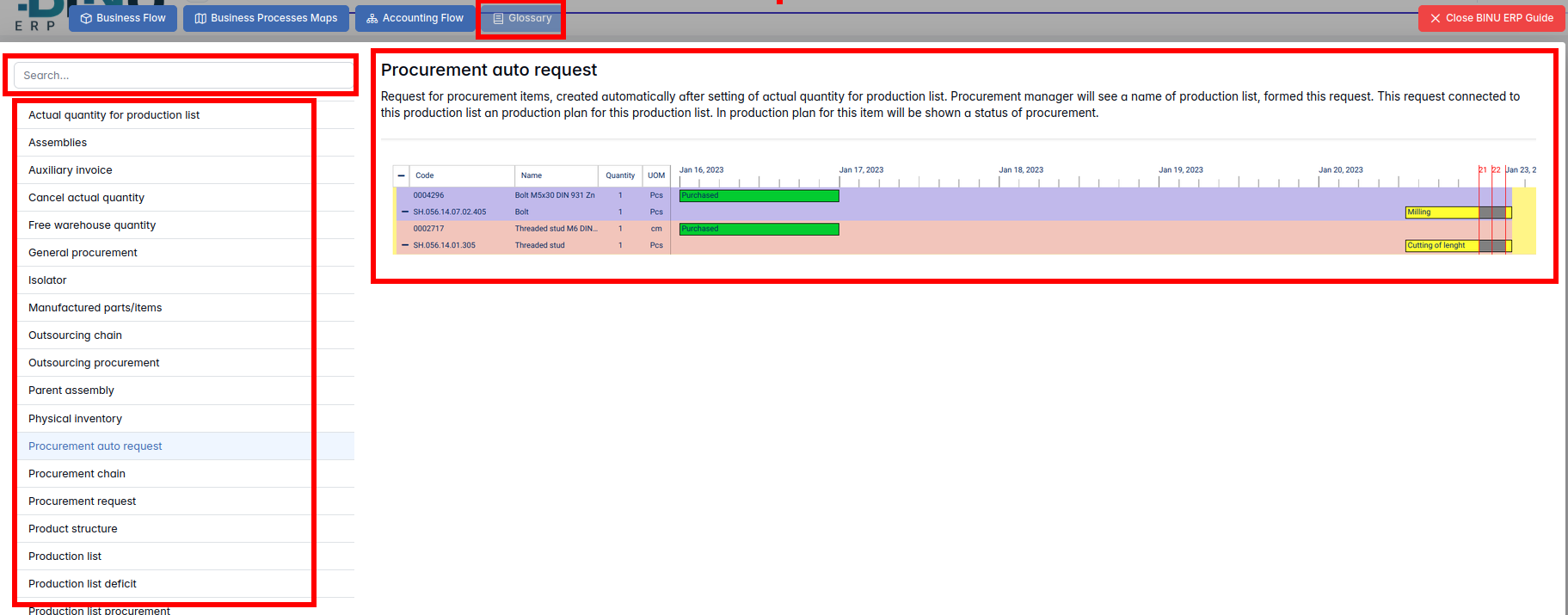
The Glossary opens a dedicated page with definitions of internal BINU ERP terms and field labels. The layout includes a search bar and a searchable list of terms on the left panel, with the full definitions on the right panel.
These tools allow you to explore the system more deeply and understand how each function fits into the broader operational context.
The BINU AI Assistant
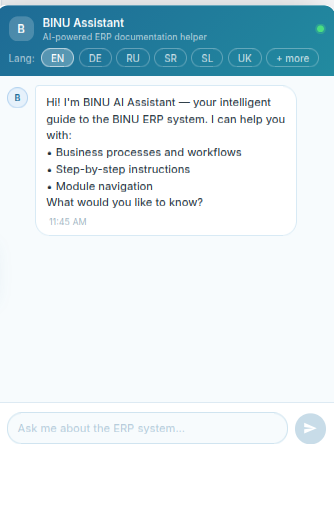
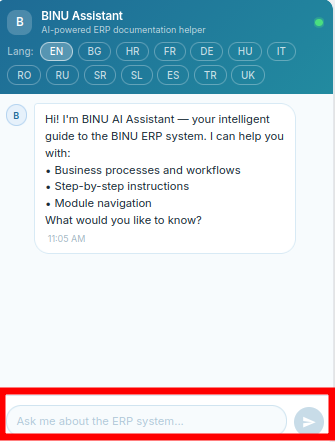
When you click the BINU AI Assistant icon on the right-hand side of the screen, the chat window opens.

Language Options for Conversation
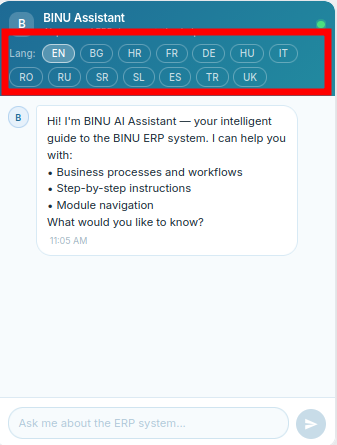
In the upper part of the chat window, you can choose the language for the conversation. The supported languages are: English, Bulgarian, Croatian, French, German, Hungarian, Italian, Romanian, Russian, Serbian, Slovenian, Spanish, Turkish, and Ukrainian.
Range of Topics the AI Assistant Covers
The BINU AI Assistant covers all topics relating to any part of the BINU ERP system. You can ask it about the meaning of a certain expression, about a process, about functionalities, and even request documentation on a topic. Start the conversation by typing in the field at the lower part of the AI chat box.
The Purpose and Benefits of the BINU ERP Guide and AI Assistant
They provide the user with:
- Context Awareness – shows where the user is within the system and how that module fits into the company's operations.
- Process Understanding – the business flow map makes it easy to grasp upstream and downstream dependencies.
- Quick Access to Instructions – clear, focused instructions help users perform tasks without switching to external help resources.
- Improved Usability – users can work independently and resolve common questions with minimal disruption.
- Faster Onboarding – new employees can explore the system and understand workflows without formal training sessions.