Payments Module
The Payments module in BINU ERP allows you to track and manage both outgoing and incoming payments associated with procurement and sales billing. It provides real-time visibility of payment statuses, supports document uploads, and allows payment creation directly within the interface.
This module includes the following key tabs:
- Payments (outgoing)
- Delivery (incoming payments)
It helps your team organize procurement and sales-related payments, confirm transactions, and keep financial records up to date.
The BINU ERP Guide and AI Assistant Tools
The BINU ERP Guide and AI Assistant Tools
The BINU ERP system provides tools to support users in navigating and understanding the processes and functionalities of the system. These tools — the BINU ERP Guide and the BINU AI Assistant — include a built-in contextual help. They are non-intrusive and can be closed or reopened as needed, allowing users to remain focused on their current workflow without interruption.
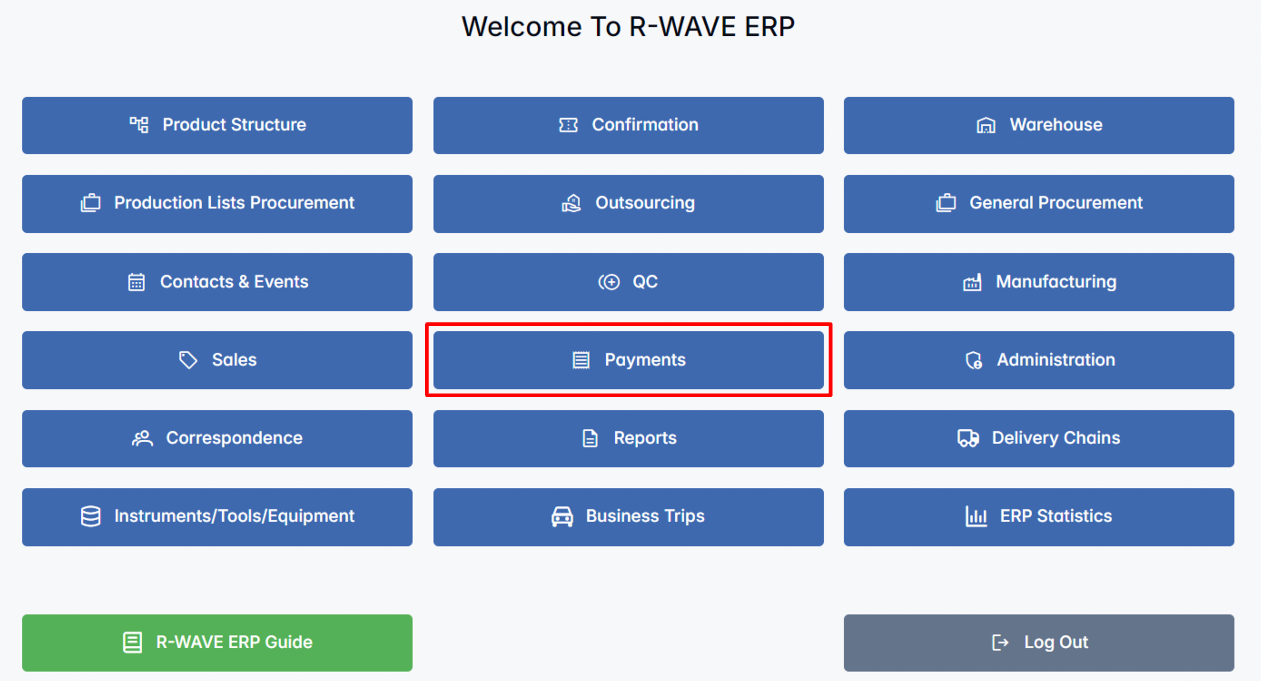
When you click the BINU ERP Guide icon in the upper-right corner of the screen, the pop-up guide window opens. This feature is available across different modules and is designed to help users understand where they are in the system and how to use the current section effectively.

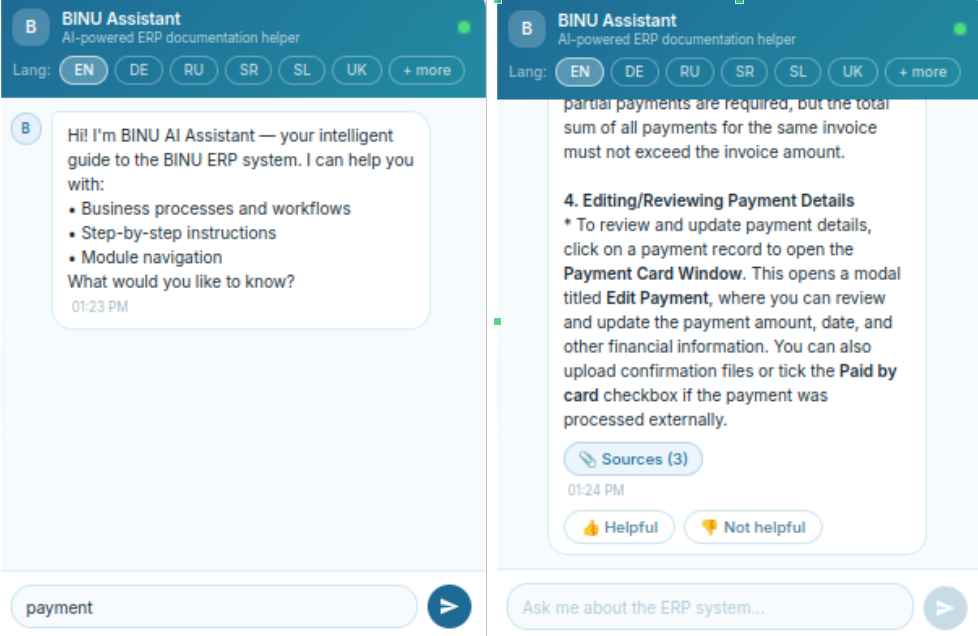
When you click the BINU AI feature on the side of the screen, the chat window opens, where users can choose their language of conversation. The supported languages are: English, Bulgarian, Croatian, French, German, Hungarian, Italian, Romanian, Russian, Serbian, Slovenian, Spanish, Turkish, and Ukrainian.
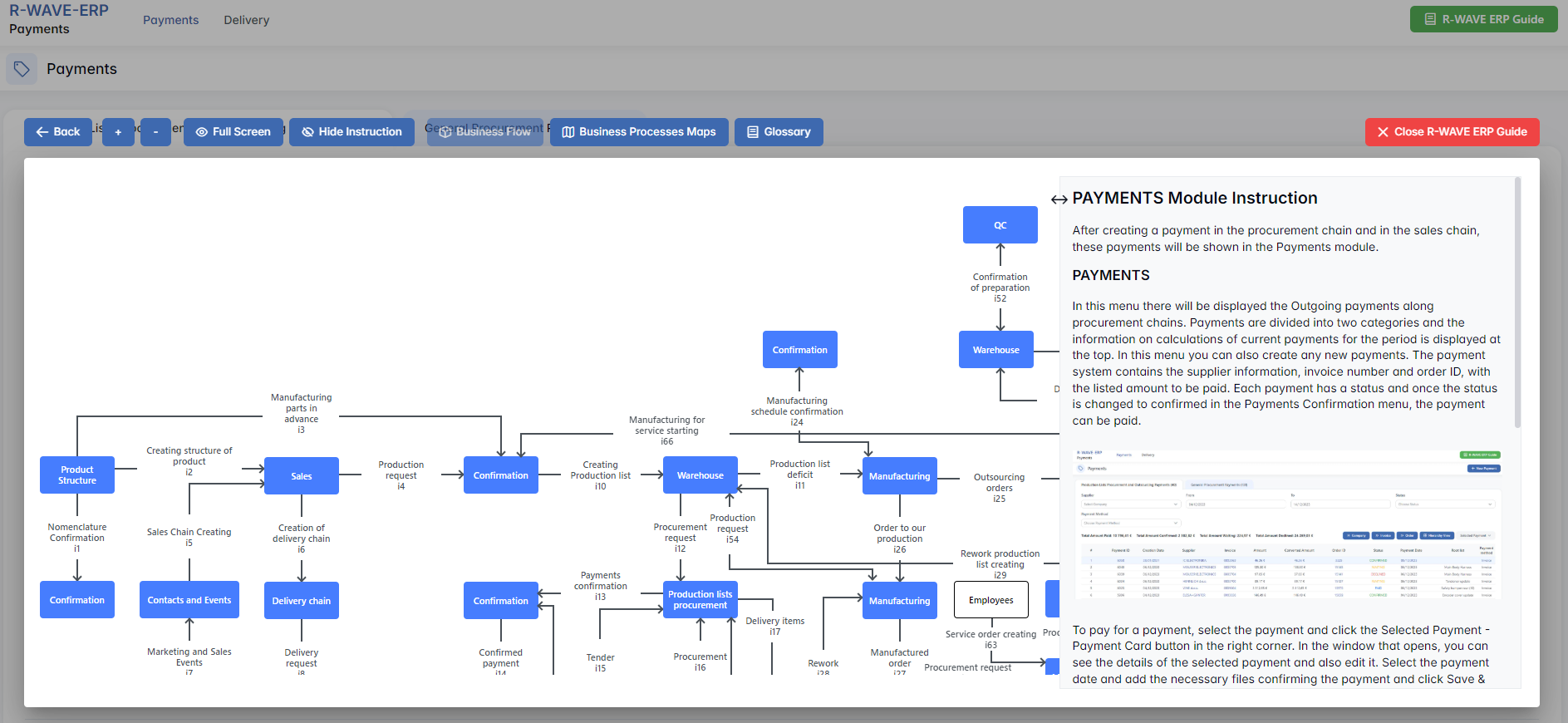
The BINU AI Assistant provides explanations and documentation for all topics related to the BINU ERP system. Users can ask about specific terms, business processes, system functionalities, or request documentation on a particular topic. To begin, type your question in the input field at the bottom of the chat window.
The BINU ERP Guide: Quick Overview

When you click the BINU ERP Guide book icon, you land on the Business Flow map. It has two main sections: the left panel displaying the business flow map and the right panel showing the functional overview.
- Left panel — Business Flow Map — displays a visual diagram of the business processes. It shows how each module is interconnected; for example, you can see how Sales, Manufacturing, Procurement, CRM, QC, and Warehouse are interconnected.
- Right panel — Functional Overview — provides a concise, bullet-style instruction list describing the key operations available in the current module/tab.
Top Bar Options
At the top of the ERP Guide window, you'll find optional tools for deeper understanding: Business Processes Maps, Accounting Flow, and Glossary. The Accounting Flow is meant for financial departments.

Business Processes Maps
Business Processes Maps provides a visual representation of the company's operational structure and business flow. It helps the user understand how the current module fits into the larger operational structure and makes it easy to grasp the upstream and downstream dependencies within the business processes. The Business Processes Maps can be accessed from various modules.

Accounting Flow: Data Flow Graph and Responsibility Matrix
Accounting Flow is a tool designed for the finance department; it shows where the data originates and defines responsibilities. For this purpose, it consists of two parts: a Data Flow Graph and a Responsibility Matrix.
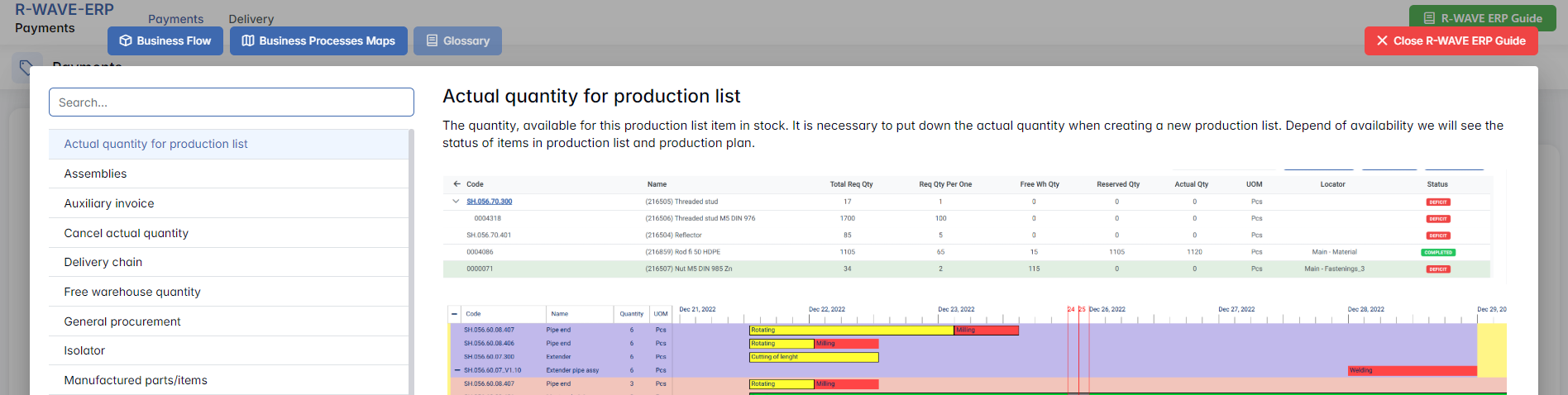
The Data Flow Graph displays the movement of items from departments to the warehouse and from the warehouse to the departments. Based on these movements, the system tracks the flow of goods entering and leaving the company. The Dashboard section, planned for a future release, will allow users to view real-time data (in, out, balance, product costs).
If you hover over a diagram block, the system highlights the corresponding movement chain.
If you click a block in the diagram, you fix the highlighted chain. To narrow the selection further, click a block in the second, third, or fourth column.

The Responsibility Matrix identifies the department accountable for the selected process.
Glossary
Glossary provides definitions and descriptions of key terms and functionalities used throughout the system. The Glossary can be accessed via the BINU ERP Guide, which is available on any page of the system.

The BINU AI Assistant: Quick Overview
The BINU AI Assistant is specifically designed to help the user with ERP documentation questions. It provides information and assistance related to the BINU ERP system. The BINU AI Assistant understands fifteen (15) languages. It is available on every page as a non-intrusive help tool.
The Purpose of the BINU ERP Guide and BINU AI Assistant Tools
The BINU ERP Guide and BINU AI Assistant help users by:
- Showing where they are within the system (module context and current section).
- Providing a visual schema of the business flow, helping them understand how the current module fits into the larger operational structure.
- Offering a quick-reference instruction panel with the main actions and functions available in the current tab (e.g., creating companies, filtering, scheduling events).
- Offering quick access to the relevant documentation (AI-powered ERP documentation helper).
Payments
Payments Module Overview
Payments Module Overview
The Payments module in BINU ERP serves as a centralized hub for tracking and managing both outgoing and incoming payments associated with procurement and sales operations. Payments appear in this module automatically after they are created within the procurement or sales billing — no manual creation is possible from this interface.
This module provides financial visibility across key transactions, highlights payment statuses, and allows users to view and update essential payment data including payment date, method, linked invoice, supplier or customer, and confirmation status.
At the top level, the Payments module consists of two main sections:
- Payments — displays all outgoing payments related to procurement chains.
- Delivery — shows incoming payments from customers through sales billing.
Each payment record includes information such as the invoice number, order ID or sales billing ID, transaction amounts, status, and links to related procurement or sales data.
Production Lists Procurement and Outsourcing Payments
Production Lists Procurement and Outsourcing Payments
This tab displays outgoing payment records related to Production Lists Procurement and Outsourcing. The records are shown in a structured table format and represent payment transactions linked to production workflows — including both internal manufacturing and outsourced services.
Filter Panel
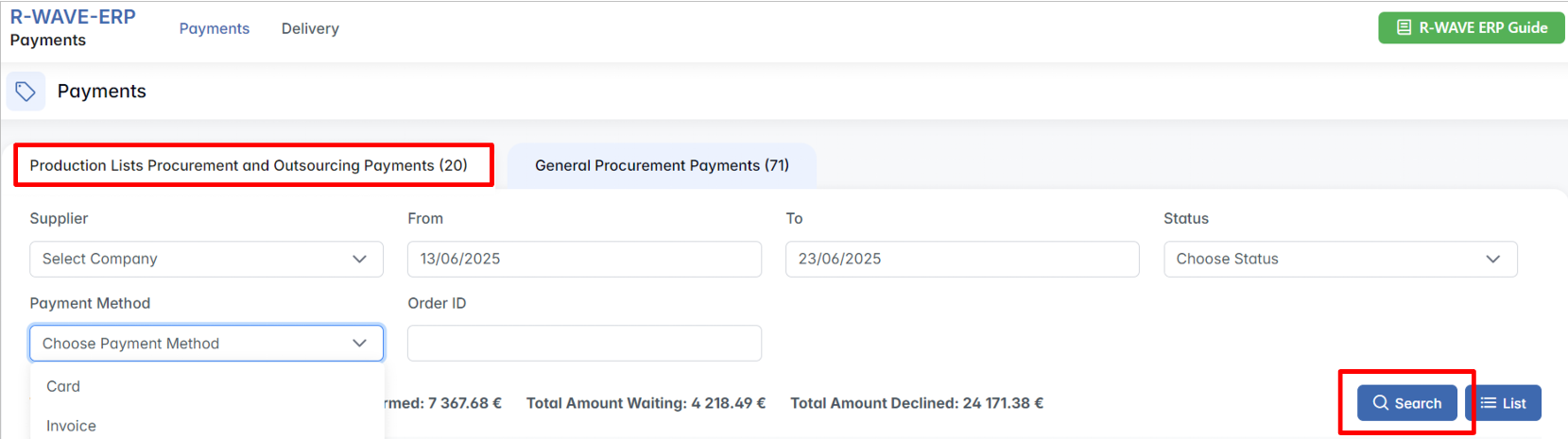
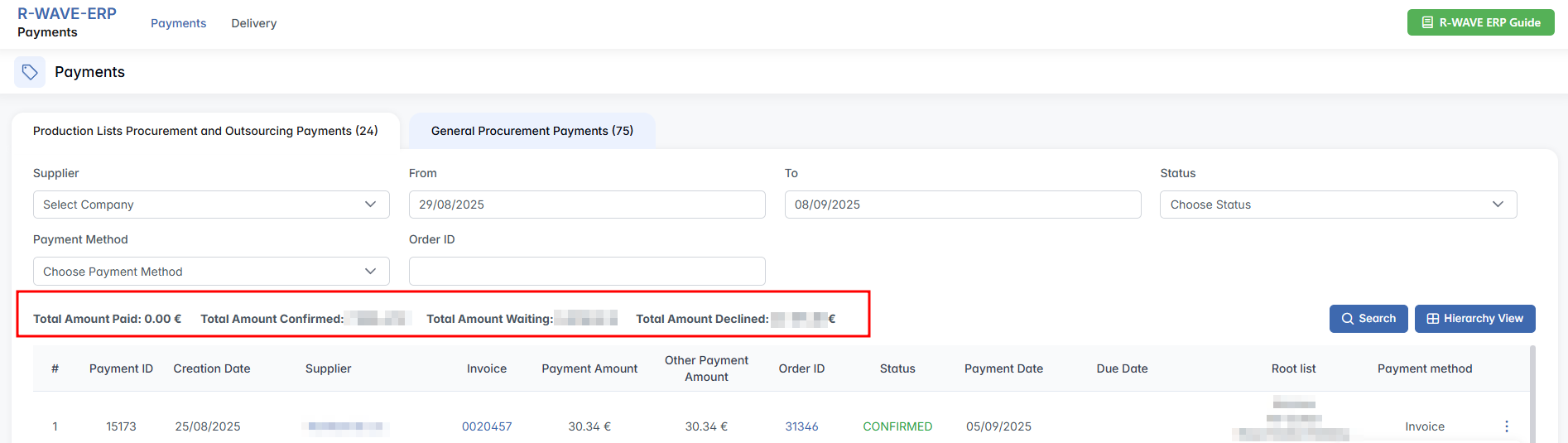
At the top of the page, a filter panel is available for narrowing down the displayed records. Users can search using the following fields:
- Supplier – drop-down list to select a supplier.
- From / To – define a creation date range for the payments.
- Status – drop-down list with the options: Waiting, Confirmed, Paid, Declined.
- Payment Method – drop-down list with options like Invoice, Card.
- Order ID – free-text field for searching by a specific procurement order.
To apply filters, the user must click the Search button.
To the right of the Search button, two view options are available:
- List – flat tabular view (default).
- Hierarchy View – collapsible grouped view by procurement category.

Summary Metrics
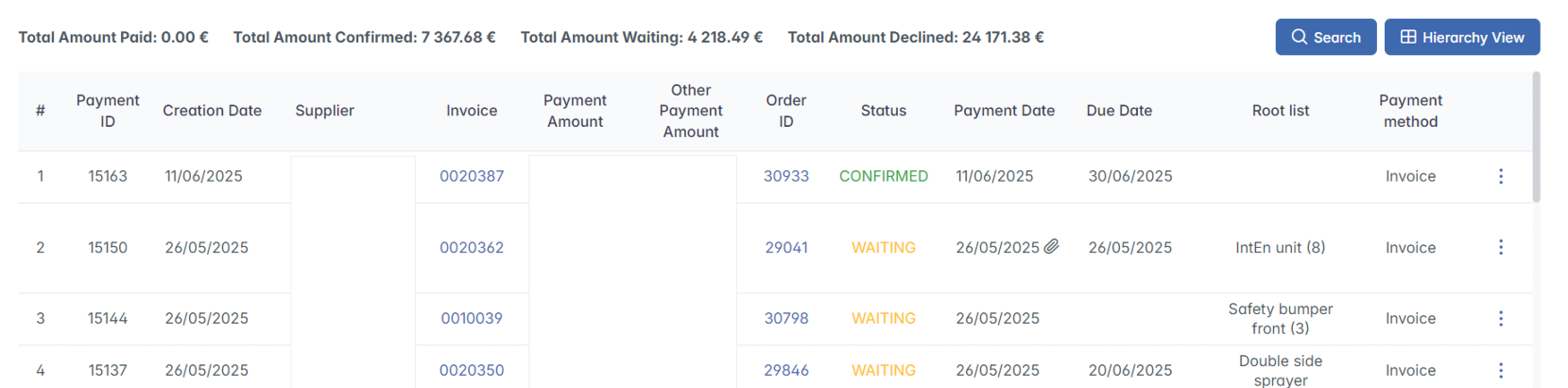
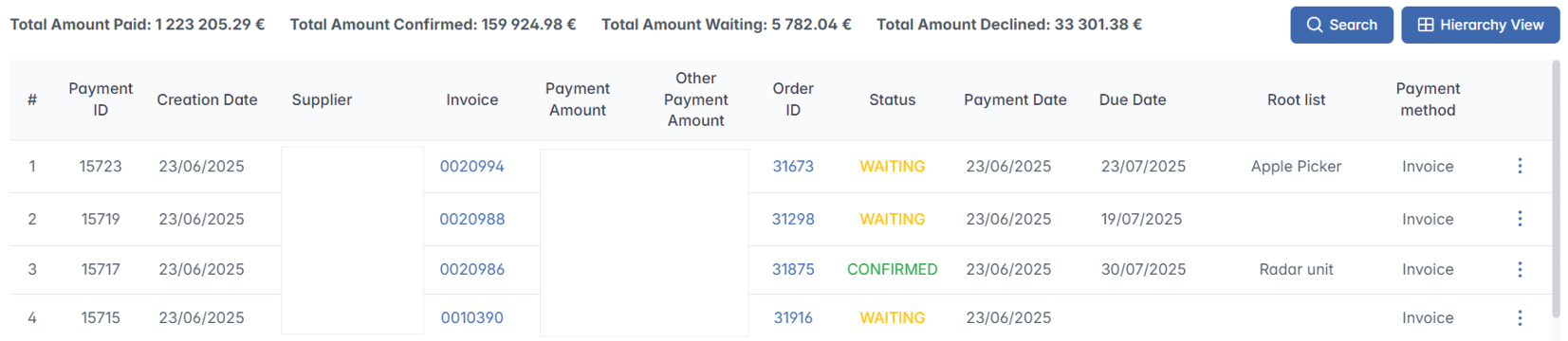
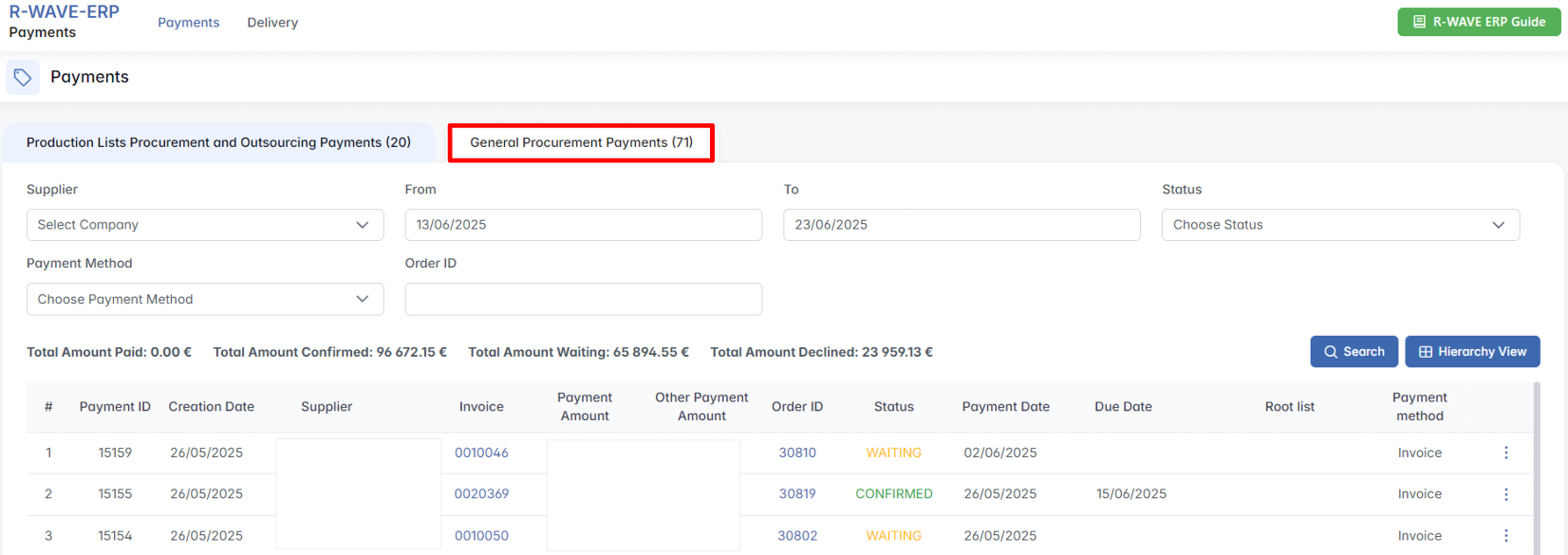
Below the filters, a financial summary bar displays the aggregated values for the currently visible payments: Total Amount Paid, Total Amount Confirmed, Total Amount Waiting, Total Amount Declined.
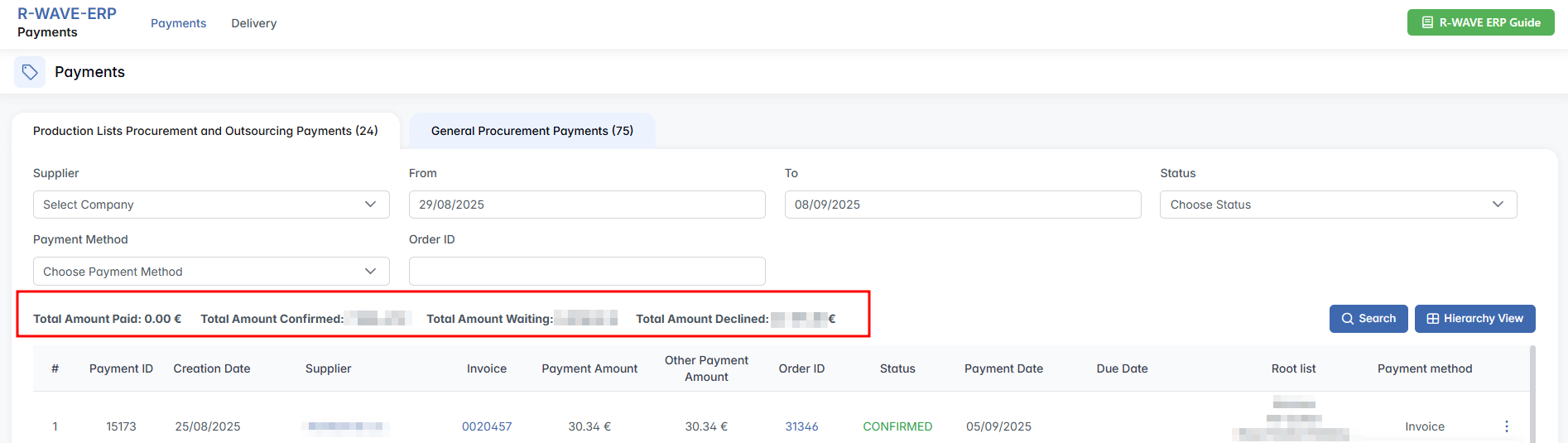
These values update dynamically based on the applied filters.
Payment Table
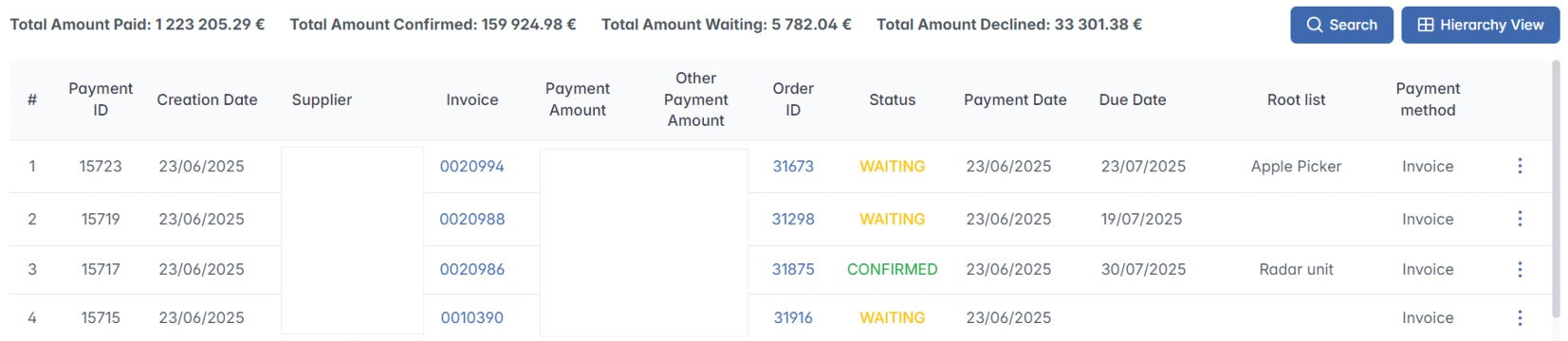
Filtered results are shown in a structured table with the following columns:
| Column | Description |
|---|---|
| Payment ID | Unique internal identifier for the payment. |
| Creation Date | Date when the payment record was generated. |
| Supplier | Name of the supplier. Clickable: opens the supplier profile. |
| Invoice | Invoice number. Clickable: opens the invoice view. |
| Payment Amount | Total payment amount in euros. |
| Other Payment Amount | Additional payments, if applicable. |
| Order ID | Linked procurement order. Clickable: opens the order. |
| Status | Payment state (Waiting, Confirmed, Paid, Declined) with color-coding. |
| Payment Date | Date the payment was or will be executed. |
| Due Date | Deadline for completing the payment. |
| Root List | Name of the associated production list. |
| Payment Method | Method used for payment (e.g., Invoice, Card). |
Columns Supplier, Invoice, and Order ID are clickable — clicking the number or name redirects to the corresponding page.
Row Actions (⋯ Menu)
Each row contains a three-dot icon on the right, which opens a contextual action menu with:

- Payment Card – Opens the payment editing window.
- Remove – Deletes the payment record.
Payment Card Window
Clicking Payment Card opens a modal titled Edit Payment:
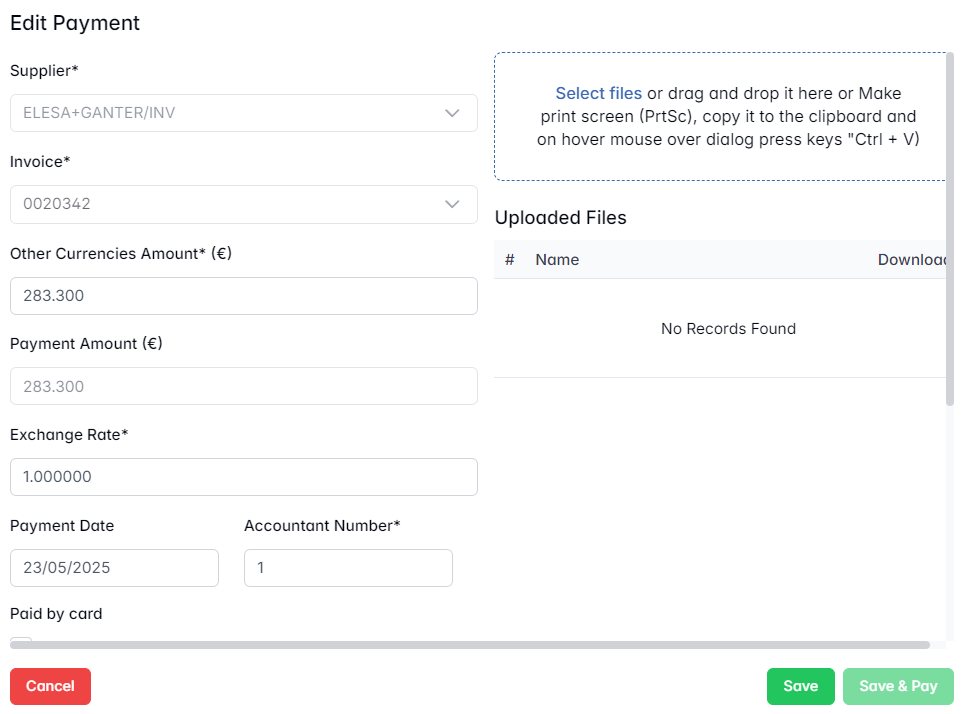
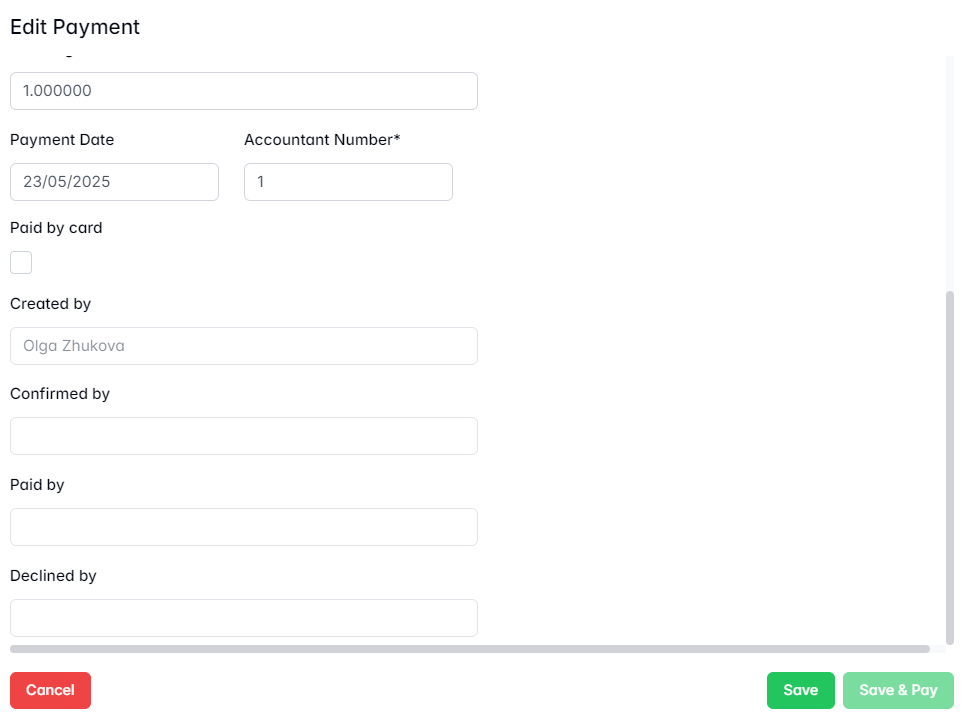
Here you can review and update the payment amount, date, and other financial fields. Most fields (such as supplier, invoice, and exchange rate) are pre-filled and locked after initial confirmation.
You can also:
- Upload confirmation files by dragging them into the Uploaded Files area.
- Tick the Paid by card checkbox if the payment was processed externally.
- See who created or confirmed the payment, and optionally record who paid or declined it.
At the bottom of the window, action buttons allow you to:
- Save the information without completing the payment.
- Save & Pay to register the payment and mark it as "PAID".
General Procurement Payments
General Procurement Payments
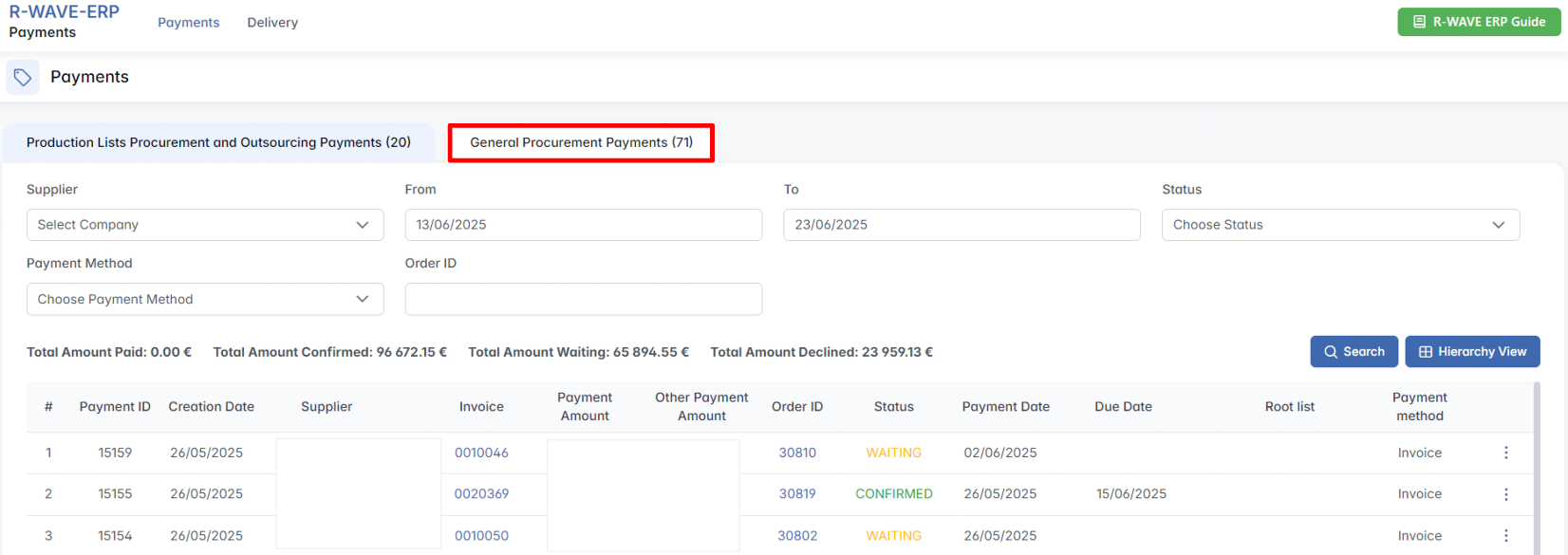
This tab displays all payments related to general procurement outside of production workflows. It includes transactions such as administrative purchases, services, and other operational expenses.
The interface and functionality fully mirror the previous tab — filters, table layout, status tracking, and the Payment Card window behave in the same way.
Delivery
Delivery
The Delivery tab provides an overview of incoming payments along sales chains, based on issued invoices and delivery confirmations. This tab is used to track expected payments from customers and monitor their completion status.
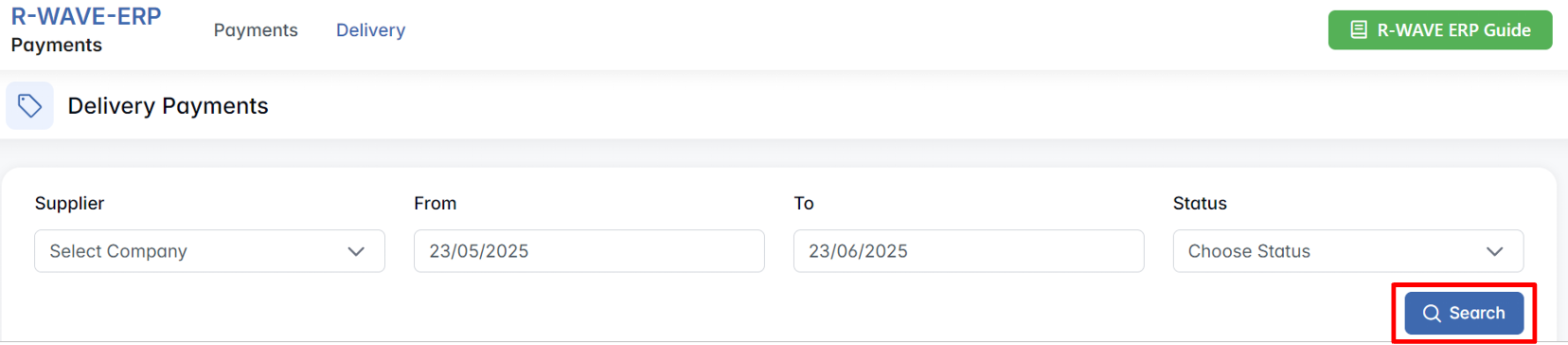
At the top of the tab, a standard filter panel allows users to narrow the list of results using the following fields:
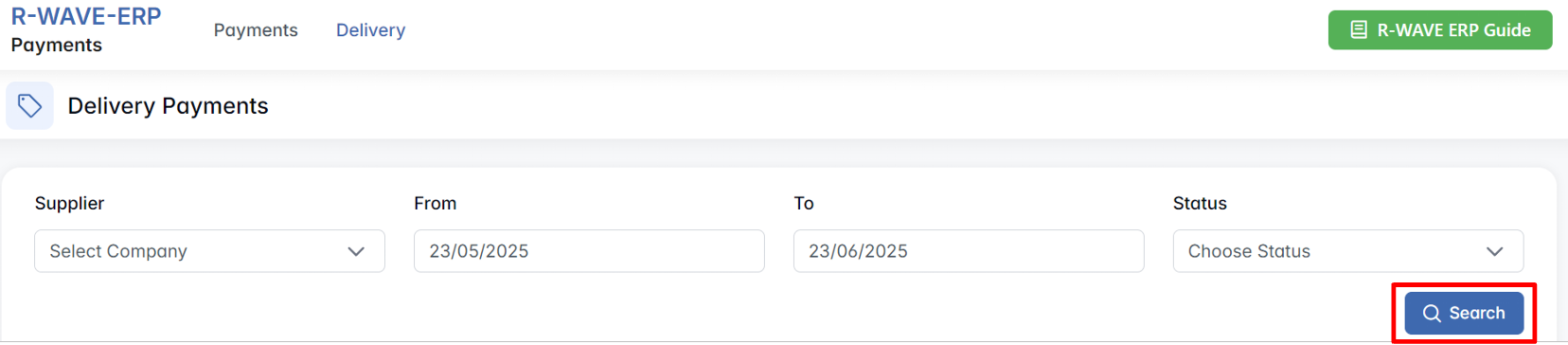
- Supplier – dropdown list (refers to customer in this context)
- From / To – payment creation date range
- Status – dropdown list with available statuses (e.g., Waiting, Paid)
Once filters are applied and the Search button is pressed, the results are displayed in a structured table with the following columns:

| Column | Description |
|---|---|
| Payment ID | Unique identifier of the incoming payment |
| Date | Date the payment record was created |
| Customer | Name of the paying customer |
| Invoice | Invoice number issued to the customer |
| Amount | Total amount expected |
| Sales Billing ID | Associated sales billing record |
| Status | Current payment status |
| % Paid | Percentage of the invoice amount already received |
The system tracks the progress of each payment, and once the % Paid field reaches 100%, the status is automatically updated to PAID. As in other sections of the module, key fields such as Invoice and Sales Billing ID are clickable and lead directly to the corresponding records for reference and verification.
This tab supports financial visibility across the sales pipeline and ensures timely follow-up on outstanding receivables.